SMS & WhatsApp Inbox: Team Messaging & A2P 10DLC Setup
Table of Contents
- Overview of the Inbox
- How to Set Up an Inbox
- How to Use the Inbox
- How to Use the Internal Chat
- How Team Inbox Assigning Works
- Inbox FAQs
1. Overview of the Inbox
The Inbox is your central workspace for receiving and managing SMS and WhatsApp communications. You will see this as the central workspace for agents and teams.
There are three types of inboxes in PBX.IM, each designed for a specific workflow and need within the team.
My Inbox
This is your personal inbox for direct messages.
Every user gets a personal inbox that captures all SMS and WhatsApp messages assigned to them. Link a phone number, and incoming messages appear automatically.
Internal Chat
This is the private communication space for your team.
It's available by default for every user, built for messaging between team members, and fully contained within PBX.IM.
Team Inbox
This is a shared space for collaborative customer communication.
Multiple agents can view and respond to the same conversations, making it ideal for sales, support, or billing teams. Admins or Owners can create as many team inboxes as needed, such as Sales Inbox, Support Inbox, Billing Inbox, etc.
Quick Reference
| Inbox Type | Purpose | Auto-Created? |
|---|---|---|
| My Inbox | Personal SMS/WhatsApp messages | Yes |
| Internal Chat | Team-only internal messaging | Yes |
| Team Inbox | Shared customer communication | No (Admin only) |
2. How to Set Up an Inbox
2.1 Create a Team Inbox
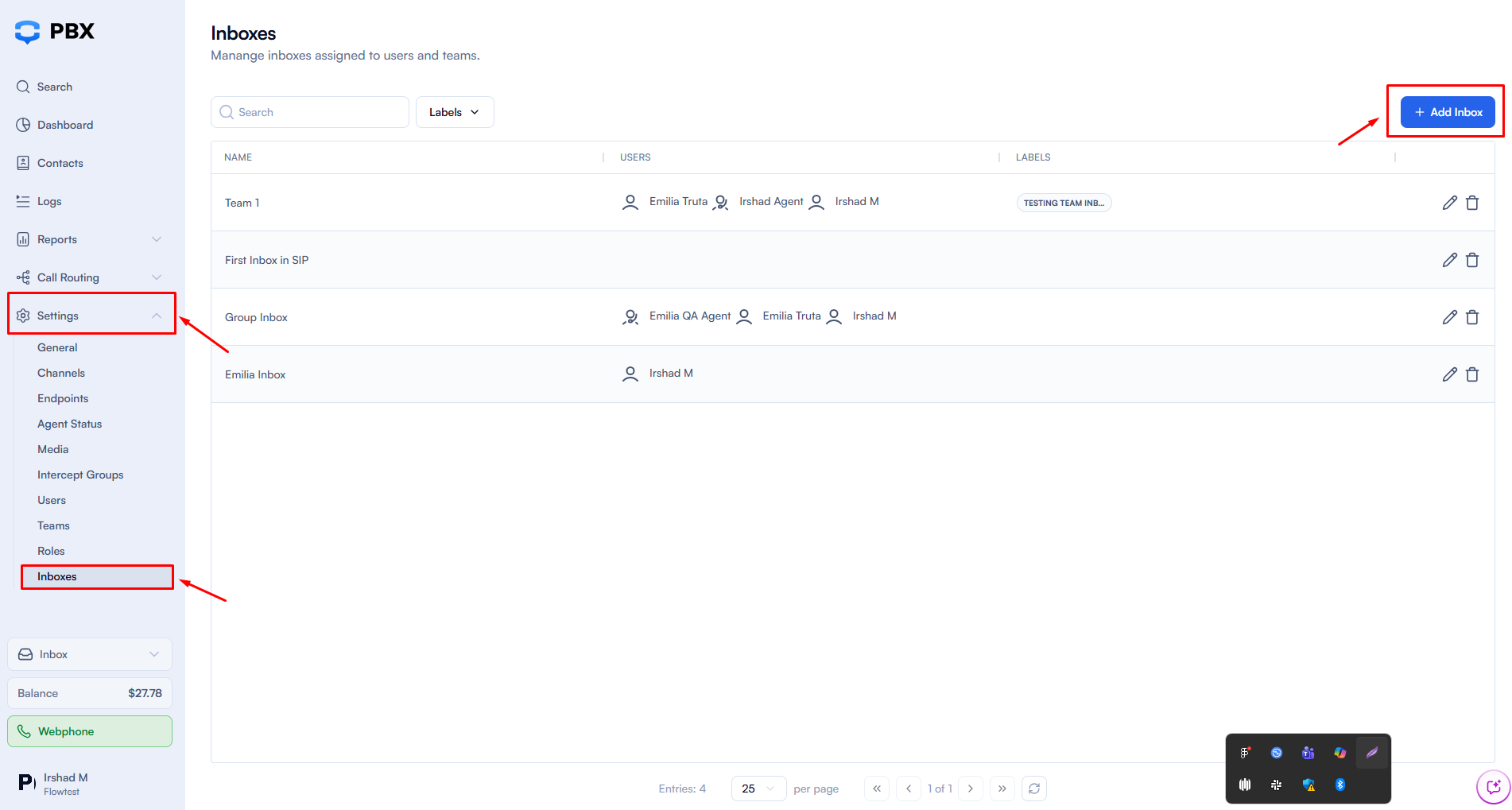
This feature is only available to the Owner or Admin on the space. Here is how to set up a dedicated inbox for your team:
- Navigate to Settings
- Click Inboxes from the left menu
- Select Add Inbox
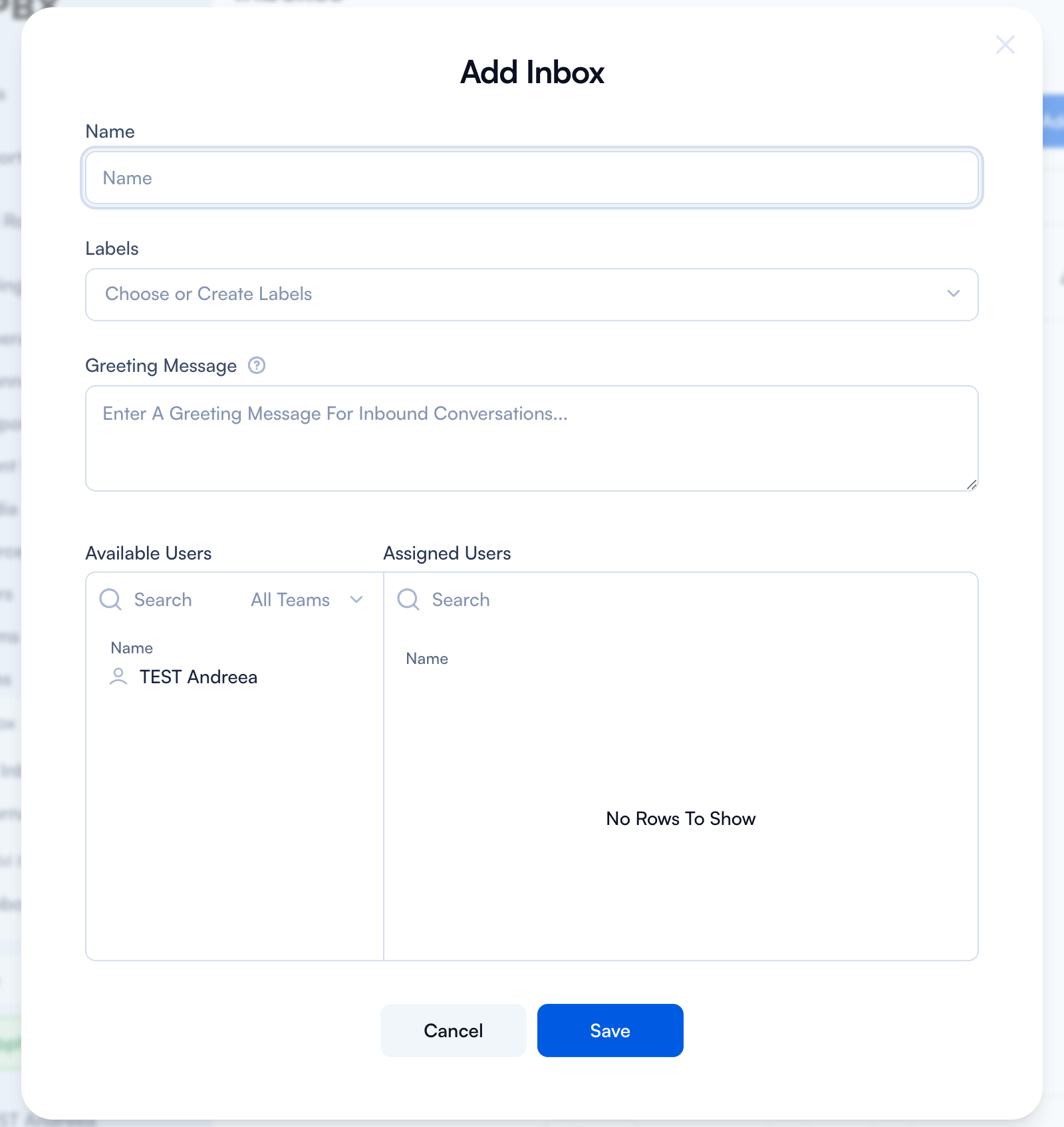
- Fill in the required details:
- Inbox Name
- Labels (optional)
- Greeting Message (optional)
- Under Available Users, select agents to assign. Assigned agents will appear on the right side of the screen.
- Click Save
A user can be assigned to multiple team inboxes. After saving, the inbox will appear under Team Inboxes for all assigned agents.
2.2 Link a Phone Number to an Inbox or User
Before you link a phone number, make sure it supports SMS. If it does, you'll see an SMS tab in the phone number settings.
2.2.1 Enable SMS Routing
- Go to Call Routing
- Select Phone Numbers
- Click Edit Number on the number you want to configure
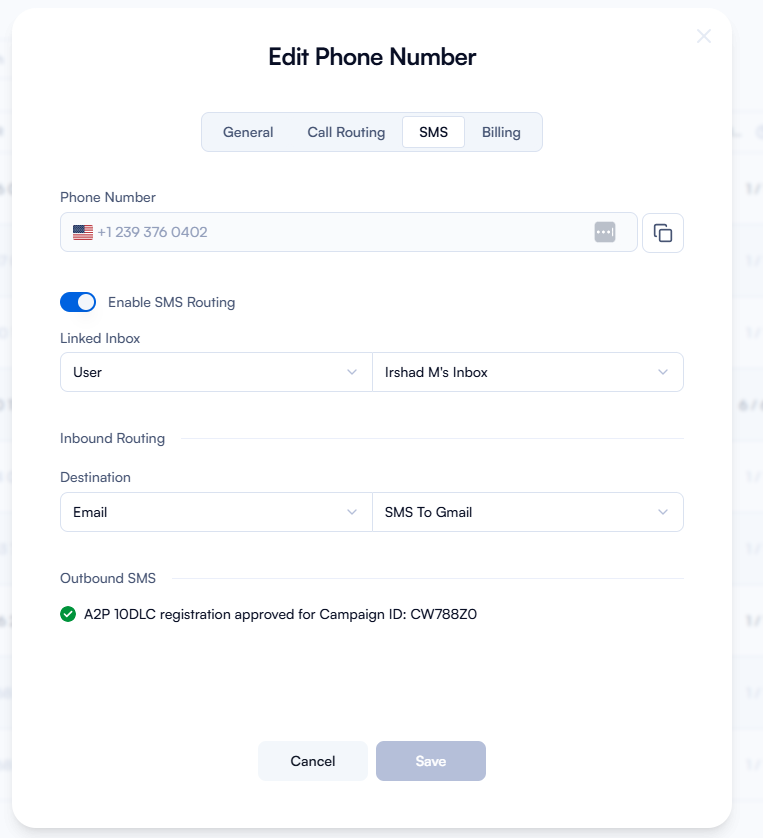
- Open the SMS tab
- Enable SMS Routing
Once SMS Routing is enabled, you'll see the Linked Inbox section with two options:
- User: Incoming messages go directly to the selected user's My Inbox.
- Inbox (Team Inbox): Incoming messages route to a shared Team Inbox where all assigned agents can view and respond.
2.3 A2P 10DLC Requirements for USA Messaging
Want to send or receive SMS in the United States? You'll need to register an A2P messaging campaign first. This keeps you compliant with carrier regulations. Once approved, you'll see a confirmation in your SMS settings with your campaign ID: ✔ A2P 10DLC.
3. How to Use the PBX.IM SMS & WhatsApp Inbox
Here's how to navigate your inbox, start conversations, and manage messages.
3.1 Navigating the Inbox
Use the search bar to find conversations quickly, or sort by date updated, date created, alphabetical order, or unanswered messages.
3.2 Sending a New Message
To start a new message, click the New Message icon, enter the recipient's number in E.164 format (e.g., +1 123 456 7891), choose SMS or WhatsApp, and select your sender number.
3.3 Quick Actions
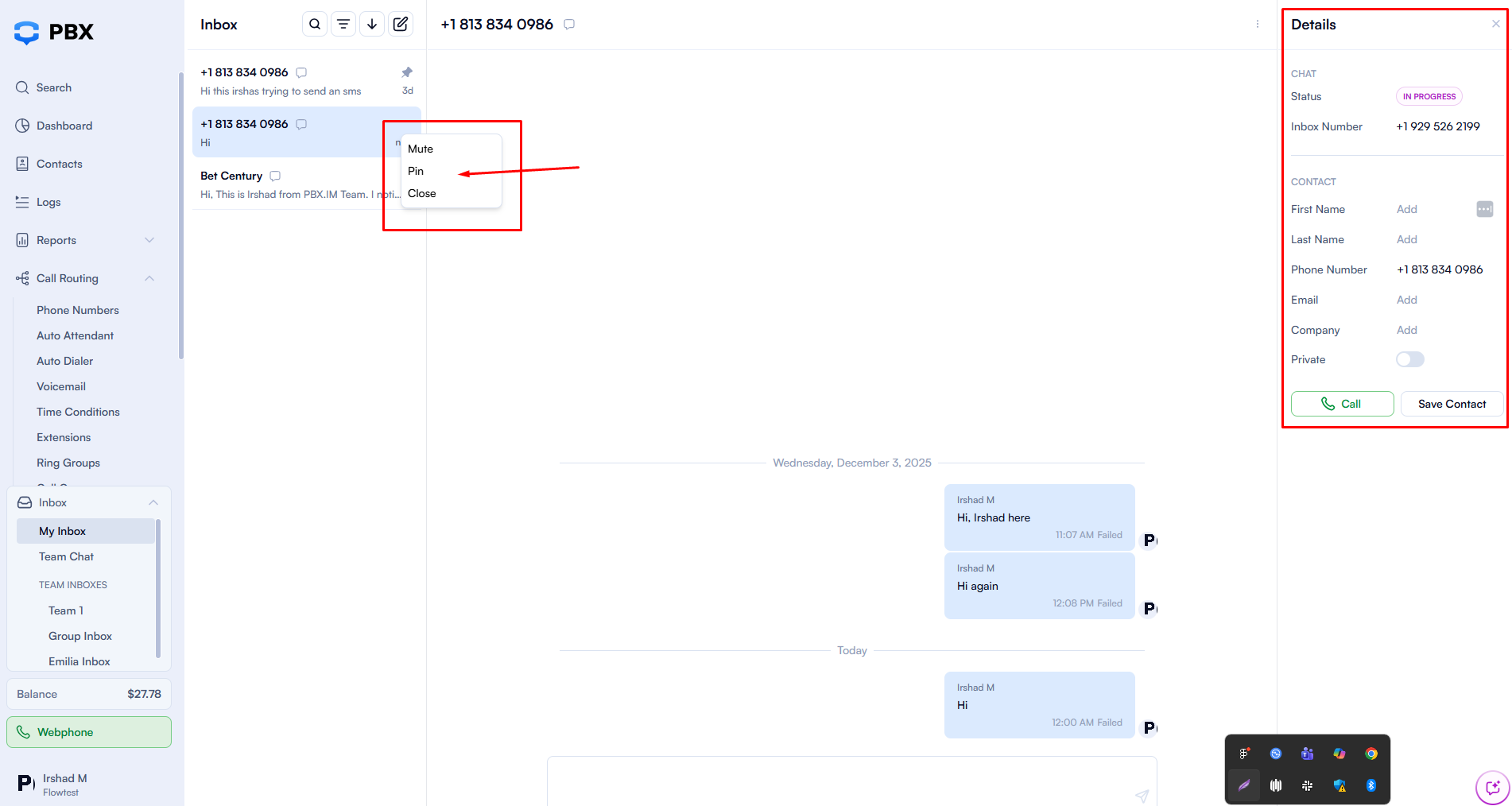
Need to manage a conversation? Right-click or open the options menu to mute notifications, pin it to the top, or close and archive it.
4. How to Use the Internal Chat
Internal chats function like inbox messages, but the "To" field shows internal agents instead of phone numbers. All conversations stay within PBX.IM, making it ideal for private team discussions.
5. How Team Inbox Assigning Works
Inside a Team Inbox, you can take ownership of any conversation by right-clicking and selecting "Assign to Me." This marks you as the responsible agent, helping your team manage workload and stay accountable.
Team Inbox FAQs
What is the difference between My Inbox and Team Inbox?
My Inbox is your personal space for SMS and WhatsApp messages assigned directly to you. Team Inbox is a shared space where multiple agents can view and respond to the same conversations – ideal for sales, support, or billing teams.
How do I route incoming messages to a specific inbox?
Go to Call Routing → Phone Numbers → Edit Number → SMS tab. Enable SMS Routing, then choose whether messages go to a user's My Inbox or a shared Team Inbox.
Can multiple agents respond to the same conversation?
Yes. In a Team Inbox, multiple agents can view and respond to conversations. You can also assign a conversation to yourself by right-clicking and selecting "Assign to Me" to take ownership.
Does PBX.IM support WhatsApp messaging?
Yes. You can send and receive both SMS and WhatsApp messages from the same inbox. Just select the message type when starting a new conversation.
Do I need to register for A2P 10DLC to send SMS in the US?
Yes. To send or receive SMS within the United States, you must register an A2P messaging campaign to comply with carrier regulations. Once approved, your campaign ID will appear in your SMS settings.