Endpoints
An endpoint is any device or software that allows you to make and receive voice calls over the internet instead of traditional phone lines. In PBX.IM, you can add either physical or virtual phones.
Table of Contents
Introduction to Endpoints
Access Endpoints
- Log in to PBX.IM
- Go to Settings
- Click on Intercept Groups
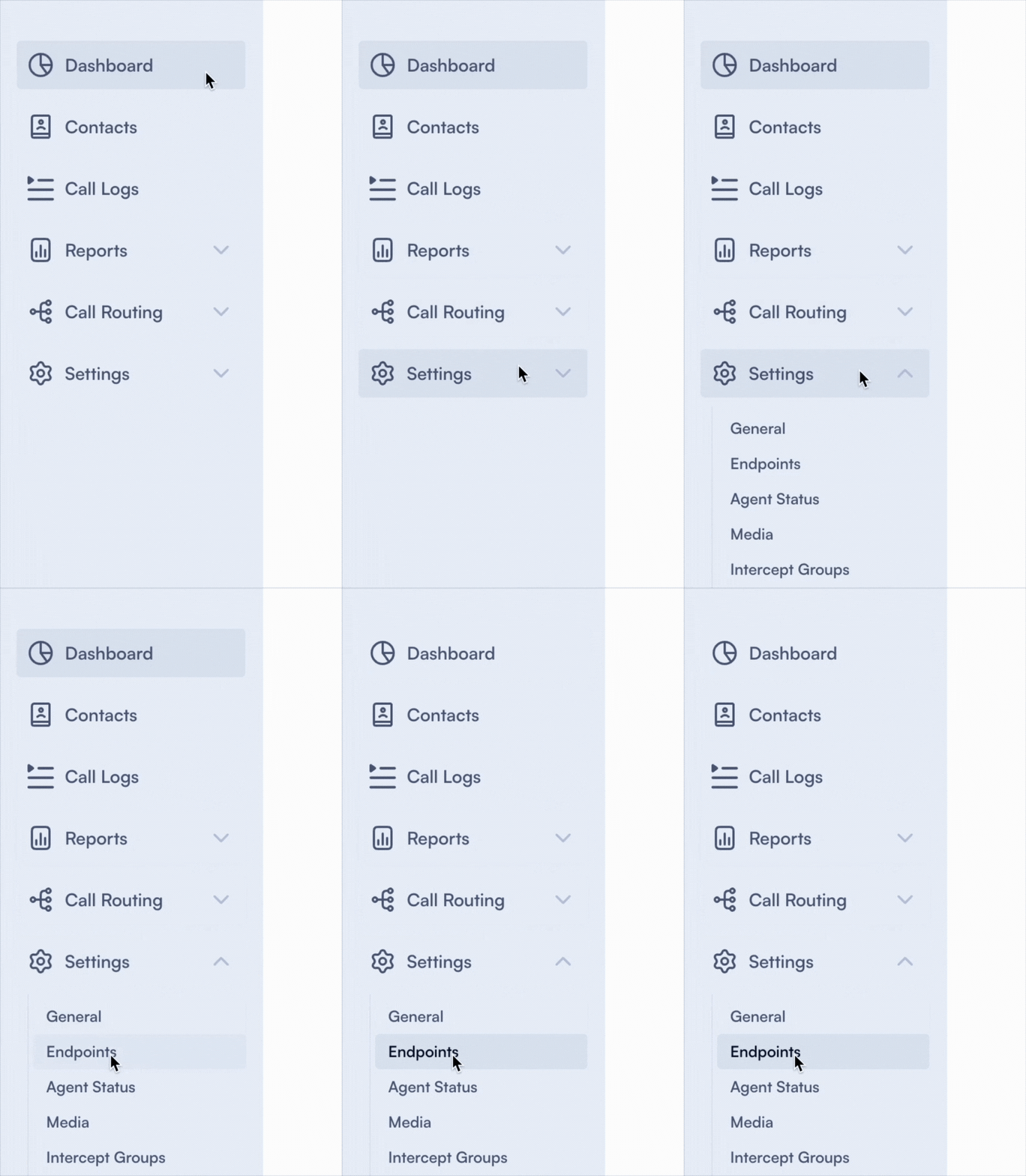
Set up an Endpoint
Once you click on the Endpoints section, a page with all the details will open:
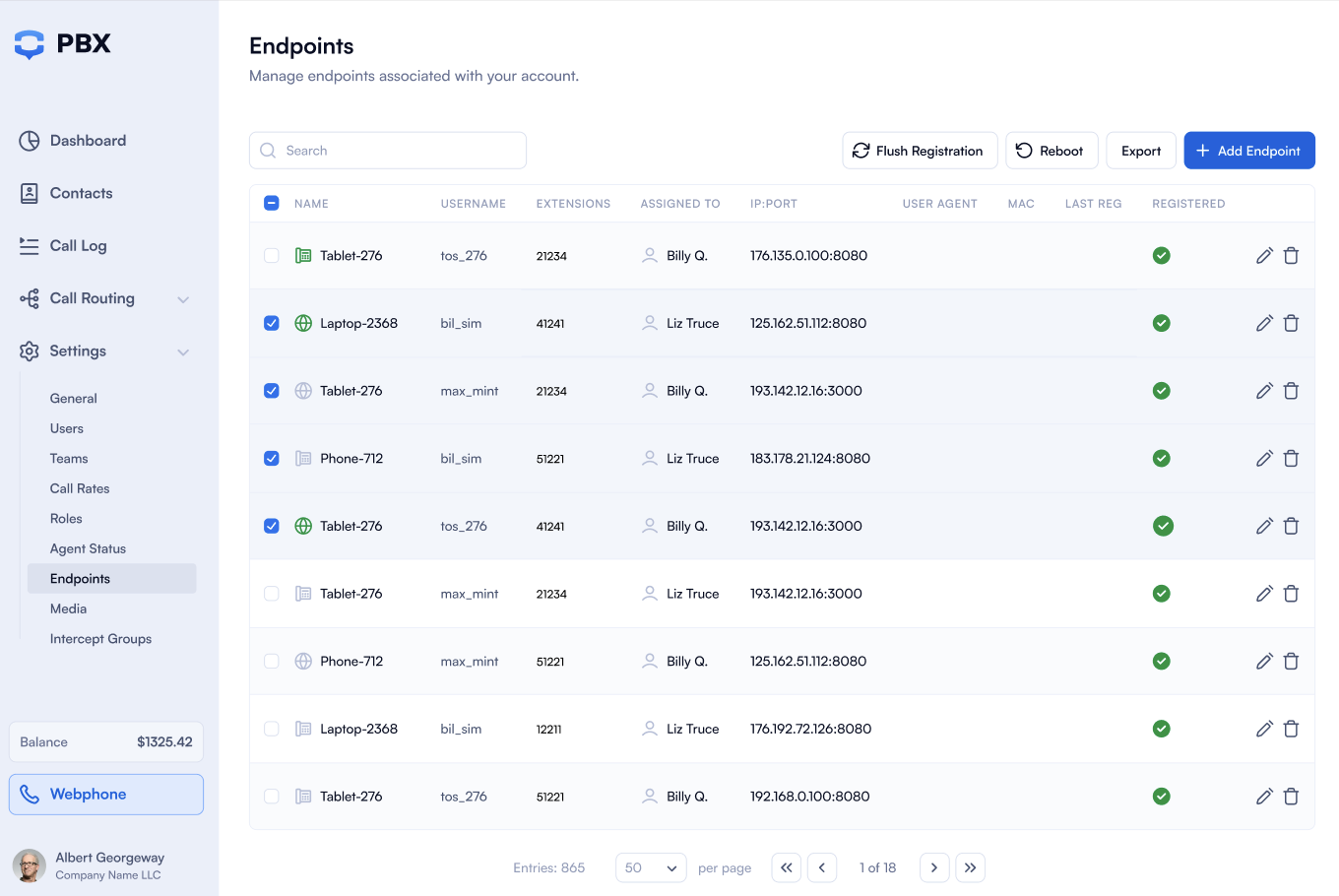
To add a new endpoint, simply click on 'Add Endpoint' in the upper right corner. Once you click on it, a form will open where you need to fill in the details:

Add Endpoint
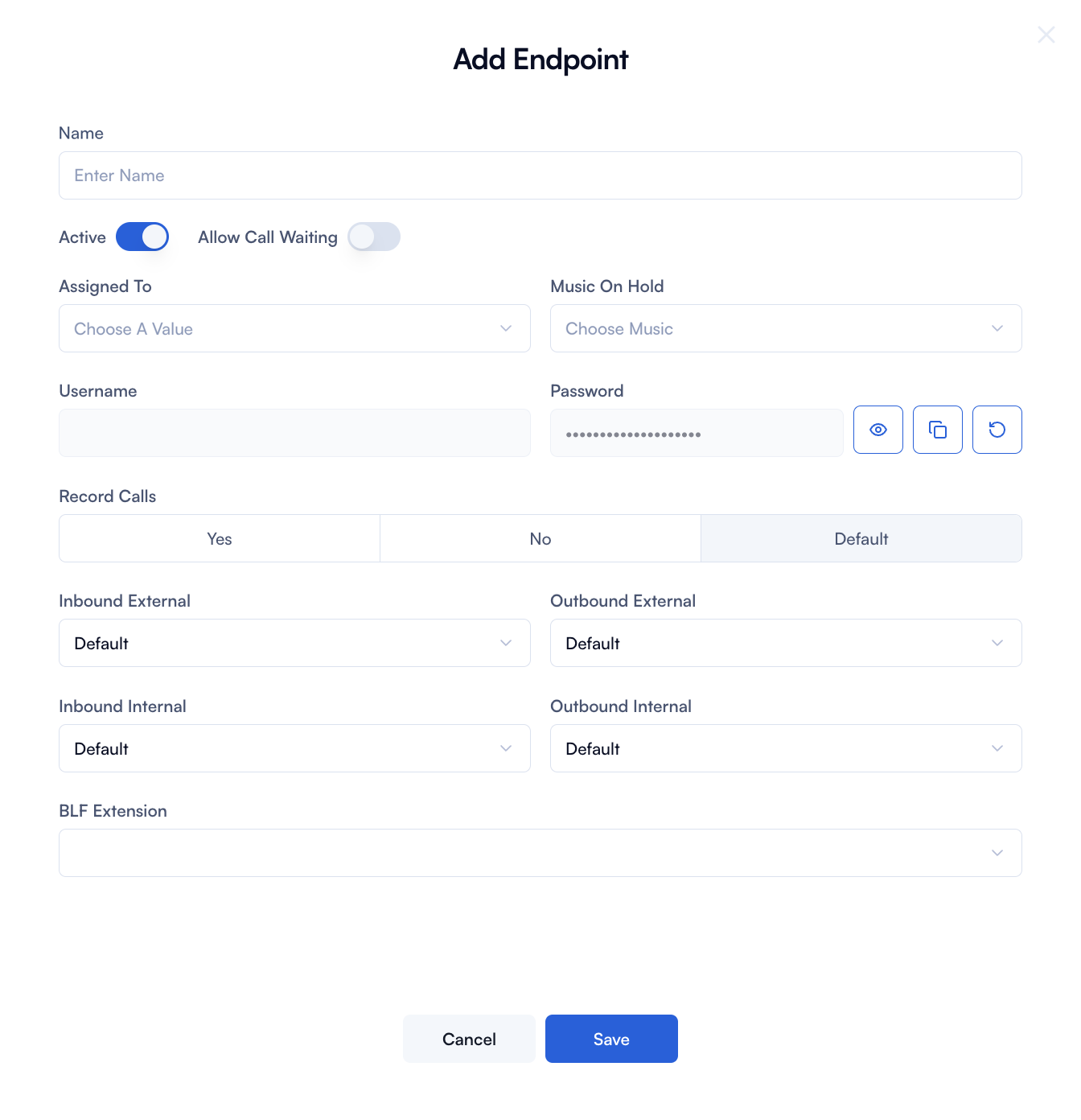
| Field | How to use it: |
|---|---|
| Name | Type in the name of the endpoint you want to add. |
| Active | Use the toggle to activate or deactivate the endpoint. |
| Allow Call Waiting | Use the toggle to activate or deactivate the allow call waiting for this endpoint. Call Waiting is a functionality that enables you to receive incoming calls while you are already in another call. You will be notified of the call and choose if you put the current one on hold or decline the incoming call. |
| Assigned To | Choose the user you want to assign this specific endpoint to from the dropdown menu. You can assign only one user per endpoint. |
| Music On Hold | Choose the music that will be played when a call is put on hold. |
| Username and Password | The username and password are automatically generated. You can use them to connect your phone to the system. |
| Record calls | You can select if you want the calls to be recorded or not. You have 3 options: Yes, No, Default settings. Once you click on one of these options you will be able to customize the settings based on call type: Inbound External, Inbound Internal, Outbound External, Outbound Internal. |
| BLF | BLF stands for Busy Lamp Field and is a feature that allows you to monitor the status of other extensions or line. Choose one extension that you want to monitor from the dropdown menu. |
Click on ''Save'' and all your new Endpoint will be added to the list.
Edit an Endpoint

If you want to edit an Endpoint all you have to do is go the main page and click on the ✏️. The same form will pop up where you can make all necessary changes.
You can also export the list of endpoints.
Click on ''Export'' in the upper right corner and you can choose between multiple formats:
- Grid as CSV
- Grid as XLS
- Raw as CSV
- Raw as JSON
If you have an Agent role, you don't have access to this functionality. You will need to ask your manager or supervisor to provide you with the username and password credentials that appear under the 'Add Endpoint' field.
What you can do from your interface is update your status—whether you are available for calls or not.