
A2P 10DLC Registration Guide
Table of Contents
- Introduction
- Important Notes
- Registration Process Overview
- Registration Fees
- How to Register with PBX.IM
- Step 1: Access the Registration Form
- Step 2: Brand Registration
- Step 3: Select Message Types
- Step 4: Campaign Setup
- Step 5: Assign a Phone Number
- Step 6: Submit for Review
- Step 7: Payment
- What to Expect After Submission
- Linking Your Campaign to a Number & Sending SMS
- Compliance Requirements & Restrictions
- A2P 10DLC Registration Checklist (PBX.IM)
- Brand Registration Checklist
- Campaign Registration Checklist
- Compliance Attributes
- Additional Campaign Attributes
- FAQ
Introduction
A2P (Application-to-Person) 10DLC is a messaging standard introduced by U.S. mobile carriers to increase trust, security, and deliverability of business SMS/MMS messages sent to U.S. numbers.
To comply with these requirements, all businesses that send SMS/MMS traffic to U.S. recipients must complete a one-time registration for both:
- Brand (your business entity)
- Campaign (the type of messaging use cases you will send)
PBX.IM streamlines this process, enabling you to register directly through our platform. We submit your Brand and Campaign details to carriers on your behalf, ensuring your SMS delivery remains reliable and compliant.
Important Note
Unregistered SMS traffic is filtered or blocked by carriers. Registering ensures:
- Compliance with U.S. carrier regulations.
- Improved Deliverability – registered messages are recognized as legitimate.
- Fraud Prevention – protects consumers against spam and spoofing.
- Trust & Transparency – your customers see messages from verified senders.
A2P 10DLC Registration Process Overview
1. Brand Registration (Your Business Identity)
Your Brand represents the legal entity sending the messages. Carriers use this data to verify your business and determine campaign eligibility.
Information Required:
- Legal Company Name
- DBA / Brand Name
- Organization Type (Privately Held Company, Publicly Traded Company, Nonprofit Organization, or Government)
- Tax ID / EIN (U.S. businesses)
- Business Phone Number
- Business Email (must match your domain)
- Business Address (Street, City, State/Province, Country, ZIP)
- Industry Type
- Website (must clearly display opt-in/opt-out terms)
- Stock Symbol & Exchange (only for a Publicly Traded Company)
Note: Brand registration is one-time unless your company details change.
2. Campaign Registration (Your Messaging Use Case)
The Campaign defines what type of messages you send and how recipients interact with them.
Information Required:
- Campaign Description (e.g., "appointment reminders, support updates")
- Sample Messages (at least one must include opt-out instructions)
- Opt-In Flow (clear disclosure of how users opt-in, e.g., webform, keyword, IVR)
- HELP Command (how recipients can request help)
- STOP Command (how recipients can opt-out)
- Whether messages include links or phone numbers
- Expected Monthly Volume & Frequency
- Privacy Policy URL
- Terms & Conditions URL
Best Practice: Your opt-in message must include:
- Brand name
- Message frequency disclosure
- "Message & data rates may apply"
- HELP and STOP instructions
Registration Fees
Carrier fees are mandatory and non-refundable. PBX.IM passes these fees at cost:
| Fee Type | Amount (USD) | Frequency |
|---|---|---|
| Brand Registration | $8 | One-time |
| Campaign Registration | $15 | Per submission (Our support team will work with you to ensure the information submitted to carriers aligns with their requirements. However, carriers may still reject a submission. In such cases, each resubmission will incur an additional campaign registration fee.) |
| Campaign Monthly Fee (Low Volume <2,000 SMS segments) | $3 | Monthly |
| Campaign Monthly Fee (High Volume >2,000 SMS segments) | $20 | Monthly |
Note: PBX.IM Support will confirm exact fees before processing your registration.
How to Register with PBX.IM
Step 1: Access the Registration Form
- Go to Settings > Channels > SMS > A2P 10DLC Registration.
Click Start Registration.
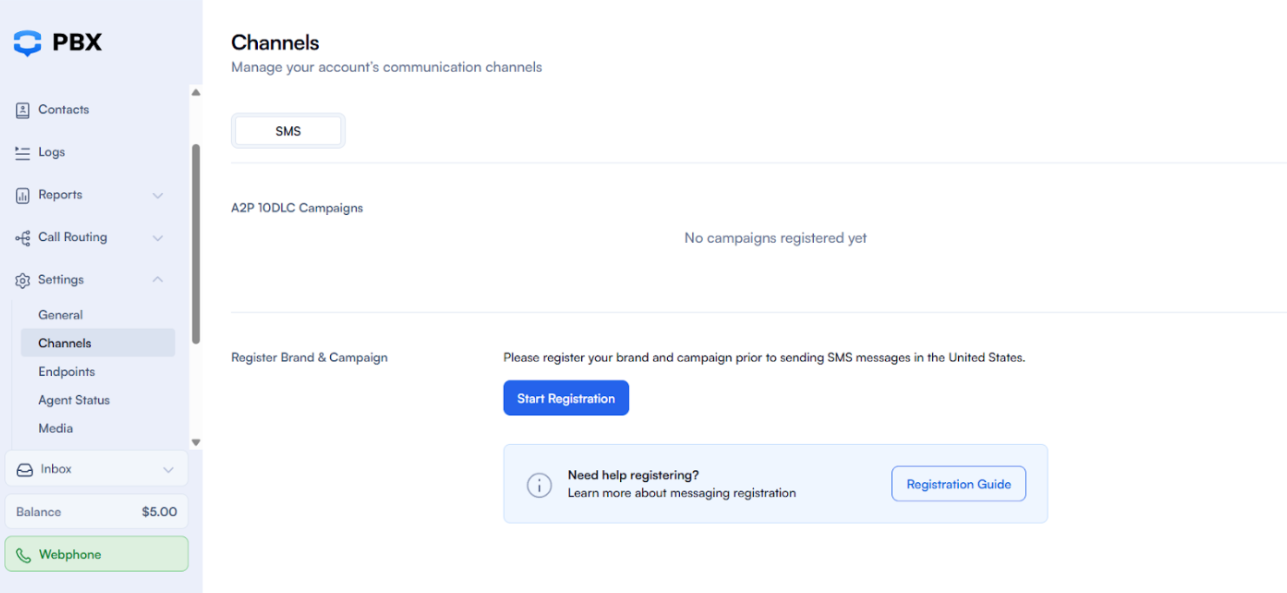
Note: The A2P 10DLC registration in PBX.IM consists of four sequential steps. However, campaigns can also be saved as a draft at any stage, so you don't have to complete the process in one go.
Step 2: Brand Registration
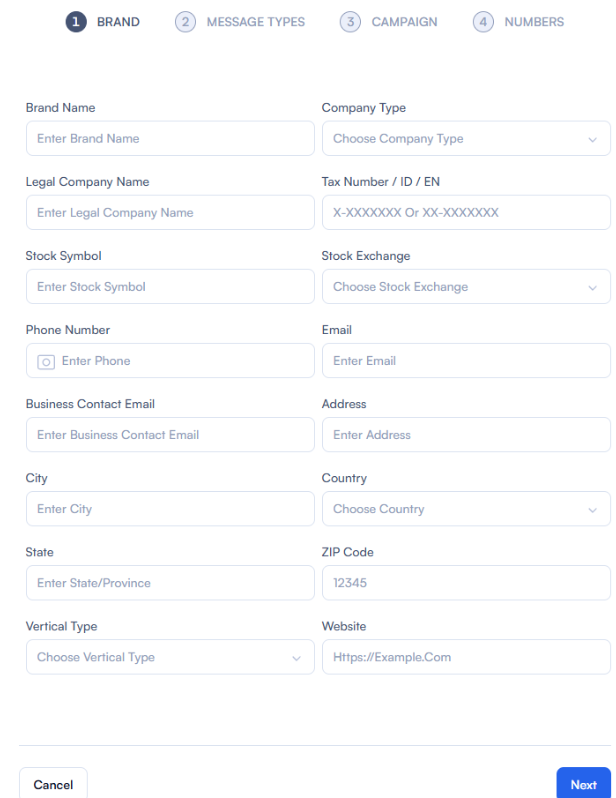
Define your business identity. Provide the required details (legal entity name, EIN/Tax ID, business address, website, industry, etc.) and submit your Brand profile.
Step 3: Select Message Types
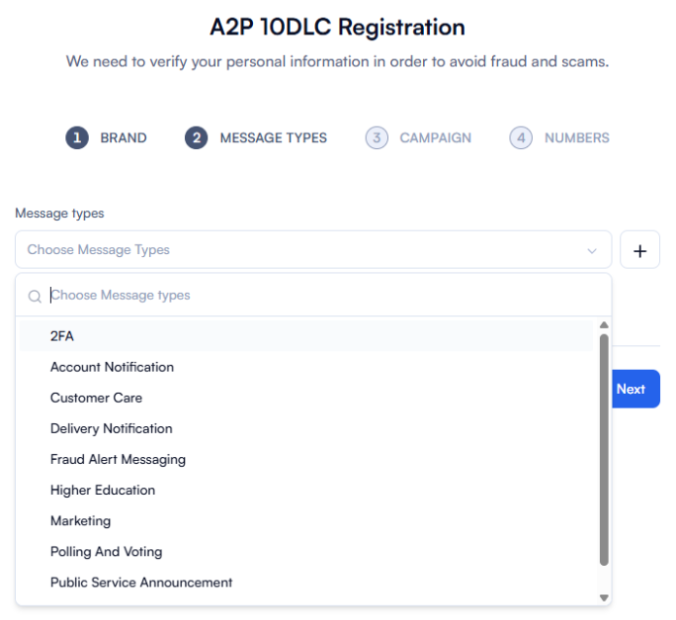
From the Message Type dropdown, choose the category that best represents your use case (e.g., Marketing, Customer Care, Two-Factor Authentication, Alerts, etc.). Message Type identifies to the carriers the nature of the SMS you intend to send to your customers. If your messages cover more than one use case, you can select multiple message types.
This ensures your campaign is classified correctly for carrier compliance.
The selectable message types are: 2FA, Account Notification, Customer Care, Delivery Notification, Fraud Alert Messaging, Higher Education, Marketing, Polling and Voting, Public Service Announcement, and Security Alert.
Step 4: Campaign Setup
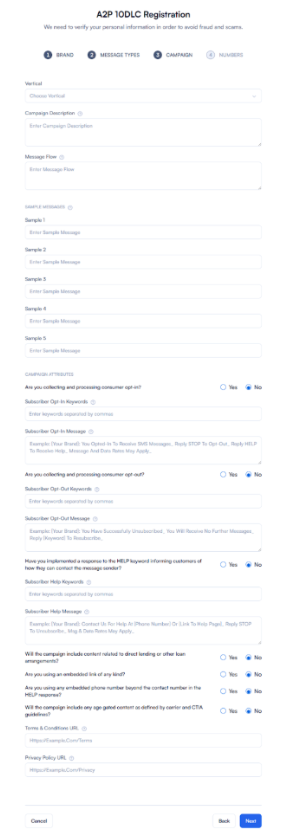
Create a Campaign under your registered Brand.
Required details include:
- Campaign Name
- Campaign Description (how you intend to use messaging)
- Sample Messages (demonstrating real message content)
- Opt-in / Opt-out workflow (compliance requirement)
- Campaign Type (aligned with Message Type selected in Step 2)
Step 5: Assign a Phone Number
Finally, link a 10DLC phone number to the campaign.
- Select from your available PBX.IM numbers, or purchase a new one.
- Each number can be mapped to a specific campaign for dedicated traffic.
You need at least one SMS-capable US or Canada number to register and send. If you don't have one yet, add one under Call Routing > Phone Numbers — the number search shows which numbers can send and/or receive SMS. Only US/Canada SMS-capable numbers not already linked to another campaign can be attached here.

Once completed, your campaign will be submitted for approval.
Step 6: Submit for Review
- Submit the form via PBX.IM.
- Once you submit, no further edits can be made — PBX.IM asks you to confirm before the application is sent to our team.
- A support ticket will be created for our team to review the information you provided and reach out to you if additional details are needed.
Step 7: Payment
- PBX.IM Support will confirm your fees and provide payment instructions.
- Once payment is received, your registration will be submitted to the carrier.
What to Expect After Submission
- Vetting Timeline – Carrier review typically takes 5–10 business days.
- Status Updates – PBX.IM Support will notify you of approvals or required clarifications.
- Number Association – Once approved, you must assign the campaign to your DID(s)to be able to send SMS from your PBX.IM numbers. Wait until the campaign status shows "Fully Provisioned" before sending messages.
Tracking status in PBX.IM. On the Channels > SMS page, each campaign shows its status — Draft, Submitted, Approved, or Rejected — along with its Message Type(s) and Campaign ID (assigned once approved). You can edit or delete a campaign while it's still a Draft.
Linking Your Campaign to a Number & Sending SMS
Registration on its own doesn't switch on messaging — an approved campaign has to be linked to the number you send from.
Buying numbers. When you search for numbers to buy, PBX.IM shows each number's SMS capability (whether it can receive and/or send SMS). For US/Canada SMS-capable numbers, it flags that A2P 10DLC is required for outbound SMS, and the cart reminds you that a one-time A2P registration is needed after purchase.
Linking an approved campaign. In a US/Canada number's SMS settings (Edit DID → SMS), if no approved campaign is linked yet, you'll see a disclaimer, your available approved campaigns, and a Start Registration button that opens Channels → SMS. Once an approved campaign is linked, that number can send SMS. A number can be linked to only one campaign.
Sending rules (enforced by PBX.IM):
| Destination number | Approved A2P campaign linked to your sender? | Result |
|---|---|---|
| US / Canada | Yes | SMS sends normally |
| US / Canada | No | Sending is blocked, with: "Approved A2P 10DLC brand and campaign are required…" |
| Outside US / Canada | Not applicable | SMS sends normally |
These rules apply whether you're messaging one-to-one from the Inbox or running a bulk SMS Campaign — to reach US/Canada recipients, your sender number needs an approved, linked campaign.
Compliance Requirements & Restrictions
Prohibited Content
The following are not permitted under 10DLC (SHAFT-C content):
- Sexually explicit content
- Hate speech
- Alcohol
- Firearms
- Tobacco / Cannabis / CBD
Note: These restrictions apply even if the content is only present on your website and not in the SMS messages.
A2P 10DLC Registration Checklist (PBX.IM)
To complete your registration, you must provide the following information in two stages:
Step 1: Brand Registration
Your Brand represents your business identity. Complete the following fields:
- Brand Name → Enter Brand name
- Company Type → Choose your company type: Privately Held Company, Publicly Traded Company, Nonprofit Organization, or Government
- Legal Company Name → Enter full legal entity name
- Tax Number / ID / EIN → Format: X-XXXXXXX or XX-XXXXXXX
- Stock Symbol → Enter stock symbol (only for a Publicly Traded Company)
- Stock Exchange → Choose exchange (only for a Publicly Traded Company)
- Phone Number → Enter main company phone
- Email → Enter company email (must match domain)
- Business Contact Email → Enter dedicated contact email
- Business Address
- Address → Enter street address
- City → Enter city
- Country → Choose country (United States or Canada)
- State/Province → Enter state/province
- ZIP Code → Enter ZIP/postal code
- Vertical Type → Choose vertical (e.g., Retail, Healthcare, Finance)
- Website → Enter URL (must show opt-in/opt-out policy)
Step 2: Campaign Registration
After the Brand is approved, register your Campaign with the following attributes:
Campaign Details
- Vertical → Choose vertical type (align with Brand)
- Campaign Description → Enter clear description of messaging use case
- Message Flow → Describe how customers opt-in, receive, and opt-out of messages
- Sample Messages → Provide up to 5 real examples:
- Sample 1 → Enter sample message
- Sample 2 → Enter sample message
- Sample 3 → Enter sample message
- Sample 4 → Enter sample message
- Sample 5 → Enter sample message
Compliance Attributes
- Opt-In Collection → Are you collecting and processing consumer opt-in? → Yes / No
- Subscriber Opt-In Keywords → Enter keywords (e.g., START, YES, SUBSCRIBE)
- Subscriber Opt-In Message → Example: [Your Brand]: You opted-in to receive SMS messages. Reply STOP to opt-out. Reply HELP for help. Message & data rates may apply.
- Opt-Out Collection → Are you collecting and processing consumer opt-out? → Yes / No
- Subscriber Opt-Out Keywords → Enter keywords (e.g., STOP, CANCEL, UNSUBSCRIBE)
- Subscriber Opt-Out Message → Example: [Your Brand]: You have successfully unsubscribed. You will receive no further messages. Reply [Keyword] to resubscribe.
- HELP Keyword Response → Have you implemented a HELP reply? → Yes / No
- Subscriber Help Keywords → Enter keywords (e.g., HELP, INFO, SUPPORT)
- Subscriber Help Message → Example: [Your Brand]: Contact us for help at [phone number] or [link to help page]. Reply STOP to unsubscribe. Msg & Data rates may apply.
Additional Campaign Attributes
- Will the campaign include direct lending or loan content? → Yes / No
- Are you using an embedded link? → Yes / No
- Are you using an embedded phone number (beyond HELP contact)? → Yes / No
- Will the campaign include age-gated content (per CTIA/carrier guidelines)? → Yes / No
- Terms & Conditions URL → Enter full URL (e.g., https://example.com/terms)
- Privacy Policy URL → Enter full URL (e.g., https://example.com/privacy)
FAQs
Do I need to register if I only send messages to Canadian numbers? No, registration is not required for messages sent solely within Canada, as Canada is not participating in 10DLC SMS registration. However, if you are texting U.S. numbers, registration is mandatory for compliance and to avoid blocks.
What happens if I don't register? Unregistered traffic to U.S. numbers will be blocked by carriers. Messaging rates may also be subject to higher fees, and your campaigns could face rejections.
Can I update my Brand or Campaign later? Some fields can be updated after registration. However, certain changes (like campaign type or company info) may require re-registration and additional fees.
What if I registered somewhere else? We cannot import registrations from other providers directly. However, if you were approved for a high-volume campaign, we may import your vetting score. Contact Customer Care to provide the necessary information and start the import process.
Can I opt out of the registration process? No. All organizations sending SMS to ten-digit U.S. numbers must register. Failing to register puts messages at high risk of being blocked and may result in higher fees.
Do Canadians need to register? Canadian companies only need to register if sending messages to U.S. numbers.
What if I don't have a company / EIN? Single-person businesses can register as a Sole Proprietor, though these accounts are heavily scrutinized and limited (e.g., only 1 phone number). It is strongly recommended to obtain an EIN from the IRS.
Why did I get an error saying my tax ID doesn't match my business name or type? Mismatches are usually due to:
- Special characters in the business name (only A-Z, 0-9, hyphen, & are allowed)
- INC/LLC formatting differences
For U.S. customers, call the IRS helpline: +1 (800) 829-4933.
Can I register multiple brands or campaigns? Yes. Go to the SMS Registration page and select New Brand or New Campaign.
Do I need to fill out Opt-In, Opt-Out, and Help messages if I only send conversational messages? Yes. This is a mandatory industry requirement.
- Opt-In message: Initial message to the customer, must mention your Brand and include Opt-Out language.
- Opt-Out message: Sent when a recipient replies "STOP."
- Help message: Sent when a recipient replies "HELP." PBX.IM provides system defaults, or you can customize them.
How long does the approval process take?
- Standard registrations: ~3 weeks
- If using >48 numbers (number pooling required): add ~4 weeks
Who is the Campaign Registry (TCR)? TCR is a reputation authority for business messaging on 10DLC, coordinating registration with multiple carriers (AT&T, T-Mobile, Verizon, etc.).
Can I expedite my registration? No. Reviews are conducted by a carrier-approved third party, and priority or expedited requests are not accepted. If a submission is rejected, you must start over.
How do I cancel my A2P registration? Contact our support team at support@pbx.im to cancel your registration.
How do I know when my campaign is registered? You will receive an email confirmation once approved. In PBX.IM, the campaign status will change to "Approved" or "Registered."
What is an inappropriate use case or banned content? Certain content is blocked due to high complaint volume:
- High-Risk Financial Services (payday loans, mortgages, student loans, etc.)
- Gambling, sweepstakes, and get-rich-quick schemes
- Job postings (except by the hiring organization)
- Controlled substances (Cannabis, CBD, Schedule 1 & 2 drugs)
- Tobacco and vaping products
- Phishing, pornography, scams, fraud, deceptive marketing
- SHAFT content (Sex, Hate, Alcohol, Firearms, Tobacco)
- Lead generation campaigns must be carrier-approved
Why was my registration rejected? Common reasons include:
- Opt-In Rejection: Customers must explicitly consent (checkbox, "Agree," etc.)
- Sample Messages Rejection: Must include Brand and STOP keyword; cannot use "N/A"
- Insufficient Messaging Description: Must describe SMS/MMS use-case (≥40 characters)
Can you make an exception for our company? No. US mobile carriers require all businesses to have fully-approved A2P campaigns for each number. Dialpad-to-Dialpad messages are unaffected.
Why is my SMS registration still under review after a month? Due to increased volume and industry-wide deadlines, third-party review timelines have lengthened.
Why can't I send messages including carrier names like Verizon or T-Mobile? Carriers block messages mentioning their names to prevent scams. Removing or changing the wording is necessary.
Why can't I select my number as an SMS sender? US/Canada numbers need an approved A2P campaign linked before they can send. Link one in the number's SMS settings (Edit DID → SMS). Numbers outside the US/Canada don't need A2P to send.
I don't have an SMS-capable number — what now? Add one under Call Routing → Phone Numbers. When browsing numbers, PBX.IM shows which ones can send and/or receive SMS.