Welcome to PBX.IM! Create Your Account
We will outline the steps you need to follow to start using PBX.IM. There, you can configure your phone numbers, invite team members, review data and analytics, and much more.
How to create your PBX.IM account?
To start using PBX.IM, go to https://www.pbx.im/ and click on Sign Up.
Step 1: Personal data
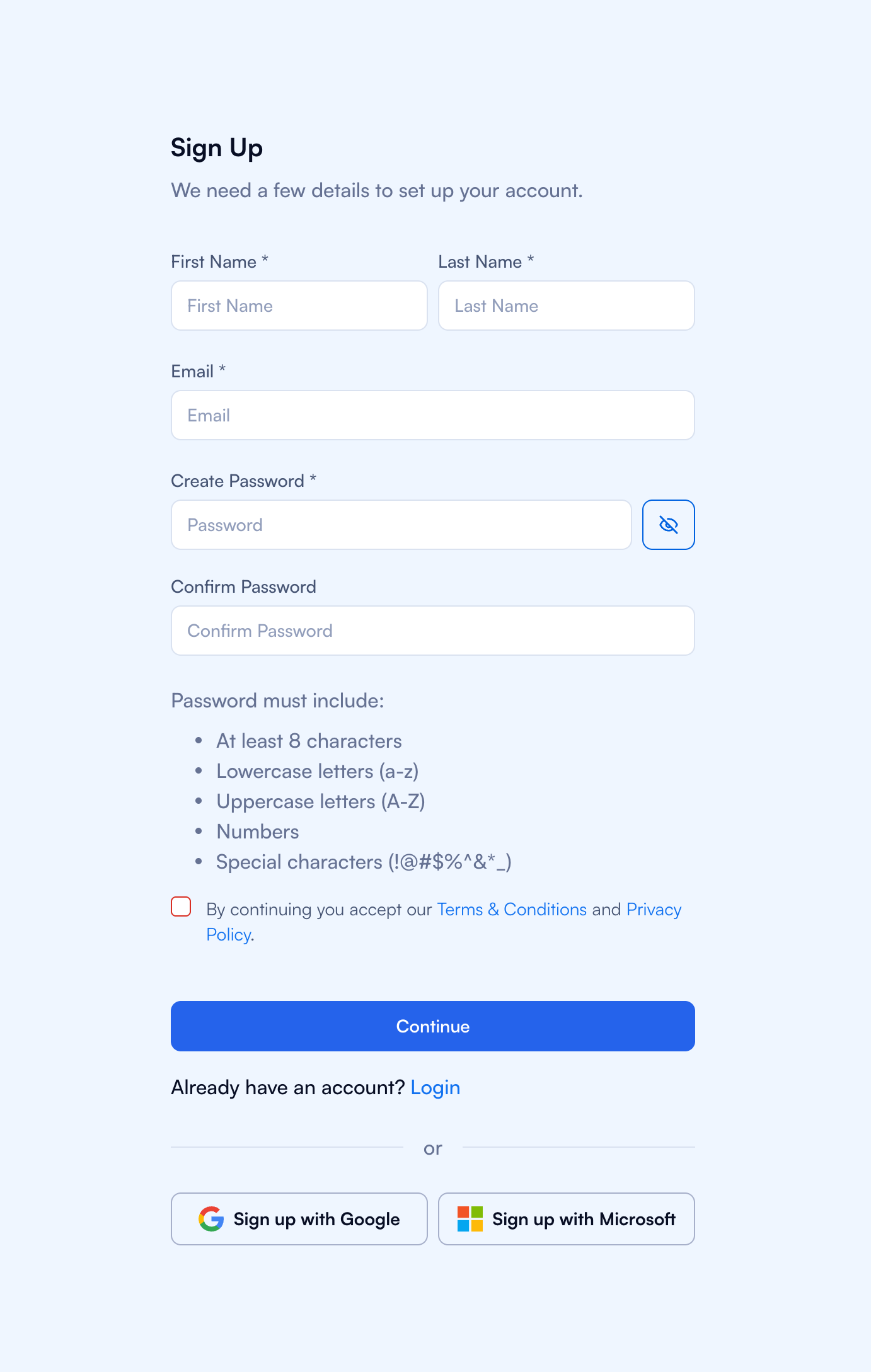
Once you click on Sign Up button, the following page will open for you:
| Type | How to use |
|---|---|
| First name and Last name | These fields are mandatory. You must enter the name of the person who will be the Owner of the platform. The Owner will have full access and can customize the account. |
| Enter a valid email address. You will need to confirm this email address in the next step to complete the registration process. | |
| Create password | Add a strong 8-character password to protect your account. Click on the eye icon to toggle visibility of the typed password. Password must include: At least 8 characters, Lowercase letters (a-z), Uppercase letters (A-Z), Numbers, Special characters (!@#$%) |
| Terms and conditions | Please review and accept our Terms and Conditions and Privacy Policy before proceeding. |
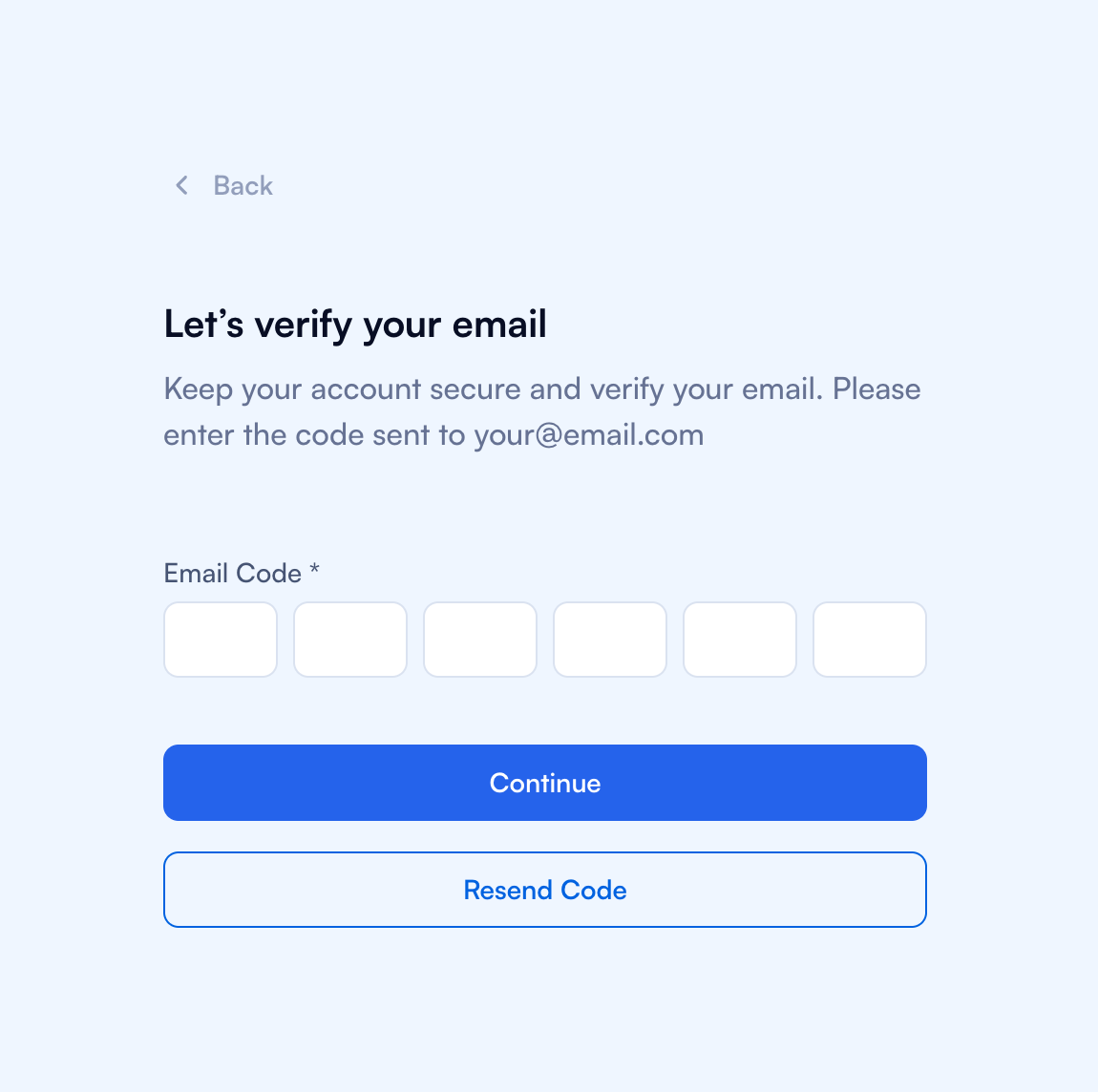
Step 2: Verify email
The next step is to enter the code that you will receive in your email. Always check your Spam folder!
Step 3: Verify phone number
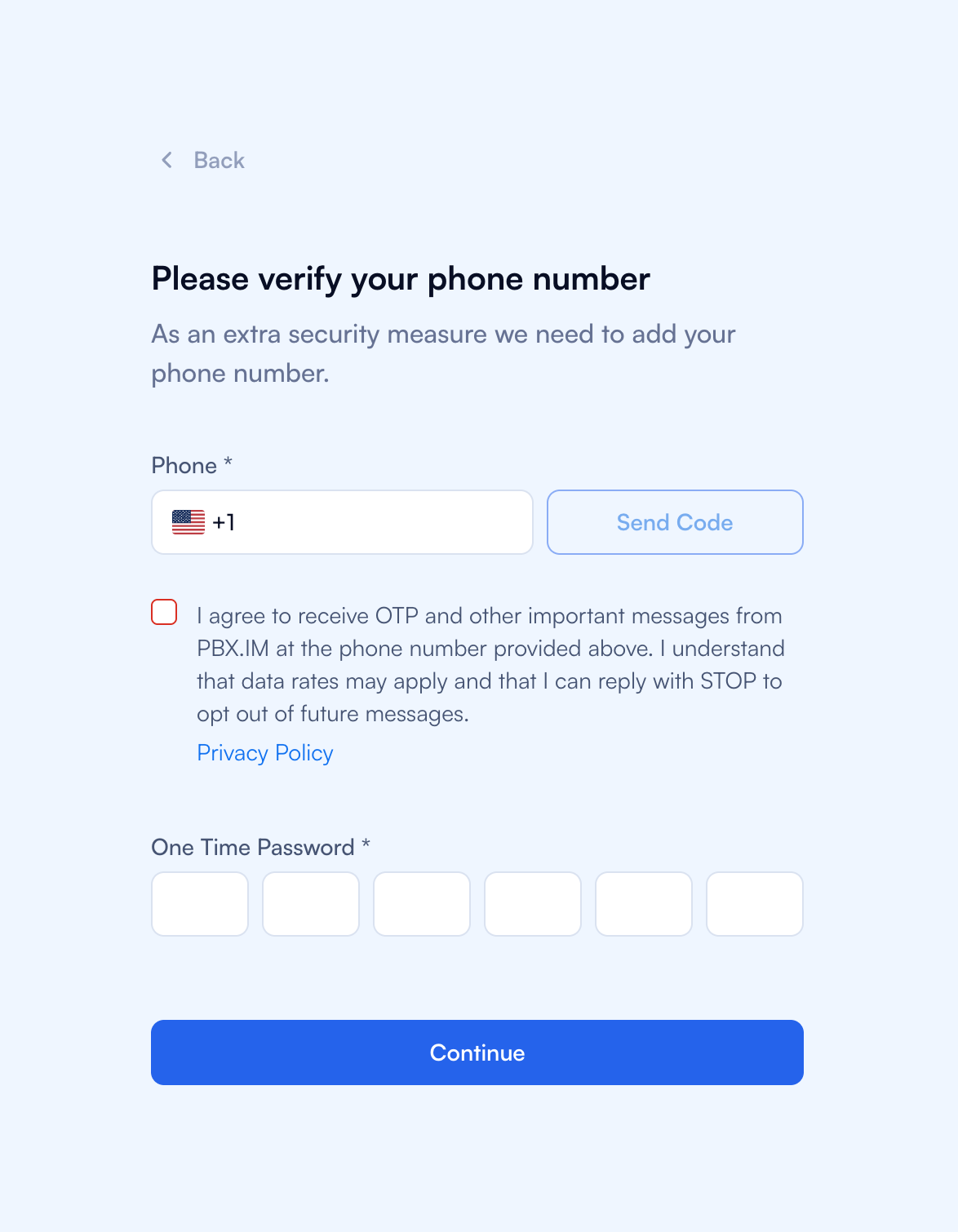
After confirming your email address, the next step is to enter your phone number. You will receive an SMS code to input under "Phone Code." Click "Continue," and you'll be ready for step 4.
Step 4: Company details
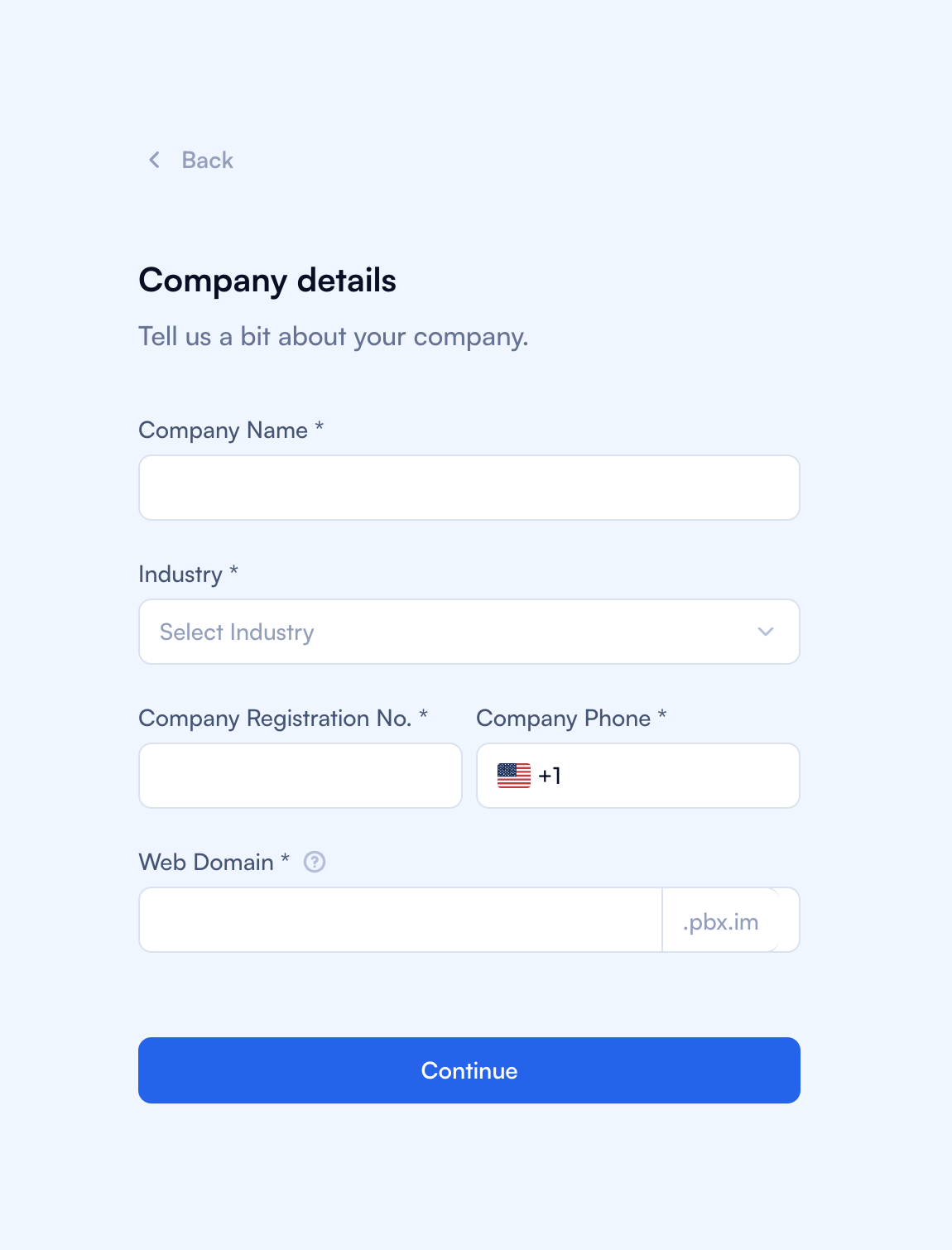
Fill in your company details
| Type | How to use |
|---|---|
| Company name* | Enter the name of the company you represent. |
| Industry | Select the industry your company operates in from the dropdown menu. If your industry isn't listed, you can specify "Other." |
| Company Registration No. | Enter the company registration number here. |
| Company Role | Select your role within the company from the dropdown menu. |
| Company Phone | Enter the company's contact number. |
| Web Domain | Set the company's web domain. This will create a unique URL dedicated to your account. |
Click "Continue" to proceed to Step 5.
Step 5: Company address
Fill in the company address
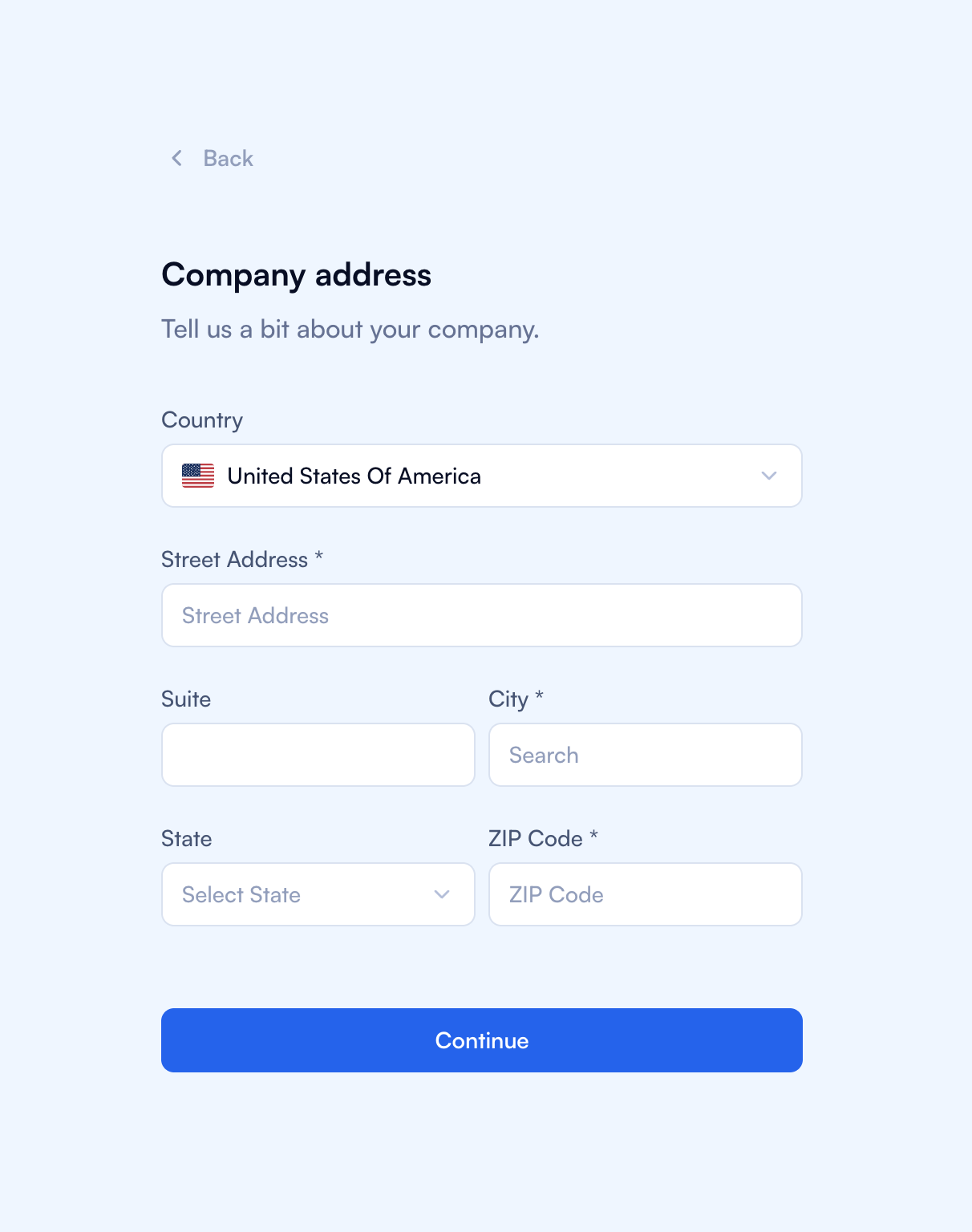
| Type | How to use |
|---|---|
| Country | Select the country your company is based in from the dropdown menu. |
| Street Address | This is a mandatory field for the company's street address. |
| Suite | Add additional address details like suite or apartment numbers. This field is optional. |
| City | Input the city where the company is located. |
| State | Choose the state from the dropdown menu. |
| ZIP Code | Enter the postal code for the country and state you selected earlier. |
Congratulations!
Your account is now ready to use! You will receive a welcome email with further details on how to use PBX.IM to make the most out of it!
If you are an agent and wish to access PBX.IM, you need an invitation from the Admin. Please ask your manager to add you to the platform! Your manager can find all the details here: Invite Team Members.