
How to Contact PBX.IM Sales & Customer Support
Table of Contents
Contact Sales
If you have a business inquiry or want to start using PBX.IM, you can contact our sales team at http://pbx.im/contact. Once you submit your message, our team will analyse it and get back to you.
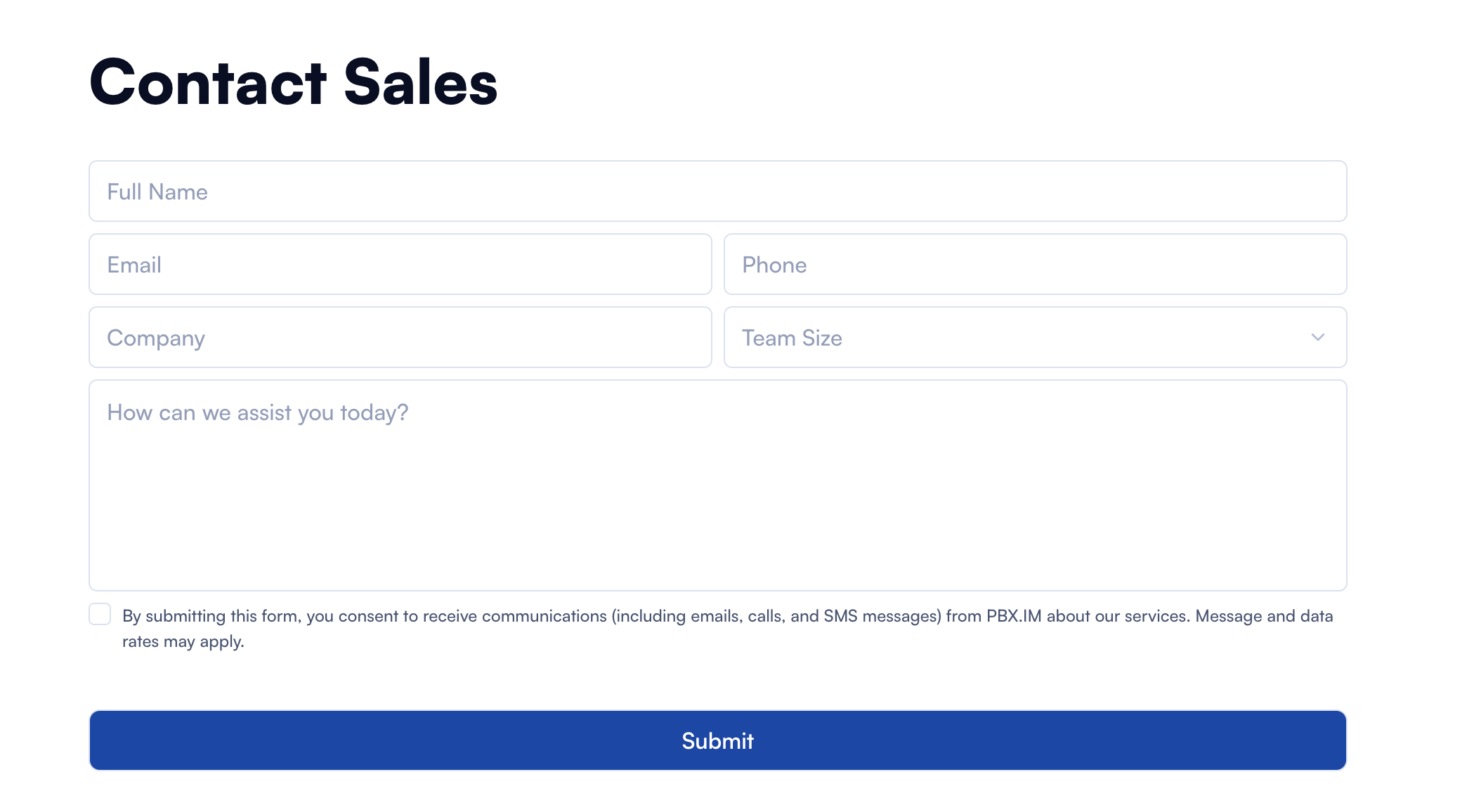
Here is a brief explanation of what each section means:
| Type | Description |
|---|---|
| Full Name | Just let us know your full name so we know who we’re talking to. |
| Add your email so we can get back to you—make sure it’s one you check often! | |
| Phone | Drop in your phone number if you’d prefer a call or text. |
| Company | What’s the name of your company? It helps us understand who we’re working with. |
| Team Size | Choose your team size from the dropdown—it helps us tailor our response. |
| How can we assist you today? | Tell us a bit about what you need, and we’ll do our best to help! |
| Consent Checkbox | Tick this box to confirm it’s okay for us to contact you via email or phone. |
| Submit Button | Hit this button when you’re ready, and we’ll be in touch soon! |
Contact Support
Already a customer and need help with your account? You have three ways to reach our support team.
Option 1: Chat with us in the app (fastest)
The quickest way to get help is the chat inside the PBX.IM Dashboard. Ask your question and get an immediate answer. If the chat can't resolve it, you can turn the conversation into a support ticket without leaving it — choose Create Ticket, review the details, and submit.
You can also attach a file to the chat to give our team more context — for example a screenshot of an error. Supported formats are PDF, DOCX, PNG, and JPG. If a file is too large or in an unsupported format, you'll see a clear message explaining why.
Option 2: Create a support ticket
When you create a ticket, you'll be asked for:
| Field | What to enter |
|---|---|
| Title | A short summary of the issue (e.g. "Cannot check in to Webphone"). |
| Description | What happened, what you expected, and any steps to reproduce it. The more detail, the faster we can help. |
| Attachment | Optional. Add a screenshot, log, or document that shows the problem. |
Once you submit, you'll see a confirmation with your ticket number — keep it for reference. Our support team will follow up by email, so there's no need to submit the same request twice.
Support tickets can be created by Admin, Supervisor, and Financial users. Your account details are attached to the ticket automatically, so you don't need to include them.
Option 3: Contact support from the website
If you can't log in — for example you're locked out of your account — you can still reach us from the Contact Support option on the PBX.IM Contact page (http://pbx.im/contact), next to Contact Sales. Provide your email, a title, and a description of the issue (you can attach images), and we'll pick it up from there.
You can also email us directly at support@pbx.im.
Which one do I need?
| Your situation | Where to go |
|---|---|
| Interested in PBX.IM, pricing, or a demo | Contact Sales — http://pbx.im/contact |
| Something isn't working in your account | Chat in the app, then Create Ticket if needed |
| You can't log in to your account | Contact Support on the website, or email support@pbx.im |
| Billing, plan, or seat questions | Create a support ticket (Admin or Financial role) |
| A2P 10DLC registration questions | Support will follow up on the ticket created during registration — see the A2P 10DLC Registration Guide |
Looking for an answer before you reach out? Search our documentation first — most common questions are already covered there.