Smart Chat
Got a question? Want to understand how to perform a test call? Or did you find a bug and want to report it to our support team? You can do all of this with our Smart Chat feature.
Table of Contents:
Where can you find it?
Follow the next steps to start using PBX.IM's Smart Chat:
- Log into your PBX.IM account
- Tap on the purple icon in the corner

- Start using our Smart Chat. It will look like this:
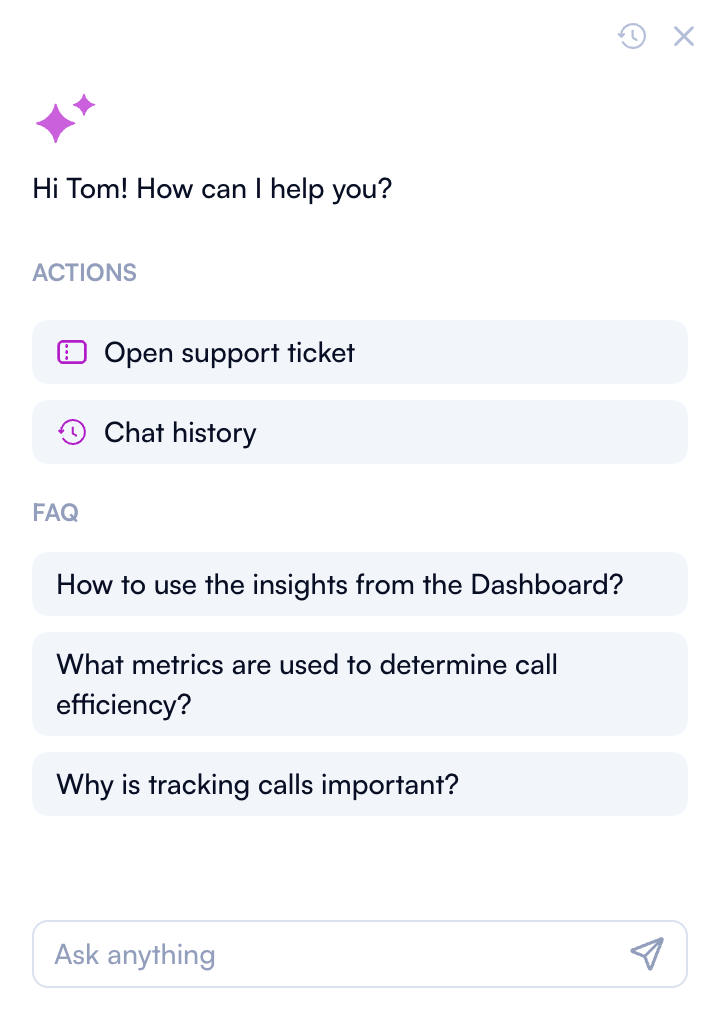
Let's explore each functionality one by one:
Ask a question
No matter your role (Admin, Agent, Supervisor, or Finance - check all the roles here Accounts & Users ), you have access to the "Ask a Question" option.
How you can use it:
Step 1: Type in your question in the ''Ask anything'' search bar
Step 2: Click ENTER or send

Step 3: Read the answer and review the sources provided. It will look like this:

Open a support ticket
If the answer provided by Smart Chat doesn't meet your needs, or if you encounter a problem you wish to report, you can open a support ticket.
How you can use it:
Step 1: Go to our Smart Chat
Step 2: Click on ''Open support ticket.''

Step 3: Describe the issue
Step 4: Attach files. You can attach up to 10 files within a 15 MB limit. The supported extensions are: "pdf", "docx", "jpg", "jpeg", "png", "mp4", "mov".
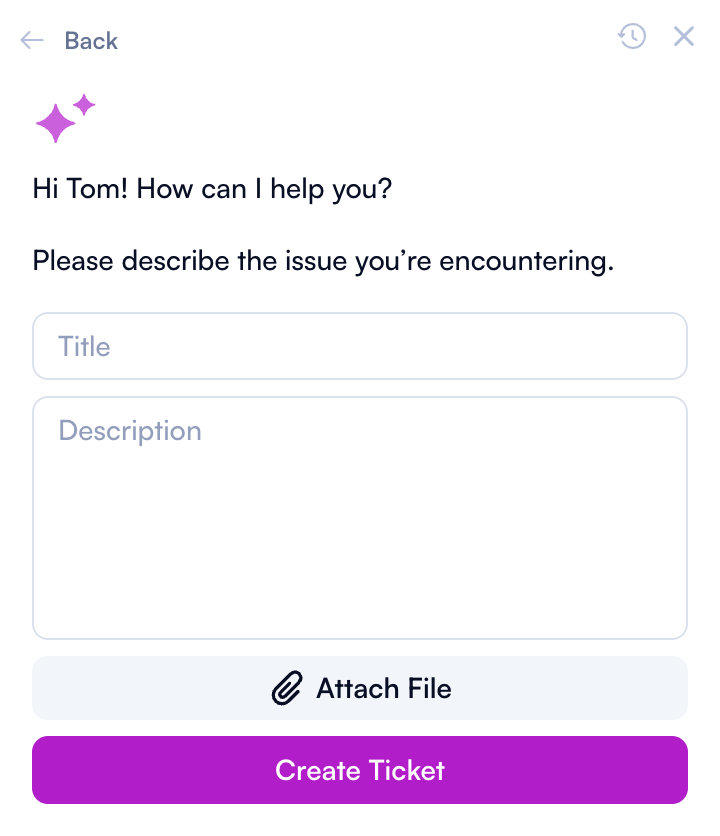
Step 5: Click ''Create Ticket.''
Step 6: Check your email address. You will receive a notification with the ticket number.
Note: Agents do not have access to the "Open Support Ticket" option in Smart Chat.
FAQs
The Smart Chat also provides FAQs tailored to the page you are on.
For example: If you are on the Dashboard page, this is how the FAQs will look like:
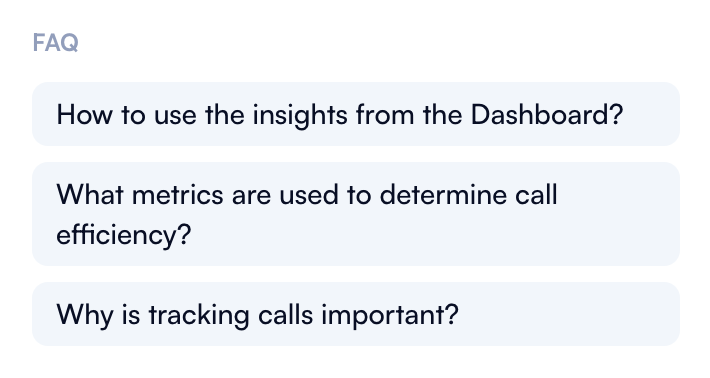
To view an answer from the FAQs, simply click on the relevant question.
Chat history
You also have the option to check your chat history.
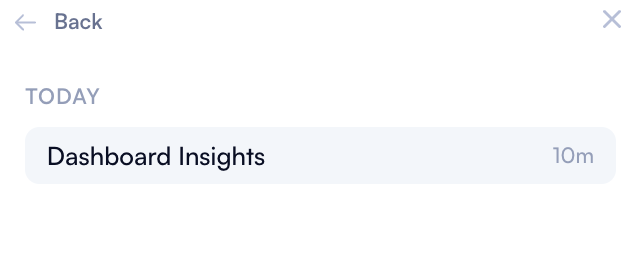
All you have to do is open the Smart Chat and click on ''Chat history'':

There, you will see the last 10 chat interactions you had.
Quick search
Another option to quickly find what you need is the ''Quick search'' functionality.
Here's how you can use it:
- Log into PBX.IM platform
- Click on the menu bar
- Click on Search
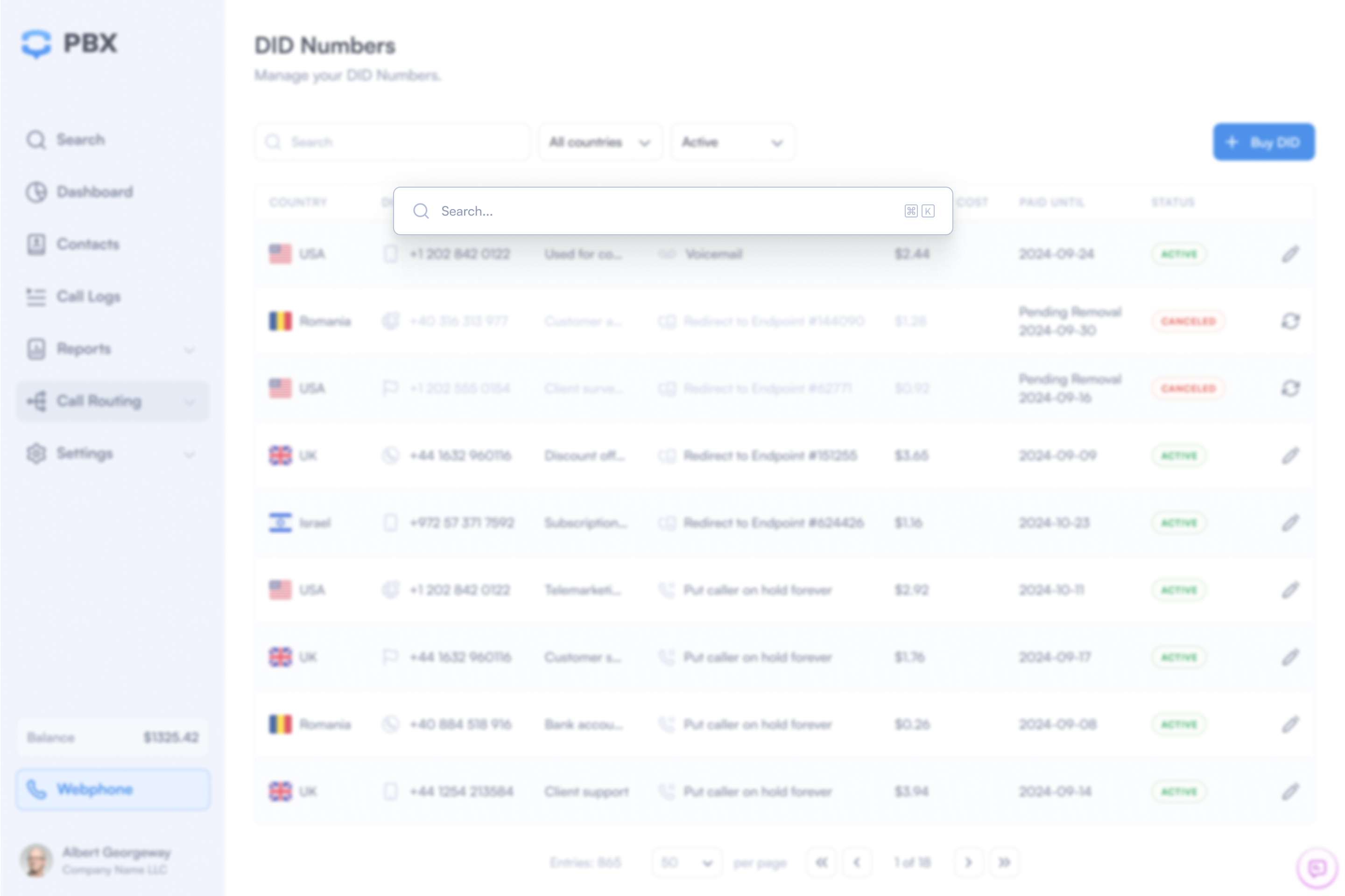
- Type the question you have or the thing you are looking for
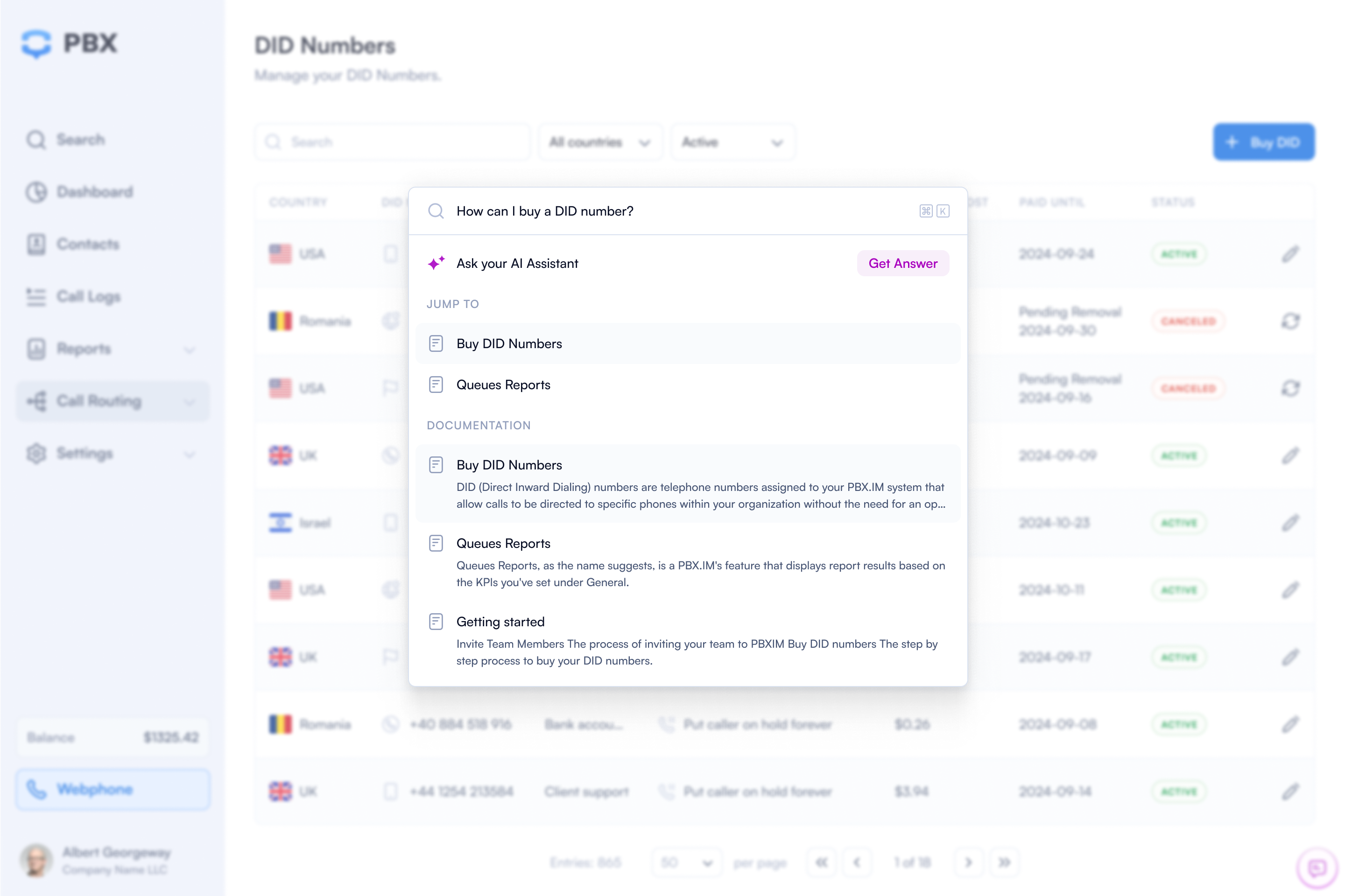
- Check the option that better suits your needs
- Ask the Smart Chat AI Assistant for an answer.
- Jump to a specific page
- Browse through the documentation.