How to Manage Billing & Payments in PBX.IM?
You can find the Billing section by going to ''My Company'' (find the process under Manage Your Account & Billing ) and clicking on the Billing tab.
Under ''Billing'' you will see 3 sections:
- Top Up
- Invoices
- Payment Methods
- Billing Notifications
Top Up
As an admin you can manually add funds to your account at any time.
- Click the One-Time button.
- Select a Top-Up Amount ($50, $100, $500) or enter a Custom Amount (minimum $25).
- Click Top-Up Now to process the payment.
Once the transaction is successful, the funds are immediately added to the account balance.
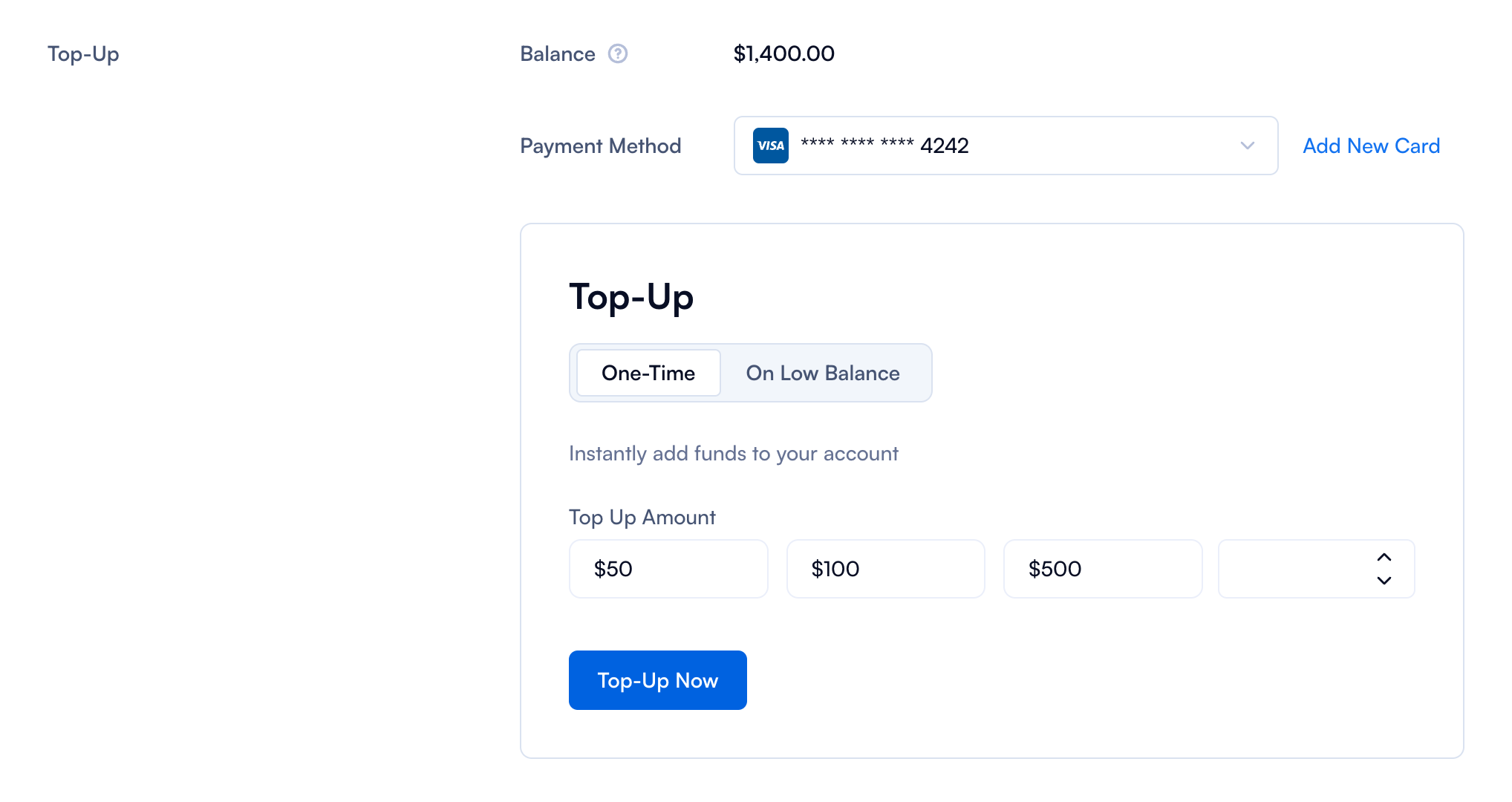
| Field | Explanation |
|---|---|
| Balance | You will see the current balance amount. |
| Payment Method | You will see the current credit card associated to your account. You can also click on ''Add New Card'' to introduce new payment details. |
| Top-Up | You can also add extra money to your account. You have 2 options: 1. One-Time 2. On Low Balance. One time option allows you to add $50, $100, $500 or a custom amount (minimum $25) to your account. Select or input the amount and click on Top-Up Now. Once the transaction is confirmed you will get a notification. On Low balance adds funds automatically when the balance falls below the threshold. You can set the threshold and choose the amount you would like your account to be topped up when reaching below threshold. |
Troubleshooting
- If a one-time top-up fails, check the payment method details or try a different card.
- If an automated top-up fails, ensure there are sufficient funds in the linked payment method.
- Contact support if issues persist at [email protected]
Invoices
Under ''Invoices'', you will find a button that takes you to the Stripe page, where you can view a list of all your invoices.

Payment methods
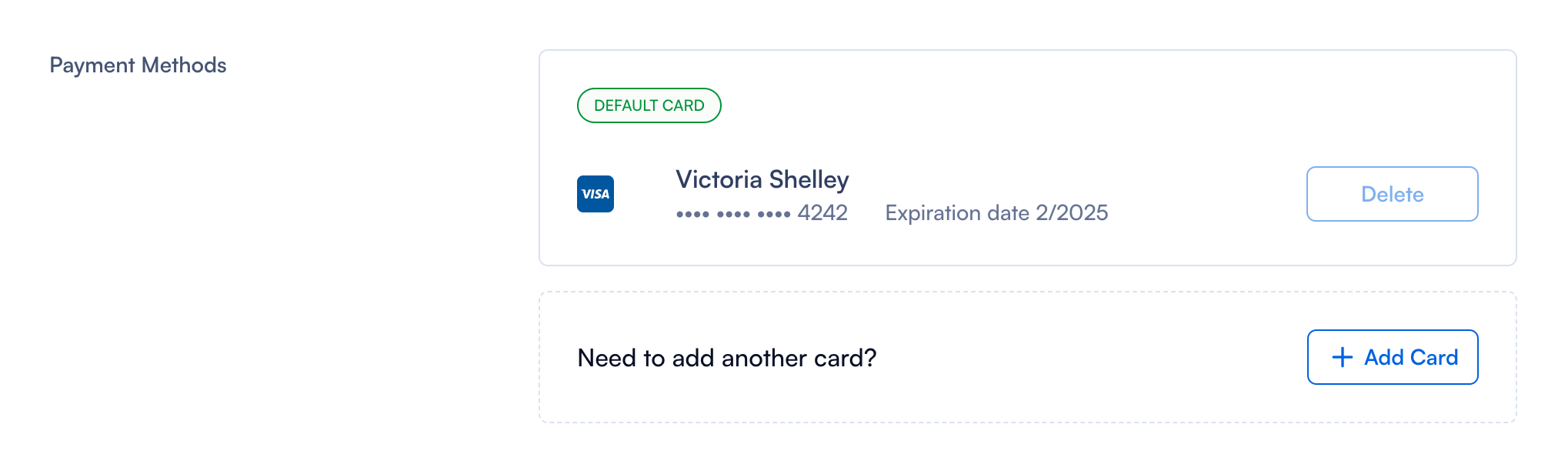
Under ''Payment Methods'' you can perform two types of actions:
- Delete card
- Add another card
Delete card
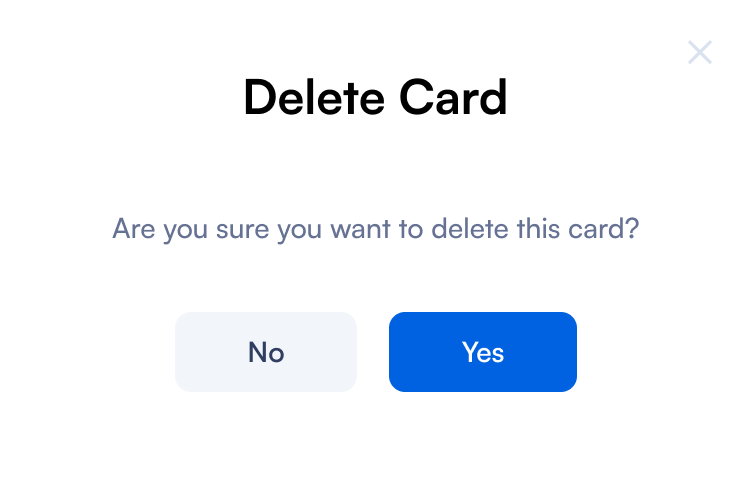
To delete a card all you have to do is press ''Delete''. A pop up will show up prompting the question to validated if you still want to perform the action.
Make sure that you add a valid card to avoid account suspension.
Add another card
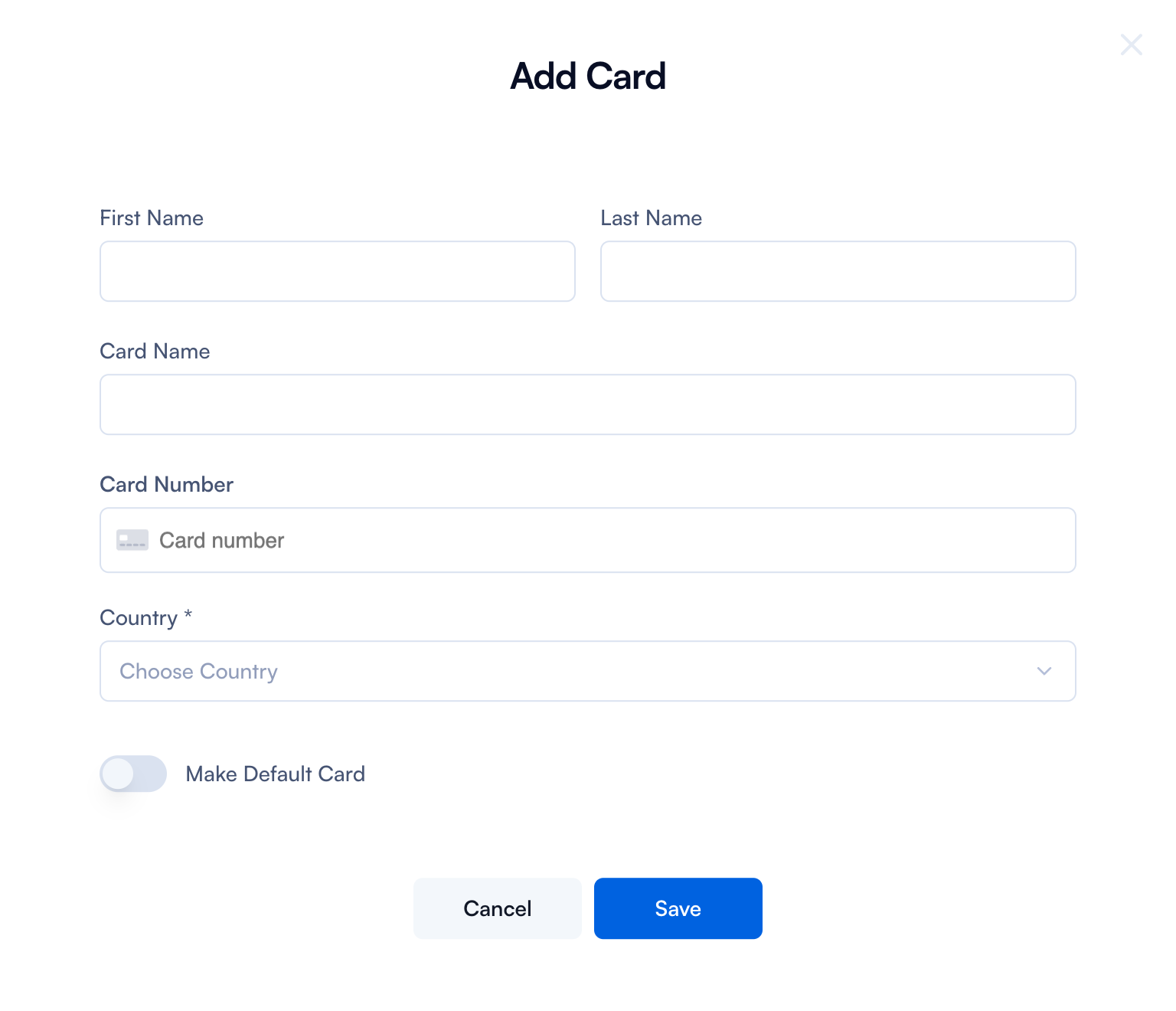
If you want to add another card all you have to do is click on ''Add Card''.
Required fields:
- First Name
- Last Name
- Card Name
- Card Number
You can also choose to make this card the default, meaning it will be used for future purchases and invoice payments.
Billing Notifications
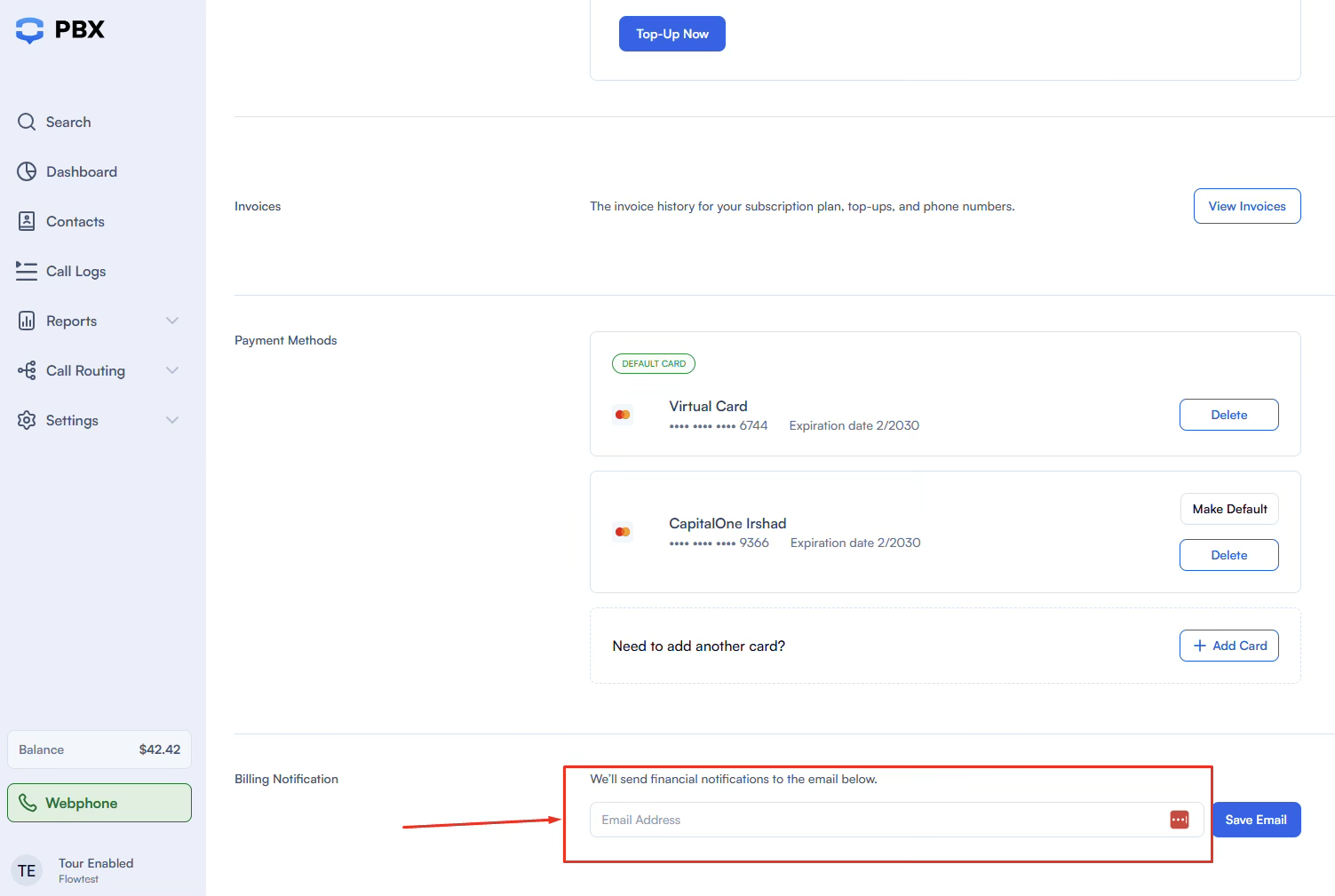
Specify an email address where you'd like to receive all billing-related notifications. Simply enter the desired email and click ''Save Email'' to start receiving updates.