Contacts in PBX.IM: Add, Edit & Delete Contacts
Table of Contents
What are Contacts?
A 'contact' refers to an individual or entity with whom you may communicate via the PBX.IM system. Contacts are typically added to facilitate communication but do not have access to PBX.IM's features and functionalities.
Add Contact
Access Contacts
- Log into PBX Dashboard
- Go to ''Settings''
- Select ''Media files'' from the drop down menu
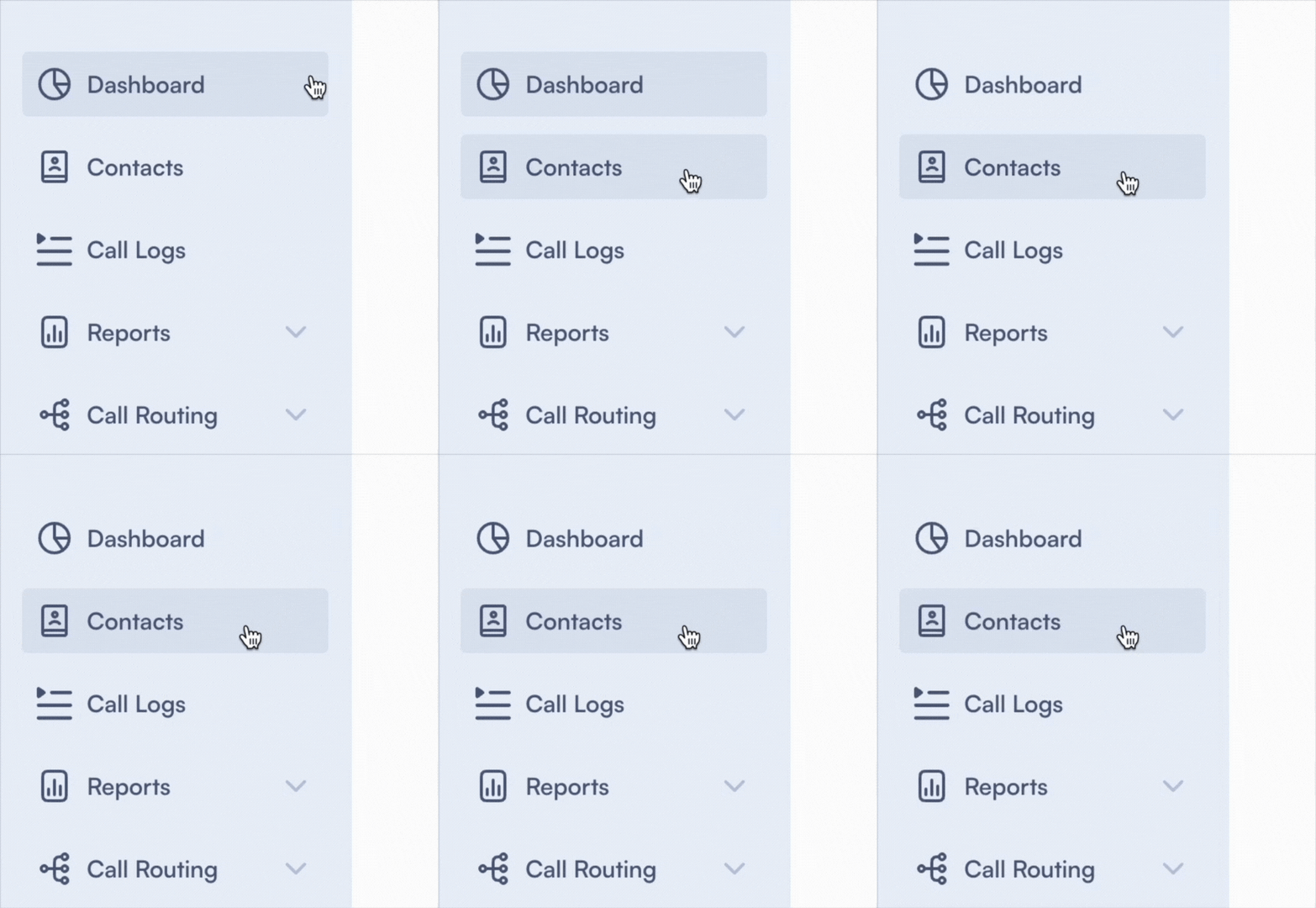
Click on Add Contact

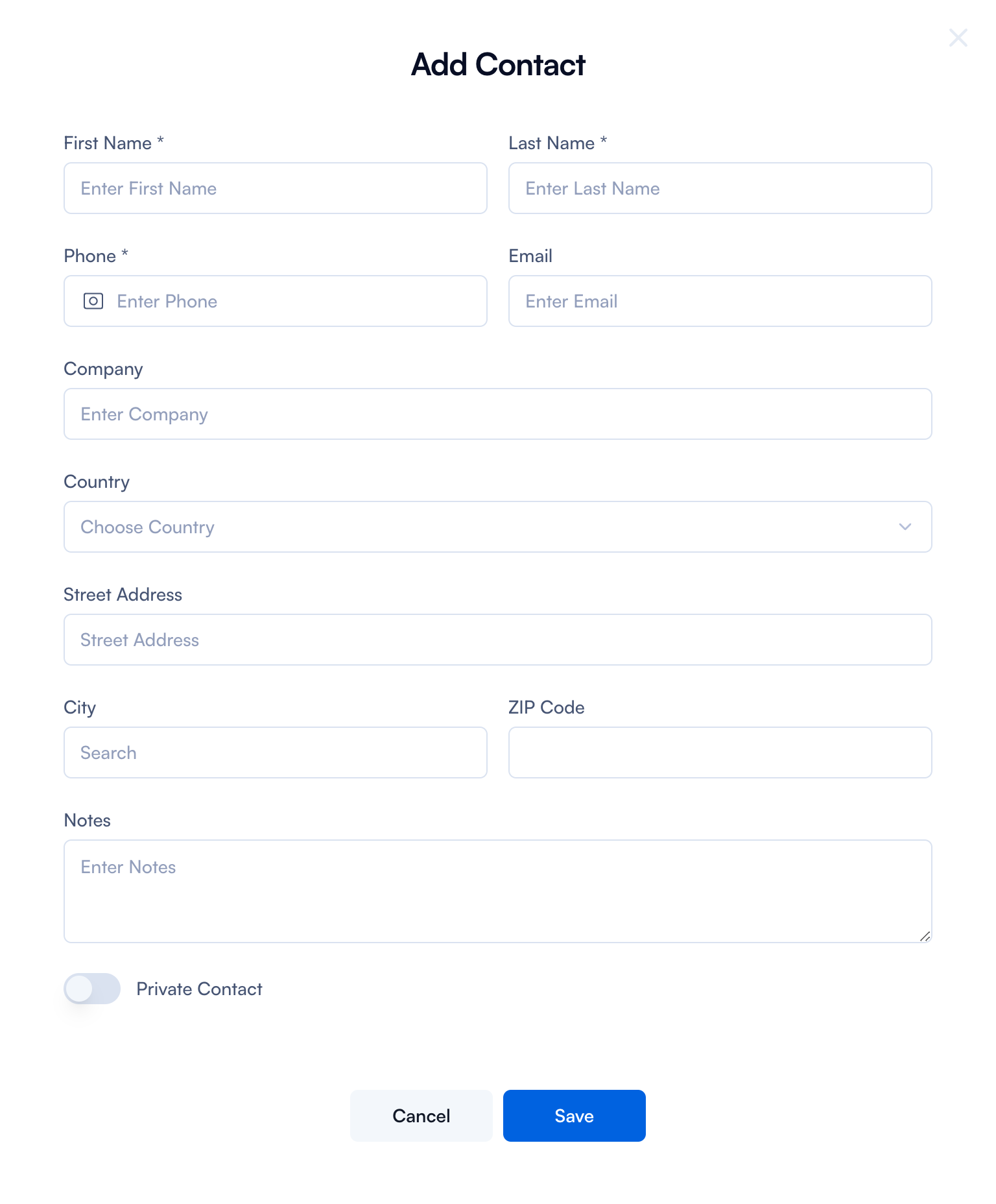
Complete the form by following the next steps:
Add Contact
| Type | How to use it |
|---|---|
| First name and last name | Type the contact's first name in the "First Name" field and their last name in the "Last Name" field. This is a mandatory field. |
| Phone number | Type the contact's phone number in this field. This is a mandatory field. |
| Add the contact's email address. | |
| Company | Type the name of the contact's company in this field. This field is optional. |
| Address | Introduce the address details followed by city, Postal Code, State and country. |
| Notes | You can type in any details you want to remember about this contact. |
| Private toggle | Toggle this option on (blue) if you want the contact to be private. Leave it off (gray) if the contact does not need to be private. |
| Save | Click the "Save" button once all the necessary information is filled out correctly. |
| Cancel | Click the "Cancel" button if you do not wish to add the contact. This will close the form without saving any changes. |
Delete or edit contact
If you want to make any changes to the contacts you've added, go to the Main Page and click on the ✏️ Edit or Delete button to make those changes.

If you have an Agent role, you will have access to this functionality and be able to perform the same actions as an Admin. Each user has their own contact list.