Call Logs
Overview:
Call logs are records that capture details of all incoming, outgoing, and missed calls.
In PBX.IM, you can view information such as the date and time of the call, and the caller's and receiver's phone numbers. Call logs can be used for tracking communication, analyzing call patterns, and troubleshooting issues in telecommunication systems.
Table of Contents
Introduction to Call Logs
Access Call Logs:
- Log in to PBX.IM
- Go to Settings
- Click on Call Logs
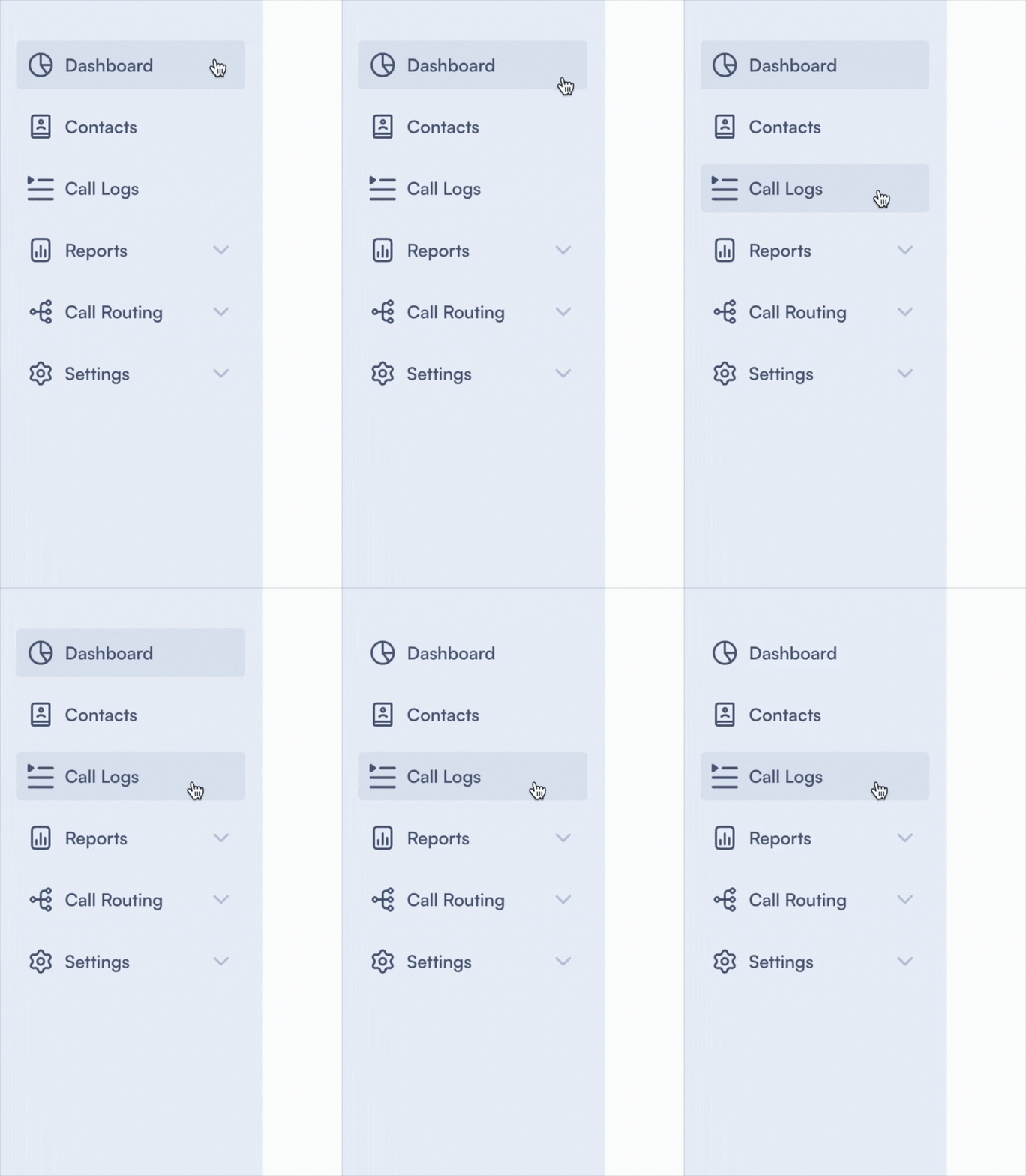
You are now ready to explore and check all your call logs. Let's dive into how to use them and what you can find:
How to use Call Logs
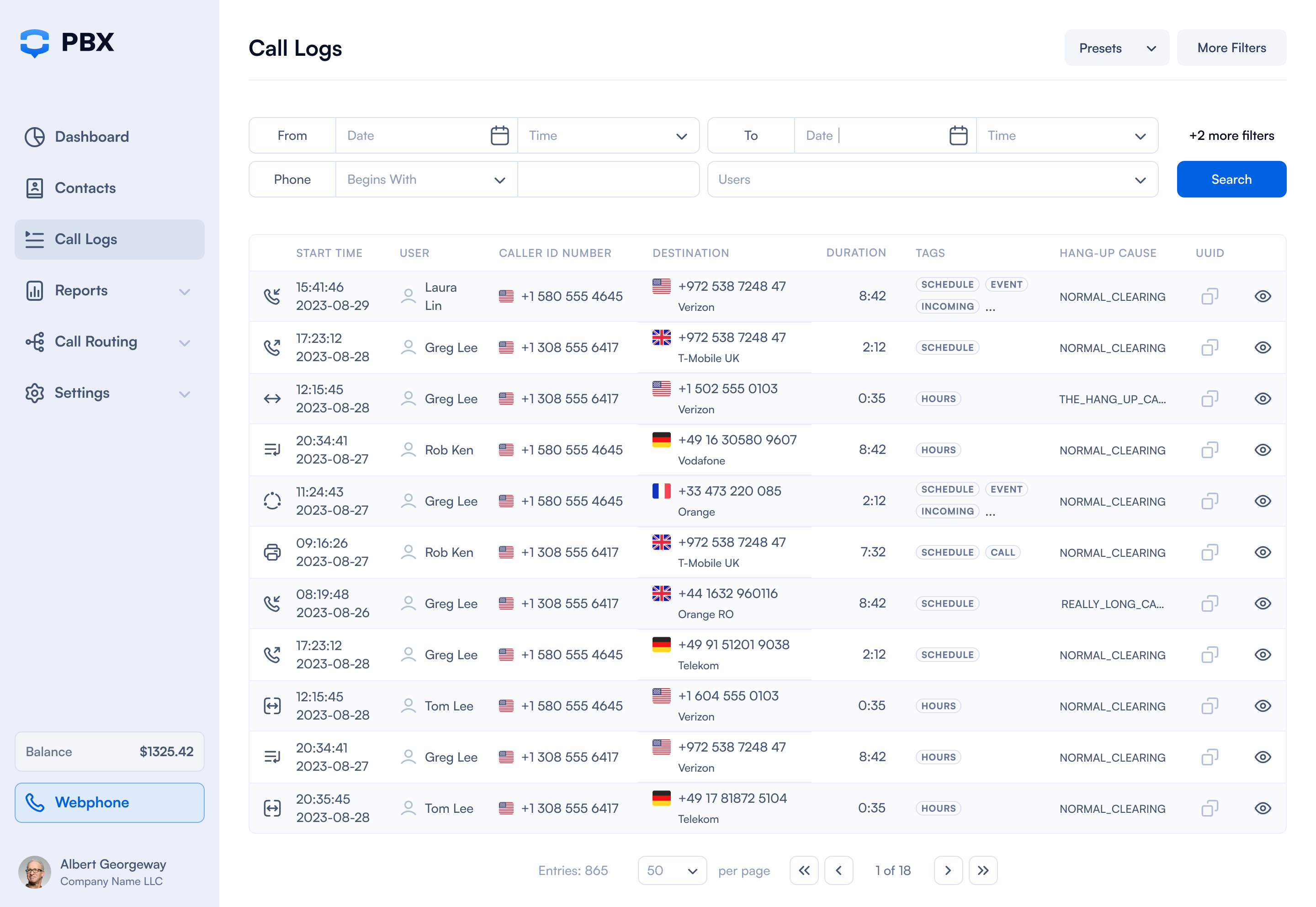
Once you click on 'Call Log,' you'll see a table with all the registered calls and a list of filters you can choose from.
Call log filters
When you log in to the Call Log tab, you'll see three actions you can take in the upper right corner:

| Field | Explanation |
|---|---|
| Clear Filters | When you click on "Clear Filters," any filters that have been set (such as date ranges, phone numbers, user IDs, call types, etc.) will be reset, and the call log will display all entries without any restrictions. |
| Presets | By clicking on "Presets," you can select from a list of previously saved filter settings. These presets quickly apply specific filter combinations that you have saved for frequent use. To save one you have to select the filters - go to Presets - Type in the name of the Preset - click Save. |
| Hide Filters | When you click "Hide Filters," the section of the interface will minimize. You will be able to see only the following fields: From, To, Phone number and Users. |
Next you will see all available filters that you can use.
Date range helpers. When you pick a From date, the To date is filled automatically to 3 months later, or to today if that is sooner. If you search with a From date earlier than your account's creation date, it is corrected to the account creation date and an amber message appears: "Account was created on [date]. Start date has been adjusted."
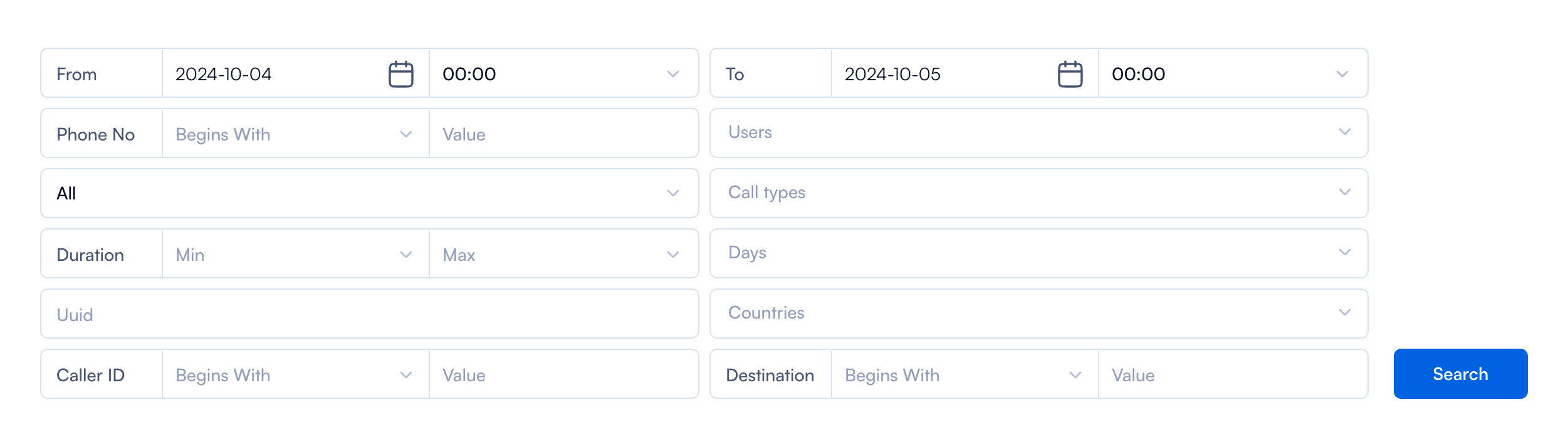
| Field | Explanation |
|---|---|
| From | The start date and time for the range of call logs to be displayed. |
| To | The end date and time for the range of call logs to be displayed. |
| Phone | Filters calls by phone numbers. Options: Begins with (numbers starting with specified digits), Ends with (numbers ending with specified digits), Exact (exact number match), Contains (numbers containing specified digits), Anonymous (calls with hidden caller ID). |
| Users | Filters calls by the user(s) involved in the calls. You can choose from the dropdown menu the users that you want to see. |
| Status | Filters calls based on their status. Options: All, Answered, Not answered. |
| Call type | Filters calls based on their type: Inbound, Outbound, Internal, Conference, Fax, Queue. You can select multiple types at once. |
| Duration | Filters calls by their duration, with options to specify minimum and maximum durations. You can choose from the dropdown menu a duration that suits your needs. |
| Tags | Filters calls based on assigned tags, which categorize calls for easier sorting and analysis. |
| Days | Filters calls based on specific days of the week. Choose from the dropdown menu the days from Monday to Sunday. |
| UUID | UUID is a unique identifier assigned to each call or session. This identifier ensures that every call can be distinctly recognized and managed, even if other call details are similar. You can use UUID filters for precise identification of specific calls. |
| Campaigns | Filters calls associated with specific campaigns, useful for tracking marketing or sales efforts. |
| Countries | Filters calls based on the destination country of the calls. You can choose from the dropdown menu multiple countries that interest you. |
| Caller ID | Filters calls by the caller ID number. Options: Begins with, Ends with, Exact, Contains, Anonymous. |
| Destination | Filters calls based on the destination phone numbers. You have the same dropdown options as the ones from the Caller ID section. |
| Hang-up cause | Filters calls based on the hang-up reasons. |
View Call Log details
If you want to see the ''Call Log'' details for a specific user, simply click on their name, and a detailed form will open. There are two scenarios:
- You can view the ''Call Log'' if the call was handled by a single user.
- You can see Part 1 and Part 2 if the call was transferred to another user.
Scenario 1: Same user Call Log
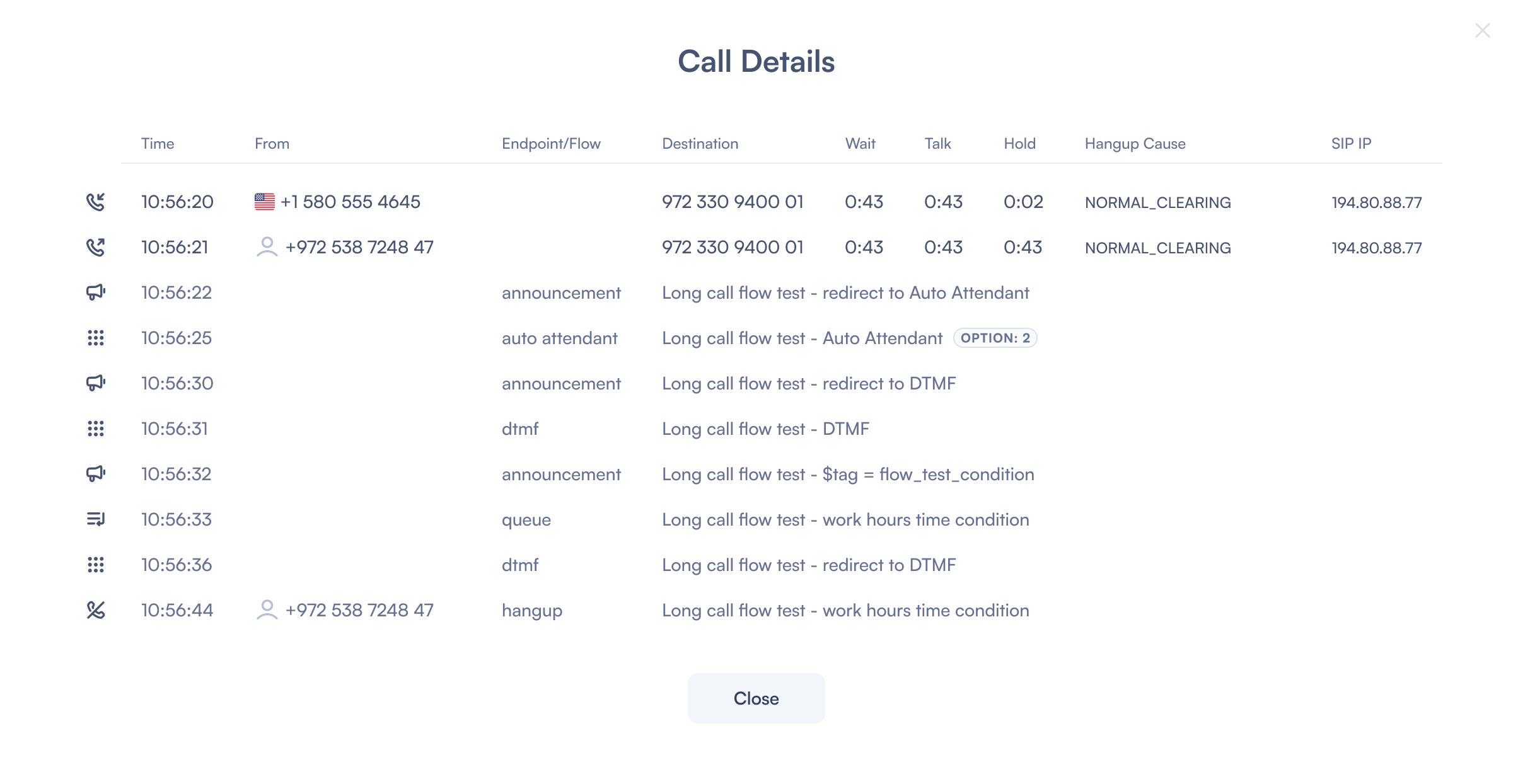
| Field | Explanation |
|---|---|
| Time | The exact time when each event in the call flow occurred. |
| From | The phone number or entity that initiated the call or event. |
| Endpoint/Flow | The part of the call flow or entity involved at this step (e.g., announcement, auto attendant, DTMF, queue). |
| Destination | The phone number or entity that was the target of the call or event. |
| Wait | The amount of time spent waiting before the call was answered or moved to the next step. |
| Talk | The duration of the actual conversation or interaction between the parties. |
| Hold | The amount of time the call was placed on hold. |
| Hangup Cause | The reason why the call was terminated (e.g., NORMAL_CLEARING). |
| SIP IP | The IP address of the Session Initiation Protocol (SIP) server involved in this part of the call. |
Scenario 2: Call was forwarded
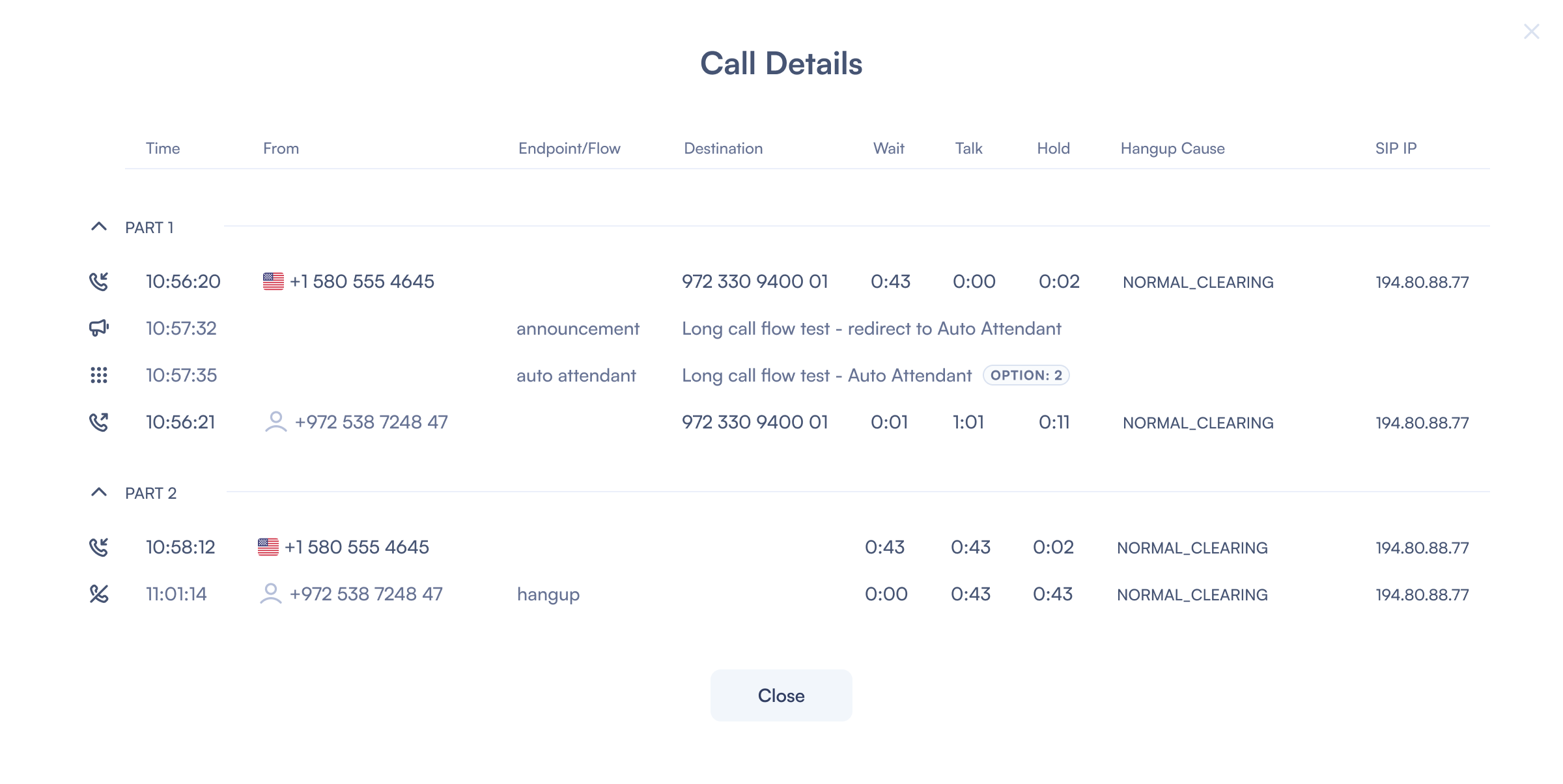
If the call was forwarded you will see the same details as above, but split into multiple parts (e.g: Part 1 and Part 2).
If you have an Agent role, you will be able to view the Call Logs for your specific calls. You will have the same settings and fields as an Admin, but they are tailored specifically to the calls you handle.
Export Call Logs
You can export your call logs to a CSV file with customizable columns.
How to Export
- Apply any filters you need in the Call Logs view.
- Click the Export button.
- In the Export dialog, select the columns you want to include in the export.
- Click Export to download the CSV file.
Selecting Export Fields
The export dialog shows two groups of fields:
Standard Fields — These are selected by default and include the most commonly used columns such as start time, caller ID, destination, duration, dial status, and more.
Advanced Fields — Expand the "Advanced" section to see additional fields like UUID, SIP IP, hangup cause, wait duration, and hold duration.
Use the Select All toggle at the top of each group to quickly select or deselect all fields in that group. You can also toggle individual fields on or off.
Cost Column Visibility
The Cost column is only available to users with the appropriate permissions:
- Account owners
- Users with the Financial role
- Admin users
At least one field must be selected to enable the Export button. The exported CSV will respect the same filters currently applied to the Call Logs view.