Manage Your Teams
''Teams'' is a PBX.IM functionality for managing all your teams in just one place.
Table of Contents
Introduction to Teams
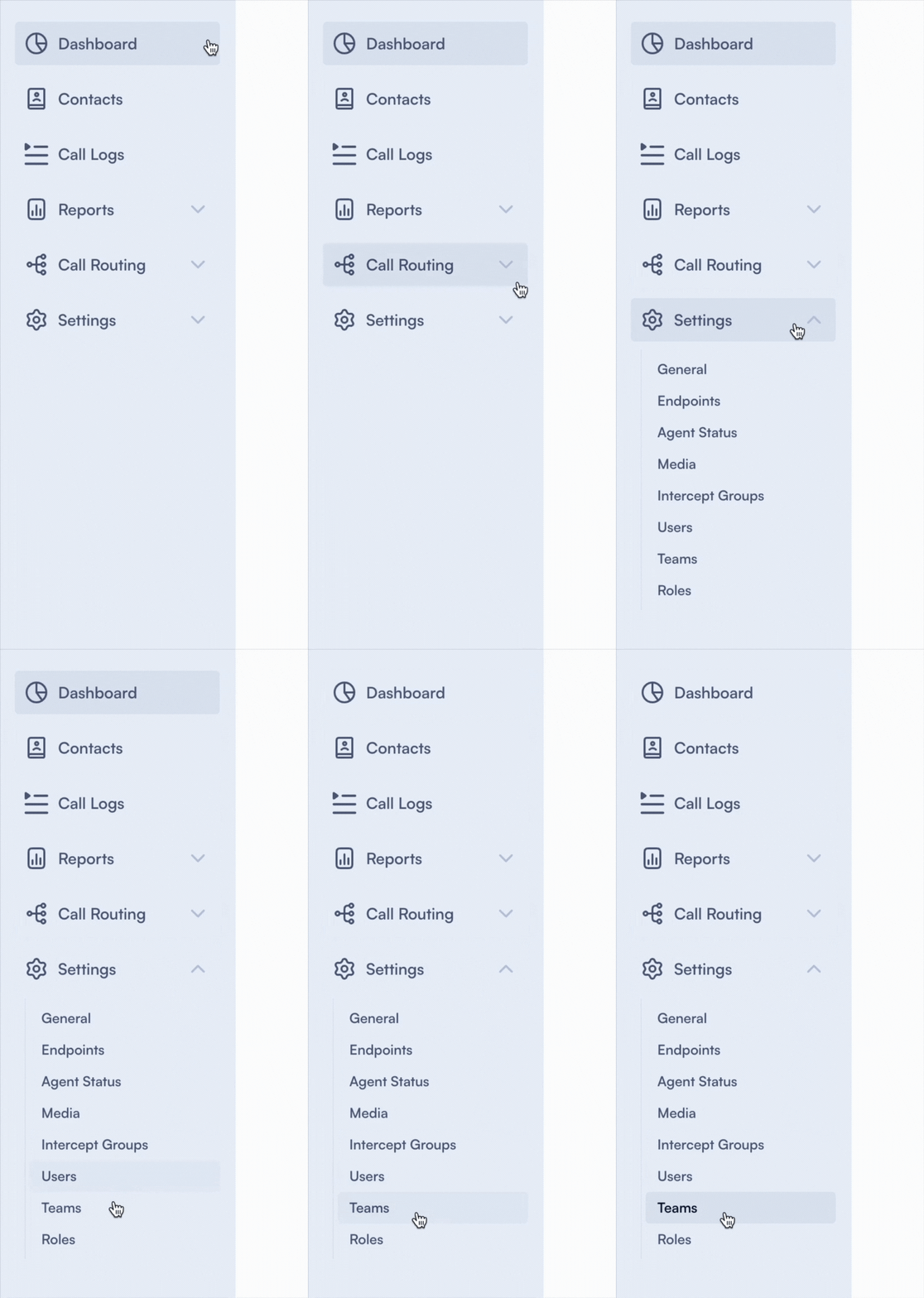
Access Teams
- Log in to PBX.IM
- Go to Settings
- Click on Teams
Set up a Team
Once you click on the Teams section, a page will open where you can see an overview.

To add a new team, simply click on ''Add Team'' in the upper right corner.
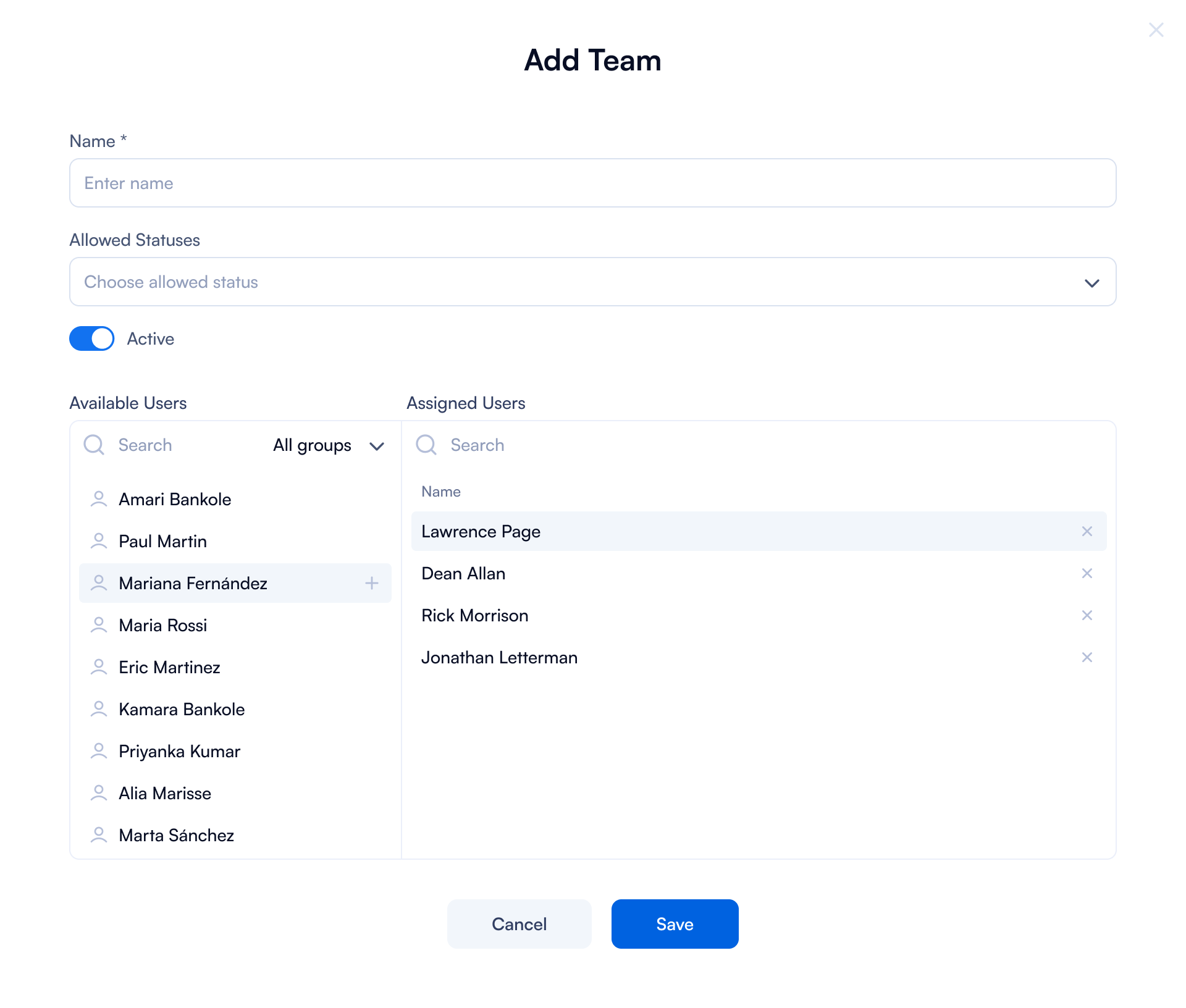
Once you click on it, a form will open up where you have to fill in the details:
Add Team
| Field | How to use |
|---|---|
| Name | Enter the name of the team you are creating in this text box. |
| Allowed Statuses | Choose from a dropdown menu the statuses that are allowed for this team. In the dropdown, you will see the list of statuses you set in the Agent Status section. If you need different statuses, you will have to go to Agent Status page and type them in. |
| Active | Toggle the switch to activate or deactivate the team. |
| Available Users | You will see the list of all available Accounts & Users that you can choose from. Click on one user name and it will automatically be moved under the Assigned Users column. |
| Assigned Users | This is the column where you will see the users you selected from the Available users column and that will be part of the team you are currently creating. |
| All teams dropdown | If you already have teams created you can filter based on them. Click on All teams and a dropdown menu will open up. |
| Search | You also have a Search option that you can use to filter the list of available or assigned users based on name. |
Edit a Team

If you want to edit a Team all you have to do is go the main page and click on the ✏️. The same form will pop up where you can make all necessary changes.