What are Calls Reports at PBX.IM?
Table of Contents
Introduction to Calls Reports
Calls Reports is a PBX.IM's feature that displays report results based on the KPIs you've set under General .
How to generate a report?
Go to Reports. Log into your account, navigate to the Reports section, and select 'Calls Reports.'
Once you log in you will see the full page where you can set the parameters for your report.

| Field | How to use |
|---|---|
| From | Set the starting date and time for the report. Choose the exact day and hour to define when the report period begins. |
| To | Set the ending date and time for the report. Choose the exact day and hour to define when the report period ends. |
| Type | Select the type of calls to include, such as inbound, outbound, or queue. |
| Days | Click on the dropdown menu to filter by specific days of the week and select your preferred days. |
| Countries | Filter calls by country to focus on specific regions. Click on the dropdown menu and type in the name of the country. |
| Clear Filters | Reset all filters to default. Quickly start fresh with no active filters. |
| Today | Choose quick date presets (e.g., "Today") to simplify report generation without manual date input. You have other options as well: Yesterday, Last 7 Days, Last 30 Days, Last week, Last month. |
| Create Report | Click to generate the report based on your selected filters and settings. The report compiles data for the specified period and criteria. |
Once you click Generate Report you will see the results color coded according to the KPIs you set under General .
Let's break down each section of the report:

| Field | How to use |
|---|---|
| Calls | Total number of calls received. |
| Answered Calls | Number of calls that were answered. |
| Unanswered Calls | Number of calls that were not answered. |
| Unique Calls | Number of unique callers. |
| Avg Call Duration | Average duration of each call. |
| Talk Time | Total cumulative talk time for the period. |
You can customize the colour code based on your KPIs.
Detailed Destinations Report
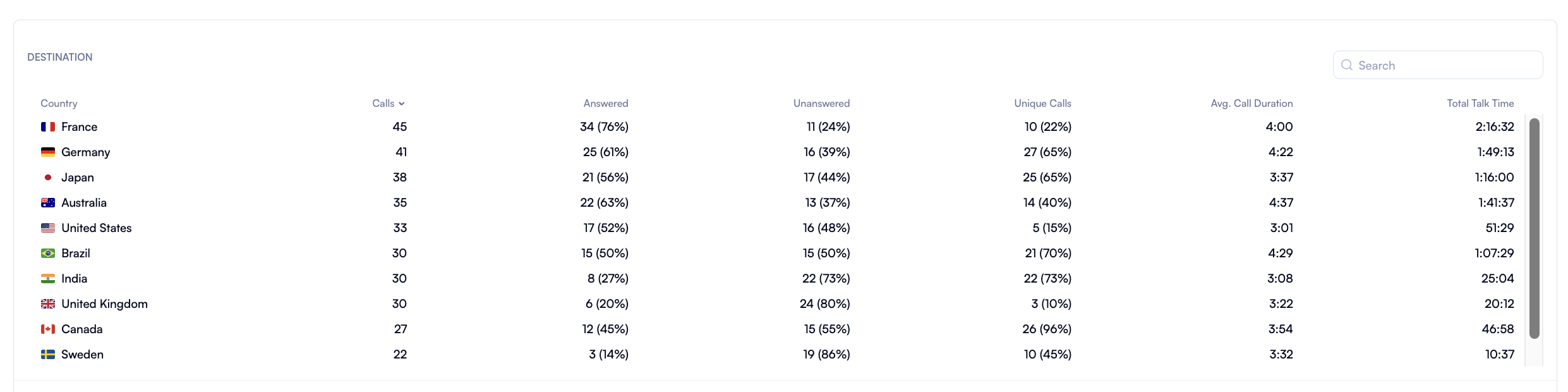
You can see detailed reports based on destinations.
| Field | How to use |
|---|---|
| Country | Lists the destination countries for the calls. Each row represents data for a specific country. |
| Calls | Total number of calls made to each country. Provides an overview of call volume per destination. |
| Answered | Number and percentage of calls that were answered in each country. High percentages indicate effective response rates in that country. |
| Unanswered | Number and percentage of calls that were not answered in each country. High percentages here may indicate issues with call availability or missed calls. |
| Unique Calls | Number and percentage of unique callers per country. |
| Avg. Call Duration | Average duration of calls to each country. Indicates the typical length of conversations, which can provide insights into engagement levels. |
| Talk Time | Total accumulated talk time for all calls to each country. Useful for understanding the overall amount of engagement per destination. |
Detailed Agents Report
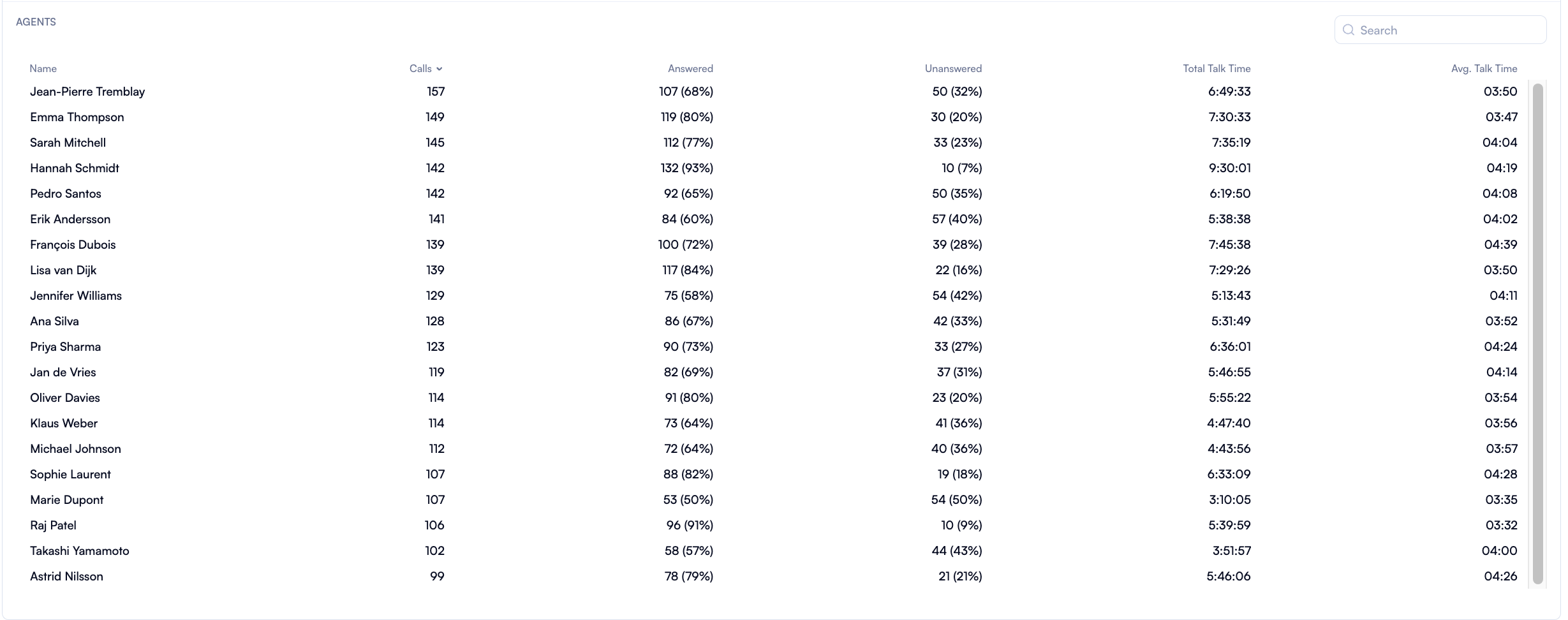
Another section that you can use is the one where you can see a detailed report for each agent.
| Field | How to use |
|---|---|
| Name | Lists the names of agents handling calls. Each row provides data for an individual agent. |
| Calls | Total number of calls handled by each agent. This gives an overview of each agent's call volume and workload. |
| Answered | Number and percentage of calls that each agent successfully answered. A higher percentage reflects better responsiveness for that agent. |
| Unanswered | Number and percentage of calls that were unanswered by each agent. A high percentage could indicate areas for improvement in availability or efficiency. |
| Talk Time | Total talk time accumulated by each agent. This reflects the total time agents spent in conversation with callers. |
| Avg. Talk | Average duration of each call handled by the agent. This helps in understanding how much time each agent typically spends per call. |
Note that the maximum time range you can select for the report is 3 months.