Call Queues
Overview:
Call Queues is the functionality that helps you manage incoming call traffic when all lines are busy or representatives are unavailable.
When a caller tries to reach a business and all agents are occupied, the call queue places the caller in line, playing hold music or promotional messages while they wait. Call queues allow you to handle high volumes of calls efficiently without losing potential clients due to dropped calls or excessive waiting times. They often include options for prioritizing certain calls or providing callers with information about their expected wait time.
Table of Contents
Introduction to Call Queues
Configure the way calls are allocated to match your business needs and agent capabilities. Leverage PBX.IM's advanced features to distribute calls based on time routing, team availability, agent skill sets, or simply use a round-robin method. Set time limits for customers to be on hold, have their questions answered, and be transferred to another available agent.
Access Call Queues:
- Log into PBX.IM Dashboard
- Go to "Call Routing"
- Select "Call Queues" from the drop down menu
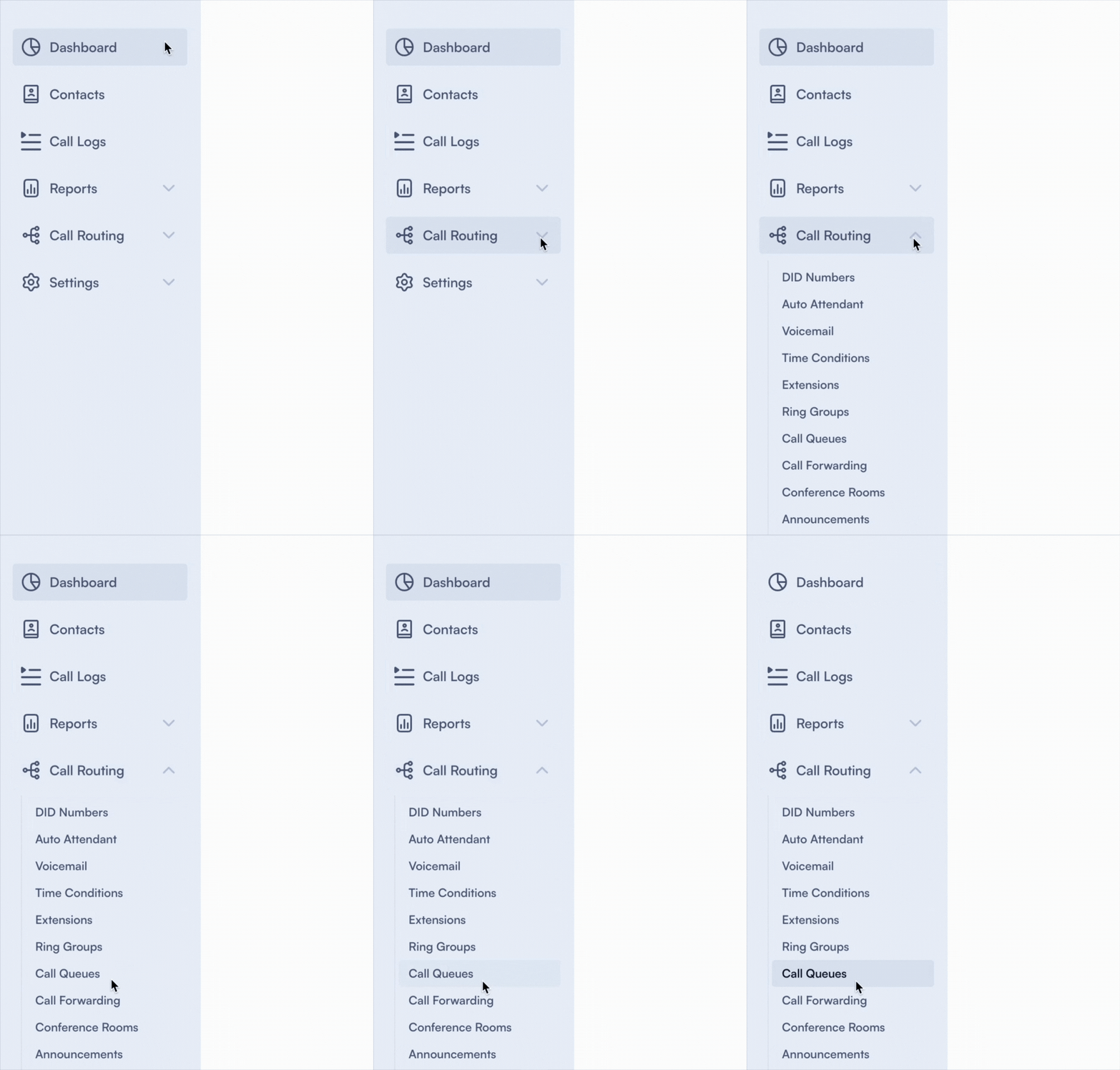
Set up a Call Queue
Click on "Add Call Queue".

Complete the form by following the next steps:
General tab
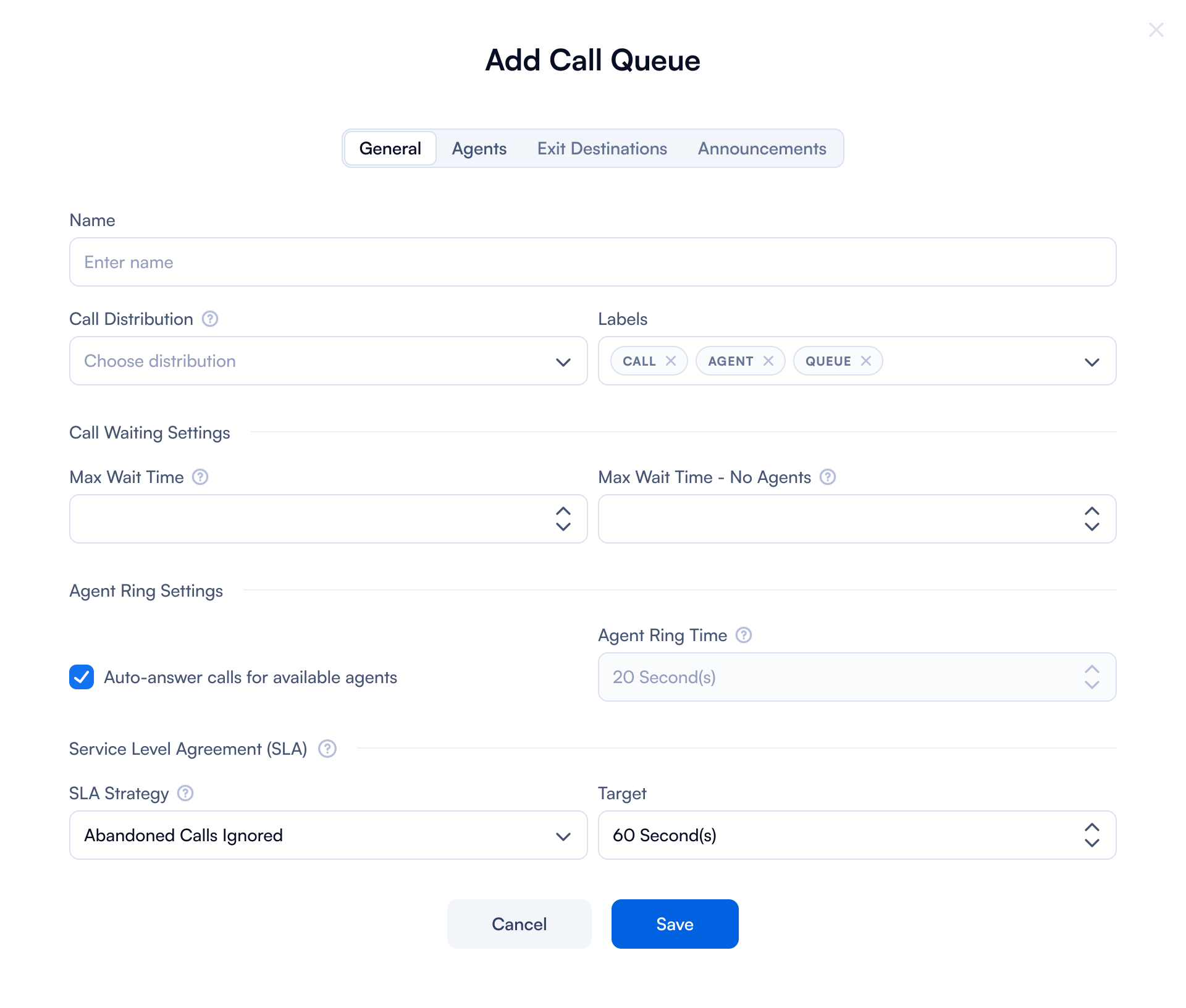
| Field | Purpose | How to use |
|---|---|---|
| Name | Input the name of the call queue. This helps in identifying and managing different queues based on their purpose or department. | Write the name and press Enter. |
| Call Distribution | Select the method by which calls are distributed to agents: Ring All, Longest Idle Agent, Round Robin, Top Down, Agent with Least Talk Time, Agent with Fewest Calls, Sequentially by Agent Order, Sequentially by Next Agent Order, or Random. | Choose from the dropdown the distribution method that best suits your team. |
| Labels | You can assign specific labels to the queue for better organization and filtering. | Write the name and press ENTER. |
| Max Wait Time | This setting determines the maximum amount of time a caller will wait in the queue before being redirected or disconnected. | Press the arrows UP or DOWN to increase or decrease the waiting time. Setting this to '0 Seconds' means there is no upper limit on waiting time. |
| Max Wait Time - No Agents | Similar to Max Wait Time, but specific to scenarios where no agents are available. It shows how long a caller will have to wait when there are no agents in the queue before being directed to the exit destination. | Press the arrows UP or DOWN to increase or decrease the waiting time. Setting this to '0 Seconds' means unlimited time. |
| Auto-answer calls for available agents | If checked, incoming calls are automatically picked up by available agents. | Check the box to enable, leave unchecked to disable. |
| Agent Ring Time | Sets how long the system will try ringing an agent before moving on to the next available agent. | Press the arrows UP or DOWN to increase or decrease the waiting time. Setting this to '0 Seconds' means unlimited time. |
| Service Level Agreement (SLA) | Defines the expected service level for the queue. Options: Abandoned Calls Ignored (abandoned calls don't affect SLA), Abandoned Calls Negative Impact (abandoned calls count against SLA), Abandoned Calls Positive Impact (abandoned calls count positively), or No SLA (no metrics applied). | Choose the SLA strategy from the dropdown. |
Agents tab
On this tab you can set the permissions for your agents.
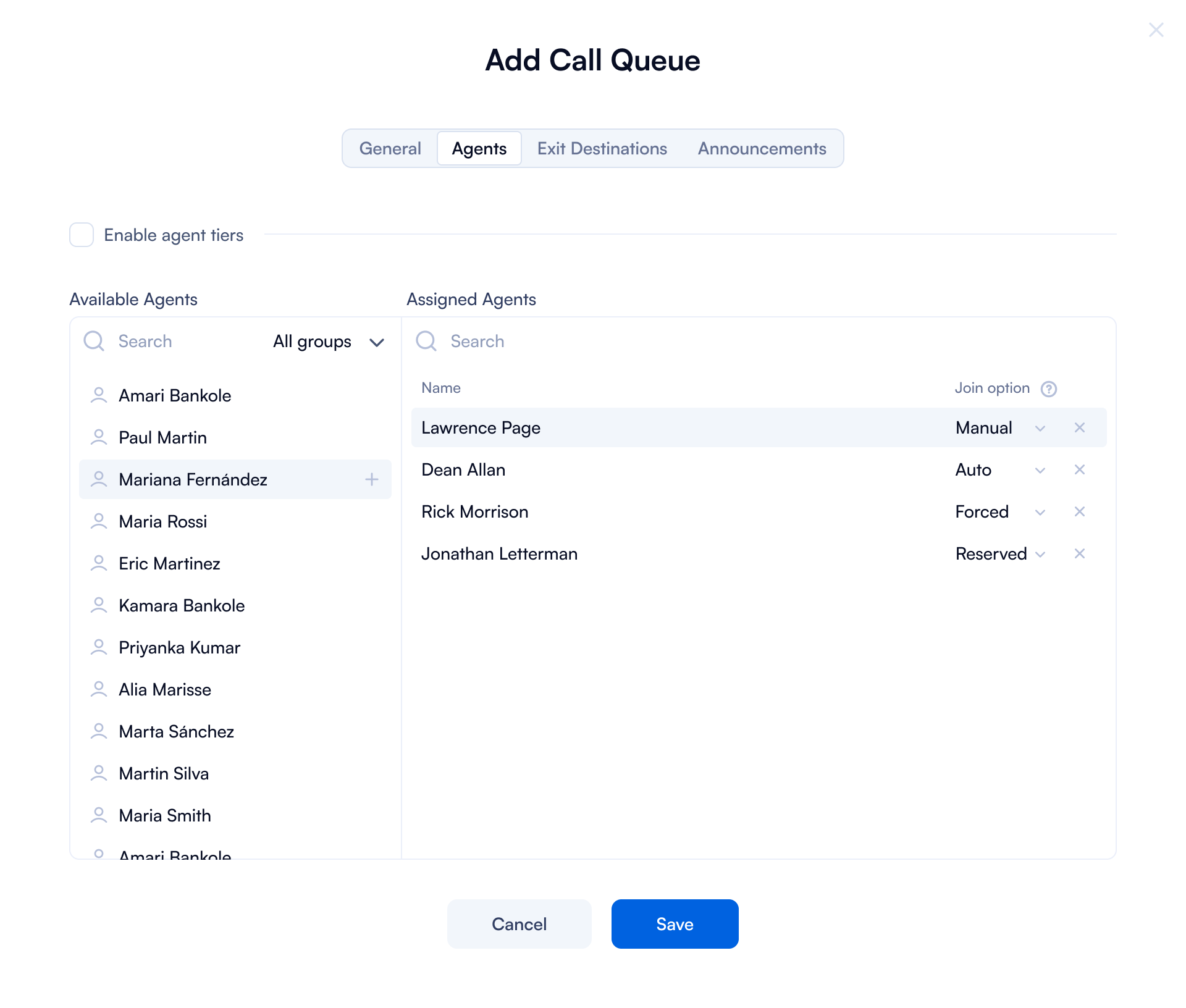
| Field | Purpose | How to use |
|---|---|---|
| Enable Agents Levels | Allows setting different priority or skill levels for agents within the queue. | Check to enable. Options: After level wait time, move to next level and Skip levels with no available agents. You can set the Level Wait Time with the arrows. |
| Available Users | Lists all users who can be assigned to handle calls in this queue. | Click on a user name and choose a Join Option: Manual (agent joins manually), Auto (joins on check-in), Forced (joins on check-in, only manager can remove), or Reserved (manager adds/removes). |
| Cancel and Save buttons | Cancel discards changes; Save applies all settings. | Click Cancel or Save as needed. |
Exit Destinations
This tab is used to define what happens when a call needs to be redirected or handled differently based on specific conditions or inputs from the caller.
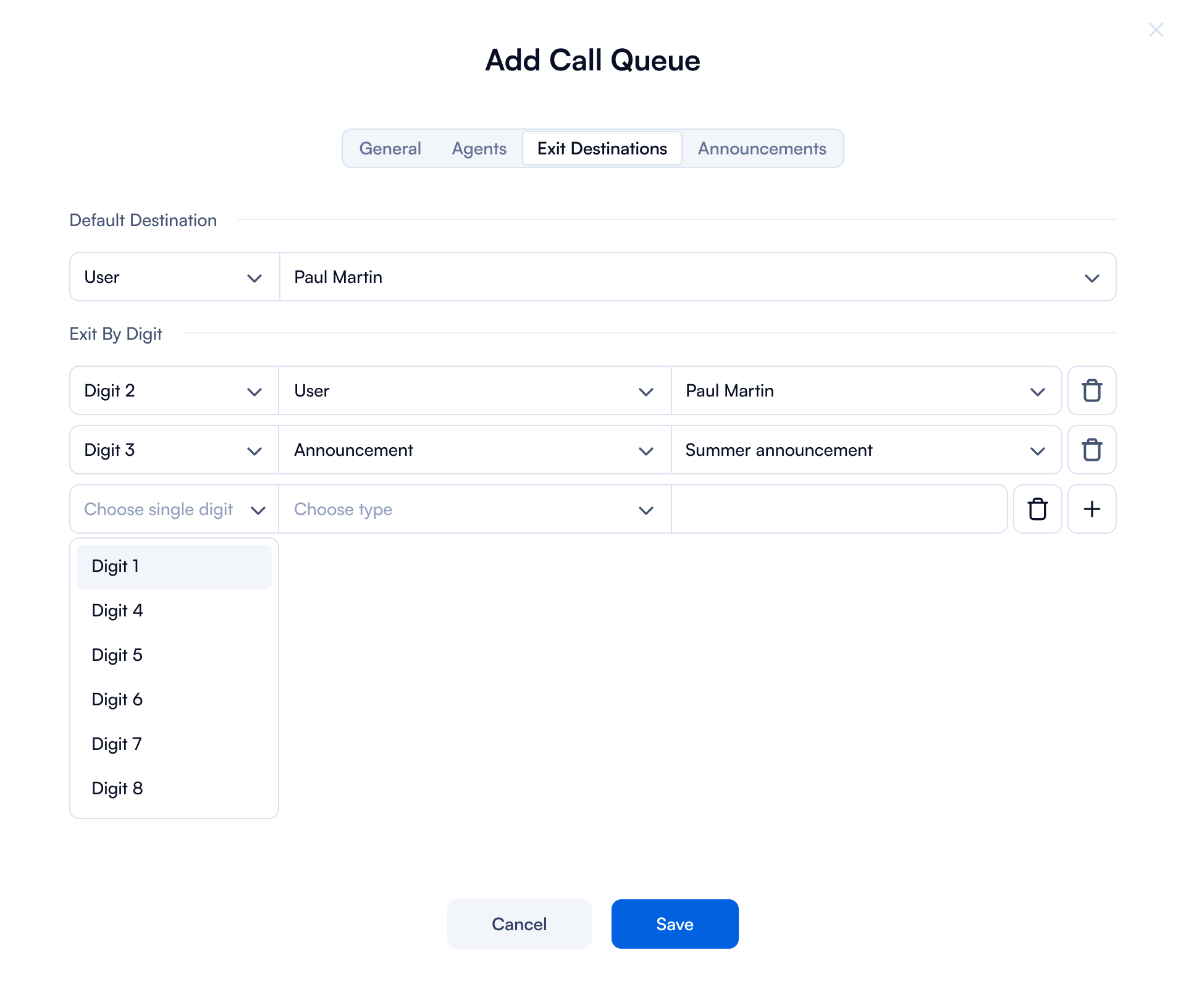
| Field | Purpose | How to use |
|---|---|---|
| Default Destination | Sets a default action or destination for calls exiting the queue. | Choose from: User, Time Condition, Endpoint, Queue, Announcement, Forward, IVR, Voicemail, Ring Group, or Conference. Then select a Value for the chosen type. |
| Exit By Digit | Allows callers to press a digit to choose a specific route. Fields: Choose Digit, Choose Type, Choose Value. | Select a digit, then a destination type (User, Queue, IVR, etc.), then a value. Use the Add (+) button for multiple digit-based actions. |
| Cancel and Save buttons | Cancel discards changes; Save applies all settings. | Click Cancel or Save as needed. |
Announcements
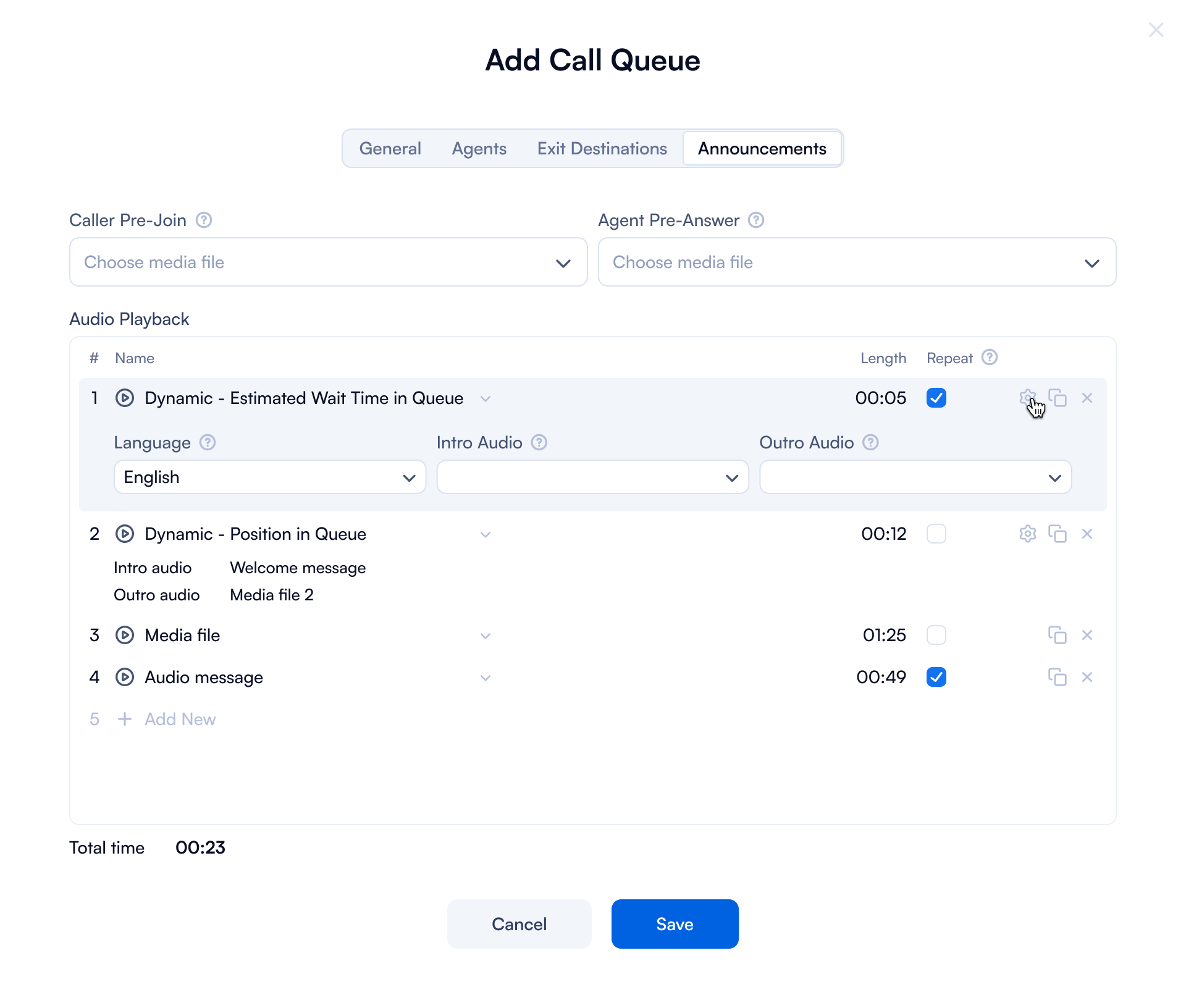
This tab is dedicated to setting up and managing audio announcements that are played to callers in various scenarios.
| Field | Purpose | How to use |
|---|---|---|
| Caller Pre-Join | Media file played to callers before they are connected to the queue. | Select from the dropdown (Welcome messages, greetings, RingTone, etc.). |
| Agent Pre-Answer | Media file played to callers just before an agent answers the call. | Use the dropdown to select the appropriate file. |
| Audio Playback | Manage audio files played during the call. | Click +, choose an audio, check Repeat if needed, and Save. Click the cog icon to edit Language, Intro Audio, and Outro Audio settings. |
| Cancel and Save buttons | Cancel discards changes; Save applies all settings. | Click Cancel or Save as needed. |
Performance Reports
You need to have an Admin role to view these reports.
As an Admin, you can monitor real-time performance, assess the efficiency of call handling, and make adjustments to staffing or procedures based on the data to improve service quality and responsiveness.
Let's take an example and break it down one by one:
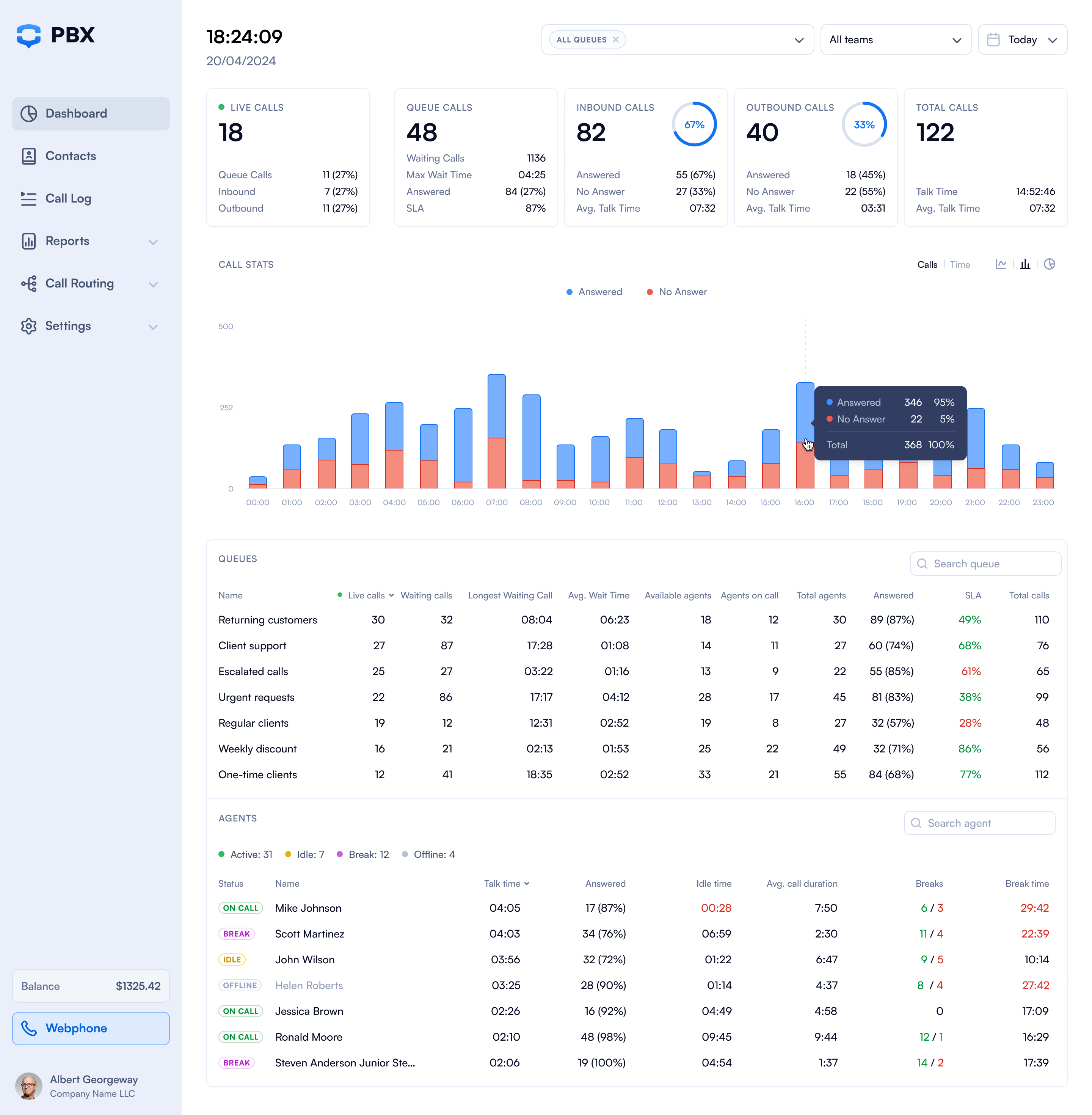
This data is fictive and for exemplification purposes only
Step 1: Choose the ''All Queues'' option
Step 2: Select ''All teams''
Step 3: Choose the dates
After doing this you will be able to see the following information:
| Type | Purpose |
|---|---|
| Live Calls | Shows the number of calls that are currently active across all queues. |
| Queue Calls | Total calls waiting in queues. Includes: Waiting Calls, Max Wait Time, Answered (count and %), and SLA %. |
| Inbound Calls | Total incoming calls. Includes: Answered (count and %), No Answer (count and %), and Avg. Talk Time. |
| Outbound Calls | Total outgoing calls. Includes: Answered (count and %), No Answer (count and %), and Avg. Talk Time. |
| Total Calls | Combined total of inbound and outbound calls. Includes: Talk Time and Avg. Talk Time. |
| Queue Call Stats (Graph) | The chart shows the distribution of wait time versus average call duration for all calls. |
| Detailed Queue Metrics | Lists queues with: Name, Live Calls, Waiting Calls, Longest Waiting Call, Avg. Wait Time, Available Agents, Agents on Call, Total Answered, SLA, and Total Calls. |
Common Call Queues Use Cases
Call queues are essential tools in managing large volumes of calls in various settings. They help you distribute calls efficiently among available agents and ensure a smooth caller experience. Here are four common use cases for call queues, including the scenario and solution for each:
1. Customer Support Center
- Scenario: You are a technology company that receives hundreds of calls daily from users needing assistance with their products. The calls often arrive in bursts, leading to potential long wait times and dropped calls.
- Solution: Implementing call queues allows you to manage these bursts efficiently. Calls are distributed based on agent availability and expertise. The queue system can provide callers with estimated wait times and the option to receive a callback instead of waiting on hold, improving customer satisfaction and reducing dropped calls.
2. Healthcare Appointment Scheduling
- Scenario: You own a large clinic that experiences high call volumes during specific hours when patients call to book or reschedule appointments. Patients often face long waiting times, leading to frustration and potential loss of service.
- Solution: Using a call queue system, your clinic can manage incoming calls more effectively by distributing them among a larger pool of available administrative staff. The system can also prioritize calls based on the urgency of the request (e.g., same-day appointments). Automated messages could inform callers about quieter times to call or guide them to an online booking system.
3. Technical Support for IT Services
- Scenario: You are an IT service provider that deals with technical support requests varying widely in complexity, from simple password resets to system outage issues.
- Solution: Call queues are set up with different priority levels; simple issues are routed to less experienced agents while more complex problems are directed to specialized technical staff.
4. Retail Order and Payment Inquiries
- Scenario: You own a retail company during peak shopping seasons (like Christmas or Black Friday) and you receive an influx of calls regarding orders, shipping, and payment issues.
- Solution: Call queues can help manage the increased call load by categorizing calls into different queues based on the query type (orders, payments, complaints, etc.). Introductory announcements can inform customers about expected wait times and frequently asked questions, reducing the burden on live agents.