How do PBX.IM Phone Number Extensions Work?
Overview:
Extensions are a feature that allows you to assign unique identifiers, such as internal phone numbers, to simplify communication within your organization. Each extension is a short code assigned to a user or department—like extension 101 for sales—enabling employees to connect directly without using full phone numbers. These extensions facilitate call management with features like voicemail and call forwarding, and make it easy to scale by adding more as the company grows.
Table of Contents
Introduction to Extensions
With Extensions, you can assign unique identifiers or endpoints to each department, user, or device, enabling direct dialing within the network without the need to use a full telephone number. The Extensions feature also simplifies the process of calling colleagues within the organization. Instead of dialing a full phone number, you only need to dial the extension number.
Access Extensions:
- Log into PBX.IM Dashboard
- Go to ''Call Routing''
- Select ''Extensions'' from the drop down menu
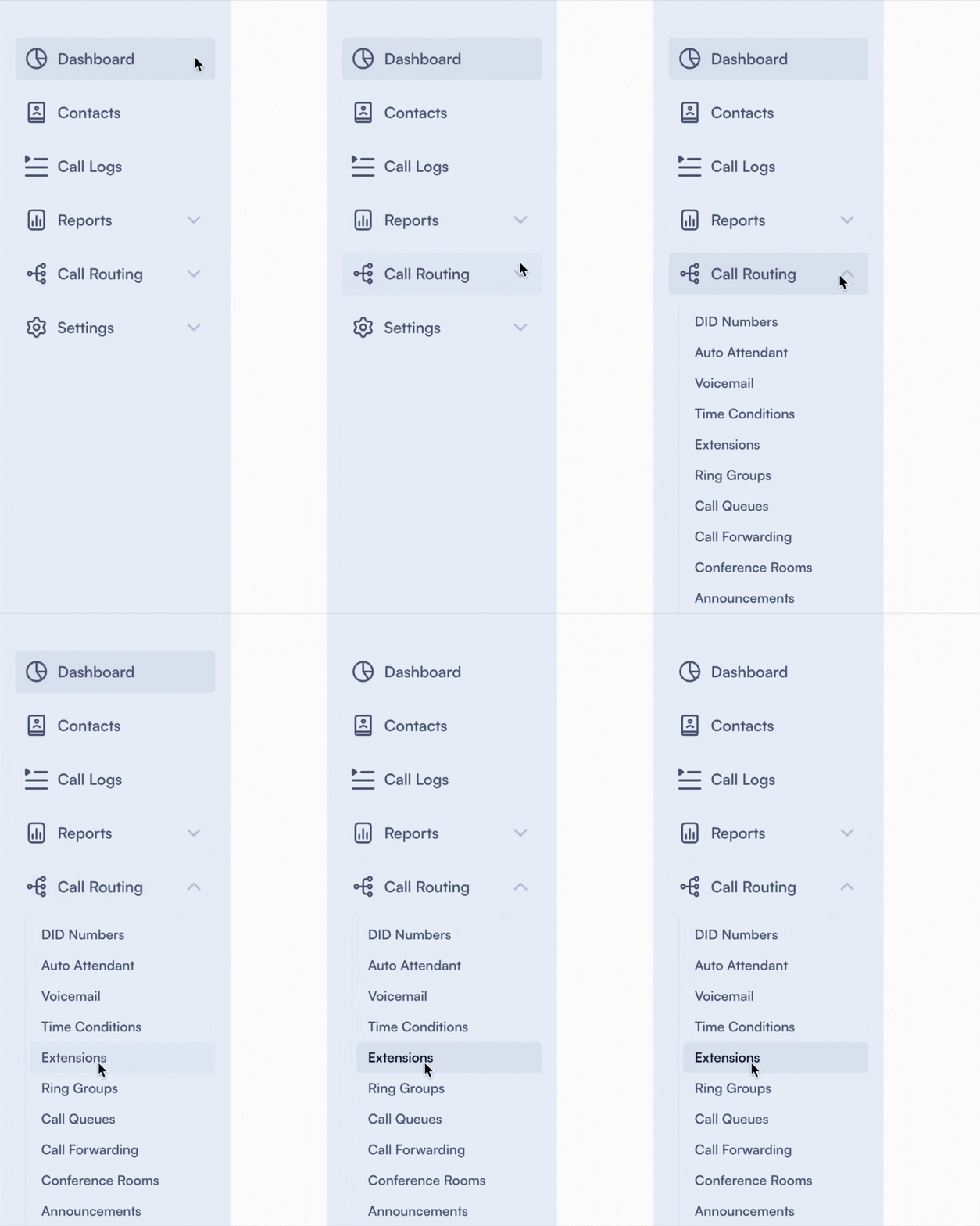
Set up an Extension
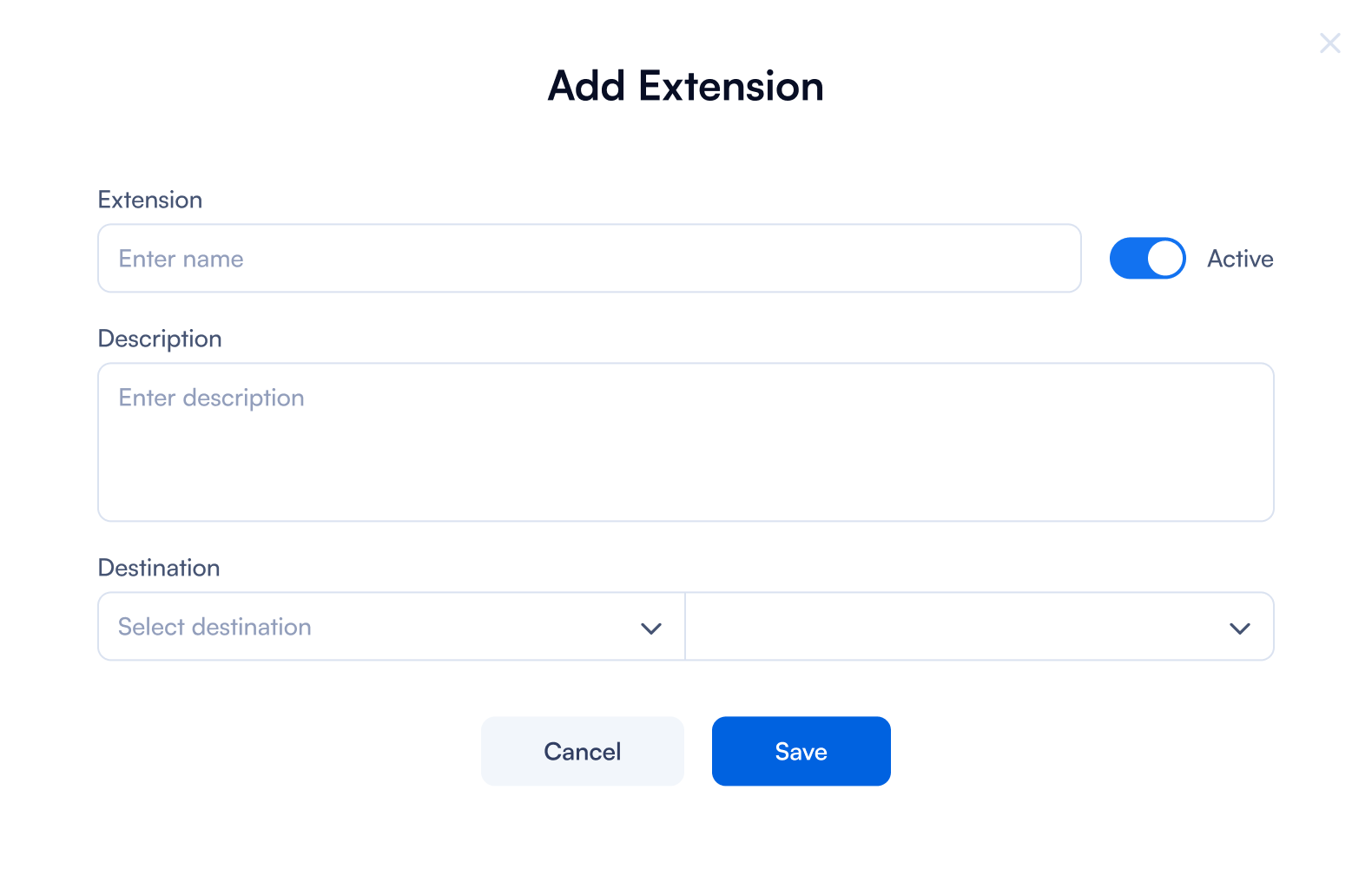
Click on ''Add Extension''

Complete the form by following the next steps:
Add Extension
| Type | Purpose | How to use |
|---|---|---|
| Extension | This field is where you enter the specific number or code that identifies the extension. This number is used by others within the network to reach the person or department assigned to this extension. | For example, you can add 1011 for Sales. |
| Active toggle option | This toggle switch allows you to activate or deactivate the extension. | When active, the extension can receive and make calls. If deactivated, it will not be in use. |
| Description | Here, you can enter a brief description or notes about the extension. | This could include information like whom it's assigned to or its purpose (e.g., "John Doe - Customer Service" or "Front Desk"). |
| Labels | This section is used for adding tags or labels to the extension, which can help categorize or identify specific features or roles of the extension within the system. | Type in the name that you want and press ENTER. e.g., "Sales", "Tech Support". |
| Destination | This dropdown menu allows you to select where calls to this extension should be routed. | From the dropdown select the one that best suits your need. You can choose between: User, Time Condition, Endpoint, Queue, Announcement, Forward, IVR, Voicemail, Ring Group, or Conference. |
| Save and Cancel buttons | These buttons allow you to either cancel the configuration or save the changes you have made. | After making your changes or setting up a new extension, click "Save" to apply the settings. If you decide not to make any changes or additions, you can click "Cancel" to exit without saving. |
Edit an extension
- Save the changes
- Go to the primary ''Extensions'' page, where you have two options for easily searching for extensions:
| Type | Purpose | How to use |
|---|---|---|
| Search Bar | At the top, there's a search bar that allows you to quickly find specific extensions by entering relevant terms. | Type in the extension name and the platform will generate the result. |
| Labels Dropdown | This allows you to filter the list of extensions based on assigned labels, which can categorize extensions by department, function, or any other organizational structure. | Click on the extension you want to edit and a pop up will show up with the fields you can modify. |
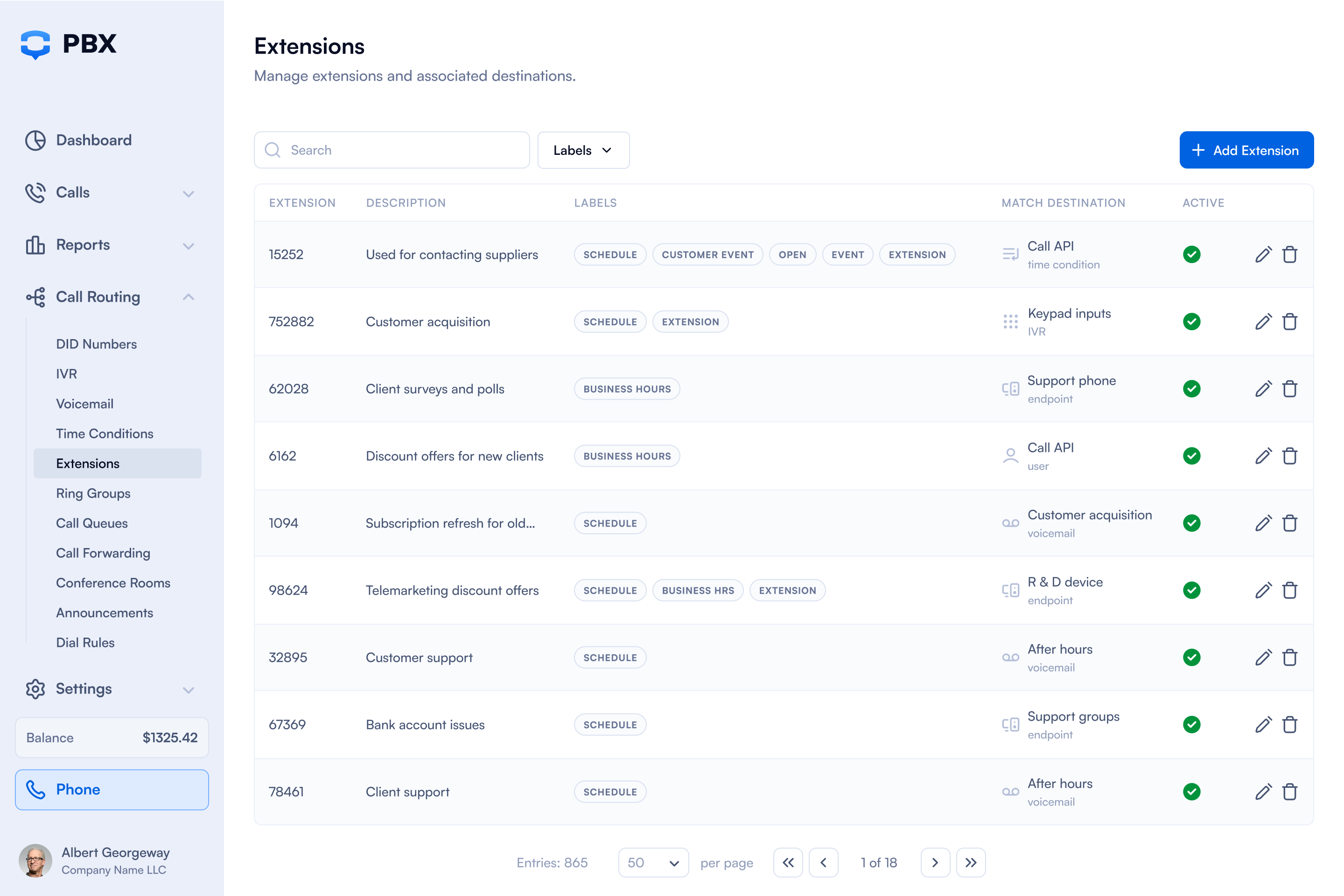
If you want to make changes to any of the entry under the main page you can do the following actions:
| Type | Purpose |
|---|---|
| Extension | In this column you will see the list of the unique identifier for each phone extension that you added |
| Description | In this column you will see the description you set for the extension |
| Labels | In this column you will see the labels you typed in |
| Match destination | In this column you will see the destination you set for the specific extension |
| Active | In this column you will see which extension was activated or not |
To edit or delete any extension just click on the ✏️ Edit or Delete button.
Common Phone Number Extensions Use Cases
Extensions are the perfect way to enhance your communication. Here are 4 common use cases to exemplify how you can use this functionality:
- Direct Dialing for Employees
- Scenario: You manage a large corporate office with numerous departments and hundreds of employees. Internal communication is essential but often gets bogged down due to the complexity of contacting the right person quickly.
- Solution: By assigning a unique extension to each employee, you streamline the communication process within the company. Employees can call each other directly using short, easy-to-remember extension numbers, saving time and reducing the need for complex dialing procedures.
- Departmental Routing
- Scenario: Your customer service department receives a high volume of calls daily, which can lead to confusion and misdirected calls when handled by the front desk.
- Solution: Setting up specific extensions for each department allows incoming calls to be routed directly to the appropriate team. This ensures that callers reach the right department on their first try, enhancing efficiency and improving the caller experience.
- Remote Work and Mobility
- Scenario: Your sales team is frequently on the road or working from various locations, making it difficult for clients and colleagues to reach them through traditional office lines.
- Solution: Extensions can be configured to forward calls to mobile or home phones, ensuring that team members remain accessible regardless of their location. This flexibility maintains connectivity and responsiveness, boosting productivity and client satisfaction.
- After-Hours Calling
- Scenario: Your business operates in multiple time zones, requiring support and communication availability beyond standard office hours. However, maintaining a 24/7 staffed office is not feasible.
- Solution: Using time-based routing for extensions, calls made after hours can be automatically directed to voicemail or to an emergency number. This setup keeps your service responsive around the clock without the need for continuous staffing, accommodating international clients and late inquiries effectively.