SMS to Email Feature
Table of Contents
- Overview
- How it works
- Setting Up SMS → Email Forwarding
- Verifying SMS Capability
- Example Email Template
- Common Use Cases
- Troubleshooting
- FAQ
Overview
The SMS to Email feature in PBX.IM enables automatic forwarding of incoming text messages to an email inbox. When an SMS is received on a PBX.IM number that supports inbound messaging, the message is instantly converted into an email and delivered to the configured address.
This feature helps users monitor, respond to, and archive SMS communications directly from their email client, without logging into PBX.IM.
1. How SMS to Email Works
- PBX.IM detects incoming SMS messages on numbers with SMS capability.
- The system triggers the associated SMS → Email integration rule.
- The message is formatted using the predefined template and delivered to the designated email address.
- Emails can include variables such as sender, message content, timestamp, and destination number.
2. Setting Up SMS → Email Forwarding
Step 1: Create an SMS Forwarding Integration
- Log in to your PBX.IM account.
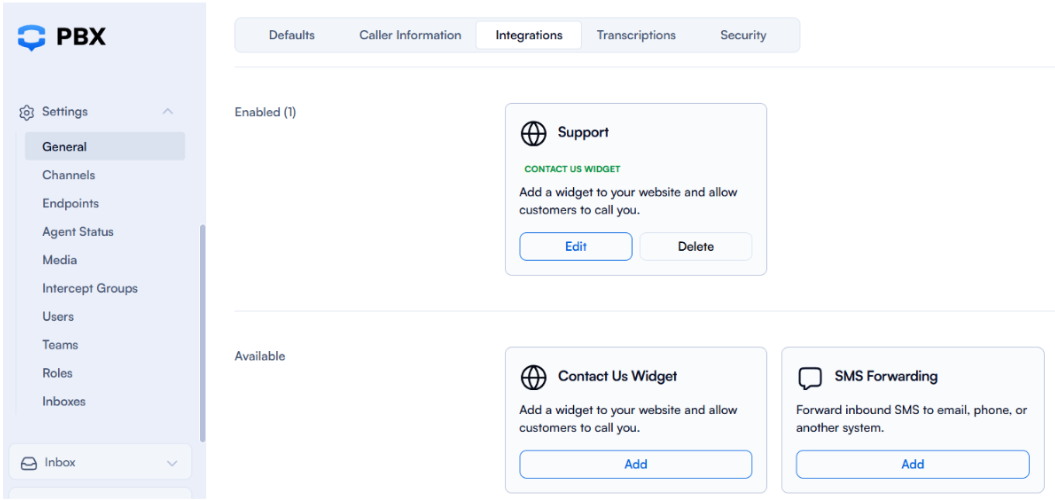
- Go to Settings → General.
- Open the Integrations tab.
- Click Add SMS Forwarding.
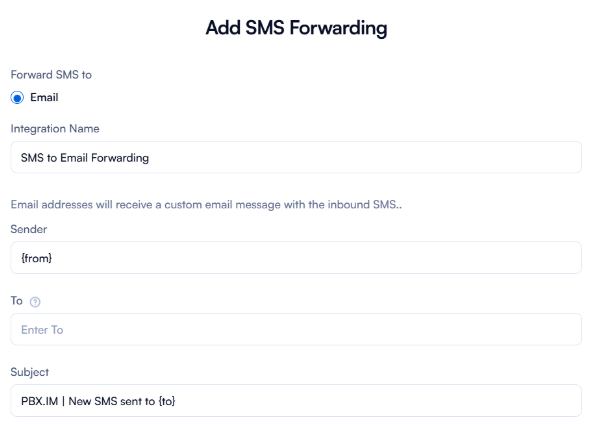
Fill in the following configuration fields:
| Field | Description |
|---|---|
| Integration Name | A label to identify the forwarding rule. Useful for managing multiple SMS→Email routes. |
| Sender | Default: {from} — displays the sender’s phone number. (Subject to configuration changes.) |
| To | Destination email address where SMS messages will be forwarded. |
| Subject | Subject line for the forwarded email. |
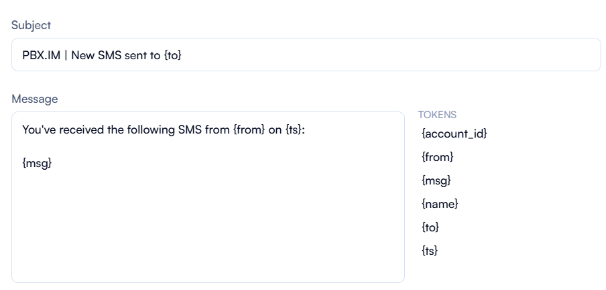
| Message | Body of the email. Must include {msg} to display the SMS content. |
| Field | Purpose |
|---|---|
| {account_id} | PBX.IM account ID receiving the SMS. |
| {from} | Sender’s phone number. |
| {msg} | Content of the SMS message. |
| {name} | Account or company name in PBX.IM. |
| {to} | Number that received the SMS. |
| {ts} | Timestamp (date and time) when the SMS was received. |
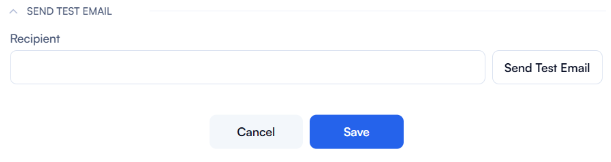
You can validate the email format using the Send Test Email option. Once the configuration is verified, click Save.
Step 2: Assign SMS Routing to a Phone Number
If the image shown is wide, such as a table or a whole screen, then the text is placed on top and the image below. Like this.

Step 2: Assign SMS Routing to a Phone Number
- Go to Call Routing → Phone Numbers.
- Select the phone number that should forward SMS messages.
- Click Edit Phone Number.
- Open the SMS tab. If the tab is missing, the number does not support SMS.
- Enable SMS Routing.
- Under Inbound Routing, set Destination to Email.
- Choose the SMS → Email integration created in Step 1.
- Click Save.
All SMS messages sent to this number will now be automatically forwarded to the specified email address.
3. Verifying SMS Capability
For Existing Numbers
- Go to Phone Numbers → Edit Phone Number.
- If the SMS tab is visible, the number supports SMS.
- If the tab is missing, SMS functionality is unavailable for that number.
4. Example Email Template
Subject: New SMS from {from}
Body:
Message received on {ts}
From: {from}
To: {to}
Content:
{msg}
5. SMS to Email Common Use Cases
- Forwarding support-related SMS messages directly to helpdesk email queues.
- Logging customer messages into CRM or ticketing systems via email ingestion.
- Notifying sales or field agents via email when an SMS inquiry is received.
6. Troubleshooting
| Issue | Possible Cause | Resolution |
|---|---|---|
| SMS not forwarded | Number doesn’t support inbound SMS | Verify SMS support in the Phone Numbers section. |
| Email not received | Incorrect destination address or token syntax | Check integration settings and ensure {msg} token is included. |
| Duplicate or missing emails | Multiple active forwarding rules | Review and consolidate duplicate rules under Integrations. |
FAQ
How do I know if a number supports SMS before purchasing?
When browsing available numbers, check the SMS column. If it's ticked, the number supports SMS.
How do I check if an existing number supports SMS?
Go to Phone Numbers → Edit Phone Number. If the SMS tab is visible, the number supports SMS. If it's not there, SMS is not available for that number.
Can I forward SMS messages to multiple email addresses?
Not currently. Each integration supports a single destination email address.
Will replies from email go back as SMS?
No. The feature only supports one-way forwarding (SMS → Email).
Is there a delay between SMS receipt and email delivery?
Delivery is near-instant. In most cases, the forwarded email arrives within 3–5 seconds.
Are forwarded emails logged in PBX.IM?
Yes. All SMS activity is recorded under the associated number's message history.