Conference Room
Overview:
The conference room functionality in PBX.IM allows multiple users to join a single audio or video call, effectively creating a virtual meeting space.
Table of Contents
Introduction to Conference Room
Use the Conference Room feature to join virtual meetings from anywhere in the world. You can also record these meetings, enabling anyone who couldn't attend to watch the replay later.
Access the Conference Room menu:
- Log into PBX.IM Dashboard
- Go to ''Call Routing''
- Select ''Conference rooms'' from the drop down menu

Set up a Conference Room
Click on ''Add conference room''

Add Conference Room
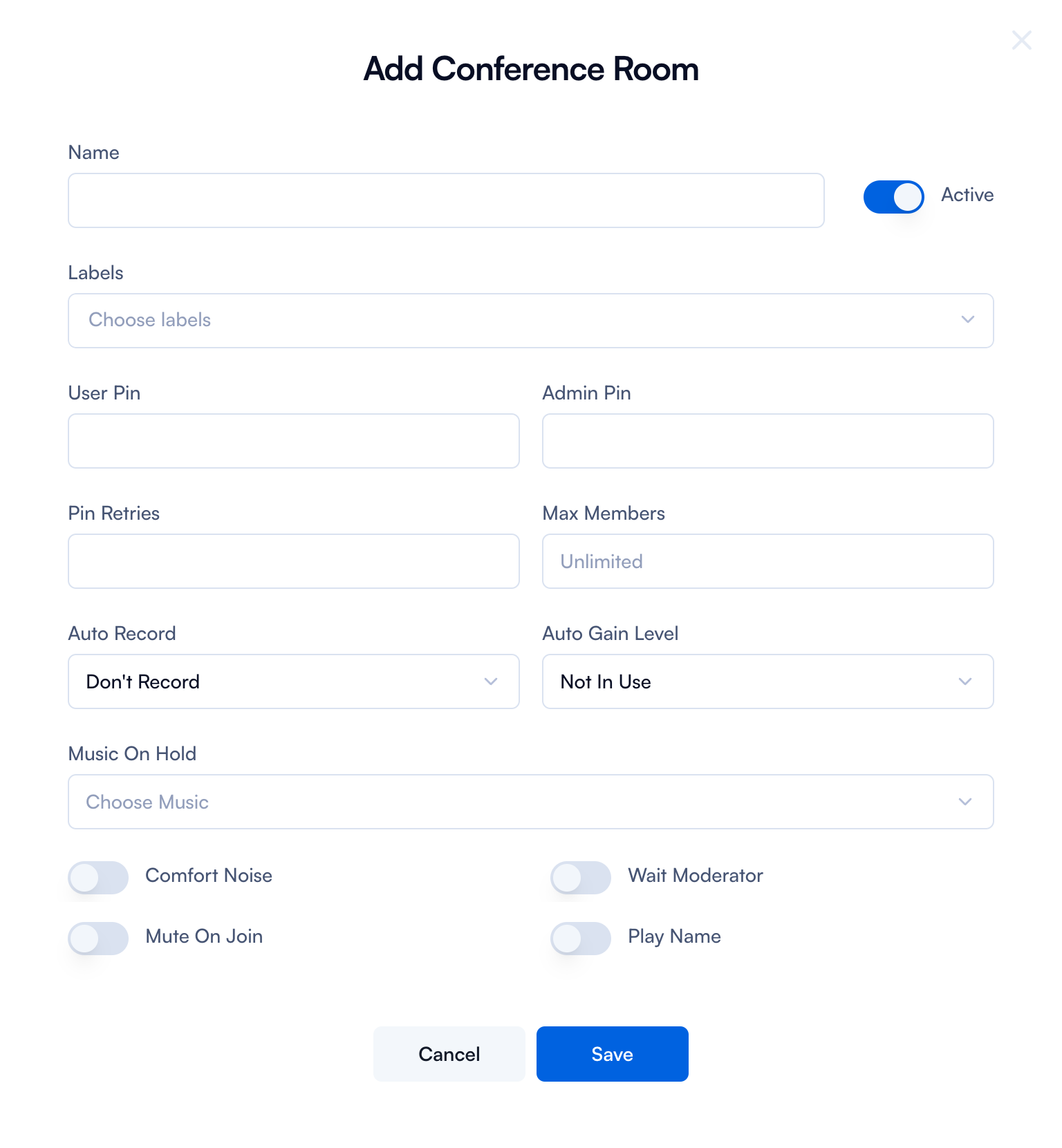
Complete the form by following the next steps:
| Field | Purpose | How to use it |
|---|---|---|
| Name | This field is where you enter the name of the conference room. | Type in the name of the conference room and press ENTER. Use the toggle option to make the Conference room active or inactive. |
| Labels | Here, you can add labels or tags to help categorize or organize conference rooms, making them easier to search or group with similar rooms. | Type the name of the label and press ENTER. You can add multiple labels per conference room. |
| User Pin | This is a personal identification number that participants need to enter to join the conference. It adds a layer of security, ensuring only invited members can enter. | Type in your PIN number and press ENTER. The Pin should have minimum 3 numbers. Be aware that User Pin should be a number, you can't add letter or special characters. |
| Admin Pin | This pin is for administrators or hosts of the conference. | Similar as user pin you have to type in the pin numbers and press ENTER. You can add between 1 and 999 attempts. |
| Max Members | This sets the limit on the number of participants that can join the conference. It can be set to "Unlimited" or a specific number. | Type in the numbers and press ENTER. You can add between 1 and 999 members. |
| Auto Record | This option allows the conference to be automatically recorded. | You can select between 3 options: Don't record (the conference call is not recorded at all), 1 or more participants (recording starts as soon as at least one participant joins), or 2 or more participants (recording starts once at least two participants have joined). |
| Auto-Gain level | This feature automatically adjusts the microphone volume levels to ensure that all participants are heard clearly without having to manually adjust their settings. | You can choose between four levels: Not in use (disables automatic adjustments), Low (minimal volume adjustment), Medium (moderate adjustment, works well in most scenarios), or High (maximum adjustment, ideal for noisy environments). |
| Music On Hold | This setting allows you to choose music that will play for participants who are on hold or waiting for the conference to start. | From the dropdown menu you can select the music that you want. If you want to add a different one you have to go to Settings - Media - Add Media first. |
| Meeting enhancement | To make the meeting experience better there are 4 options displayed under the Music on hold field: Comfort Noise, Mute On Join, Wait moderator, Play Name. | From the toggle make active or inactive each option. Comfort Noise: generates background noise during silences. Mute On Join: automatically mutes participants when they join. Wait Moderator: requires participants to wait until a moderator joins. Play Name: plays the name of each participant as they join. |
When you want to edit or delete any entry all you have to do is go to the main Conference rooms page and click on the ✏️ Edit or Delete button.
Common Conference Room use cases
Let's look into some common use cases that better showcase how you can use the Conference Rooms in your business:
Project Team Meetings:
- Scenario: A team is working on a collaborative project and needs to regularly discuss progress, brainstorm ideas, and make decisions together.
- Solution: A dedicated conference room is created for the team, where they can schedule recurring meetings. Features like meeting recording can be enabled to enhance communication and keep records of discussions.
Remote Training Sessions:
- Scenario: Your company wants to train employees who are spread across different locations without incurring travel costs and logistics.
- Solution: A virtual conference room is set up specifically for training sessions, complete with presentation tools and the ability to record sessions for later review or for those who cannot attend live.
Client Presentations:
- Scenario: You need to present project updates or pitches to clients who are not in the same geographic location, requiring a professional and reliable communication platform.
- Solution: Utilize a conference room with high-quality video and audio capabilities to conduct client presentations. Options like 'Play Name' and 'Wait Moderator' help manage the session smoothly and professionally.
Crisis Management:
- Scenario: An urgent issue arises that requires immediate attention and coordination among multiple departments or stakeholders.
- Solution: An emergency conference room is activated where key personnel can quickly join, regardless of their current location. Features like 'Mute On Join' and 'Auto Record' help maintain order and ensure all discussions are documented for subsequent review and action planning.