Cloud PBX Voicemail: Custom Greetings & After-Hours Setup
Table of Contents
Introduction to Voicemail
Use PBX.IM's Voice Mail functionality for the moments when you or your agents aren't available to answer the call. It's like you are having an answering machine, but with enhanced capabilities.
Access the Voicemail menu:
- Log into PBX.IM Dashboard
- Go to "Call Routing"
- Select "Voicemail" from the drop down menu
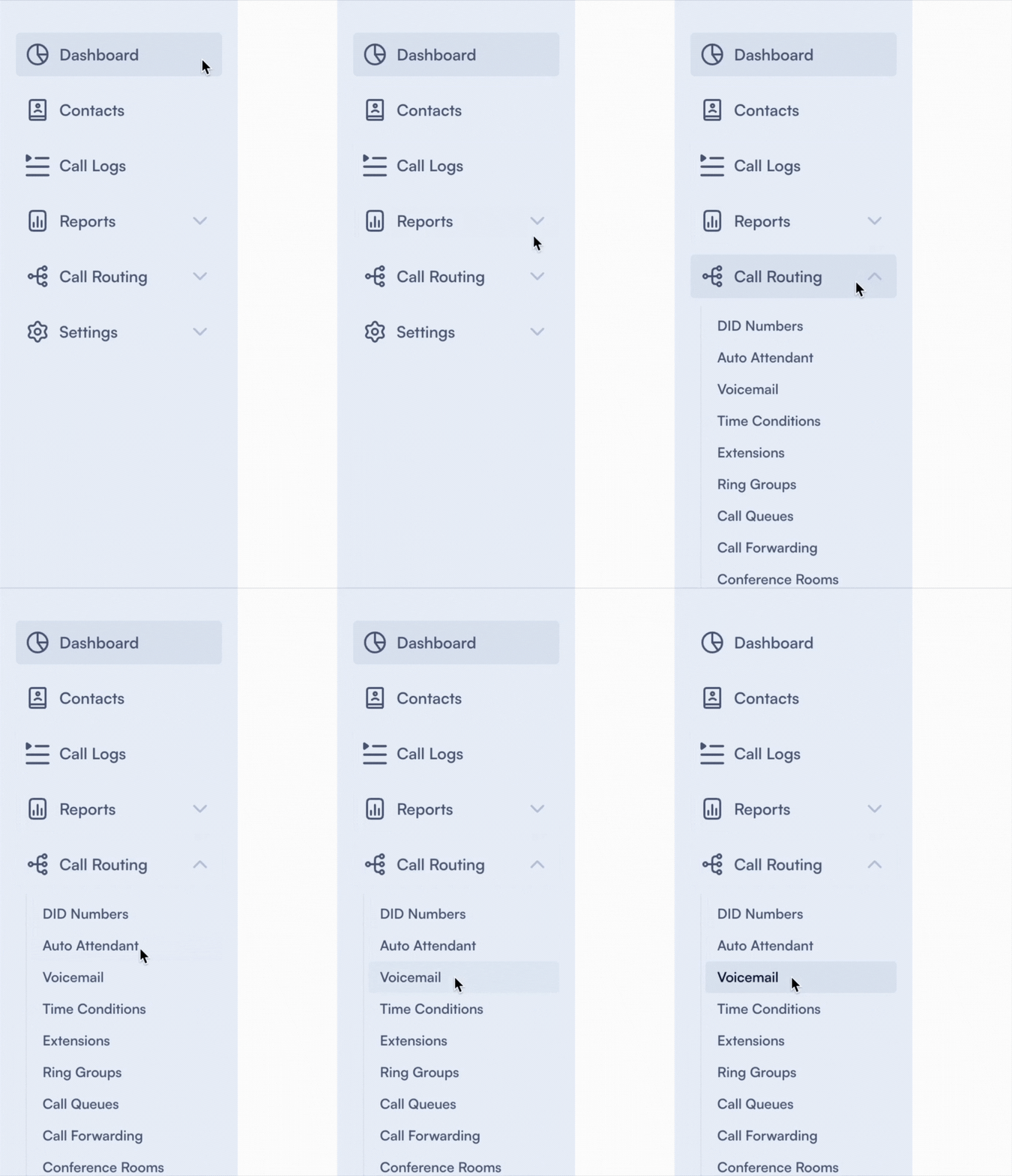
Set up a Voicemail
Click on ''Add Voicemail''

Complete the form by following the next steps:
| Type | Purpose | How to use |
|---|---|---|
| Name | This field is where you can enter a name to identify the voicemail box. | Write the name and press Enter. |
| Greetings | This section allows you to customize the greeting that callers will hear when they reach your voicemail. | From the dropdown menu, select the greeting you want to add. In the dropdown, you will see a list of all the media files you added under the Media tab in the Menu. |
| Skip greetings | Checking this box allows incoming calls to bypass the greeting and go directly to the beep, prompting the caller to leave a message. | If you want to make this option available check the box. If not, leave the box unchecked. |
| Skip Voicemail Operation Instructions | By selecting this option, the system skips any automated instructions that might normally be played after the greeting, such as "Please leave a message after the beep." | If you want to make this option available check the box. If not, leave the box unchecked. |
| Access code | This is where you enter a PIN (Personal Identification Number) which is required to access the voicemail box remotely. This adds a layer of security, ensuring that only individuals with the PIN can listen to the voicemails. | Type in the PIN you want to add for each Voicemail. For security reasons, we recommend you to avoid using 1234 or 0000 type of codes. |
| Email notification | When this box is checked, the system will send an email notification every time a new voicemail is received. | Check the box if you want to have this option available and you will be able to customize the email settings as follows: Email — Enter the email address where you want voicemail notifications to be sent. Attach Voicemail Recording — When checked, the actual voicemail recording will be attached to the notification email. Email Subject — Customize the subject line using tokens like {vm_box_name} and {datetime}. Insert Token — Use the dropdown to insert predefined tokens into your email subject or body. If you don't want this option available leave the box unchecked. |
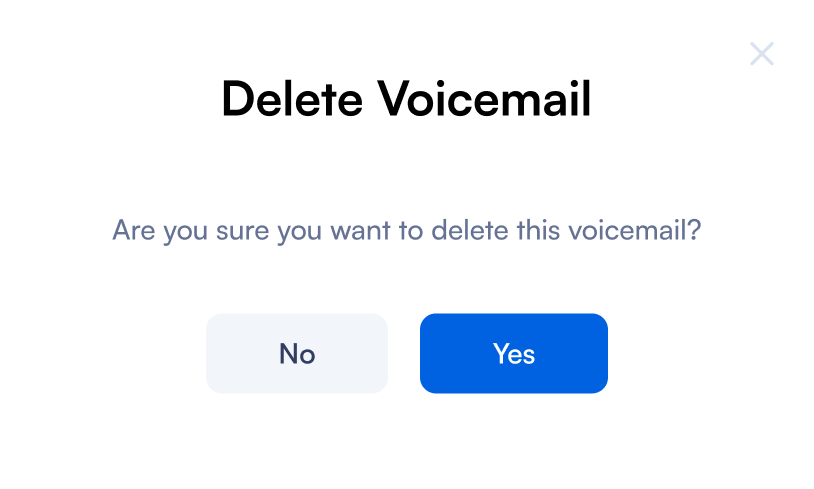
If you want to edit or delete any voicemail, go to the main Voicemail page and click on the ✏️ Edit or Delete option.
Common Use Cases
1. Customer Support After Hours
- Scenario: Customers often try to contact support after regular business hours, leading to missed opportunities for resolving issues promptly.
- Solution: Set up voicemail to automatically activate outside of business hours, ensuring customers can leave messages that are addressed the next business day.
2. Executive Availability
- Scenario: You might be a high-level executive that have back-to-back meetings, making it challenging for you to respond to calls in real-time.
- Solution: Voicemail for executives can be customized with a personal greeting and urgent call filtering. Urgent messages can be transcribed and sent via email ensuring that critical information is promptly relayed, allowing for timely responses.
3. Medical Professional Availability
- Scenario: Patients often need to contact their healthcare providers after clinic hours for emergencies or urgent queries.
- Solution: Healthcare providers can use voicemail services that include options for patients to mark messages as urgent.