How to Register Into PBX.IM Using WhatsApp

How to Register Into PBX.IM Using WhatsApp Blog Post

Signing up for PBX.IM has never been easier. With WhatsApp OTP (One-Time Password) registration, you can verify your identity in seconds, removing the SMS delays, or misplaced codes. Just open WhatsApp, receive your code, and you're in.

Traditional phone-based registration can be frustrating because SMS messages are sometimes delayed, blocked by carriers, or delivered to the wrong number. WhatsApp registration solves all of that. The OTP arrives instantly inside an app you already use every day, on the number you've already verified.

In this guide, you'll learn how to register for PBX.IM using WhatsApp, step by step. Whether you're setting up a new account or exploring your sign-up options, this walkthrough covers everything you need.

stats-background
Ready to get started?

Make the most of WhatsApp OTP Capabilities

What is WhatsApp Registration for PBX.IM?

WhatsApp OTP registration is a verification method that sends a one-time password directly to your WhatsApp account instead of an SMS text. When you choose this option during sign-up, PBX.IM sends a short numeric code to your WhatsApp number. You simply enter that code on the registration page to confirm your identity and complete your account setup.

This method is faster, more reliable, and more secure than traditional SMS, especially useful if you're in a region where SMS delivery can be inconsistent. Because WhatsApp messages are delivered over the internet, your OTP arrives even in areas with poor cellular signal.

Step-by-Step WhatsApp Registration Process

Follow the steps below to create your PBX.IM account using WhatsApp. The entire process takes under 3 minutes.

Step 1: Go to the PBX.IM Sign-Up Page

Open your browser and navigate to PBX.IM Click the "Try Now" on the homepage to begin the registration process, or head directly to the registration page

Step 2: Enter Your Details

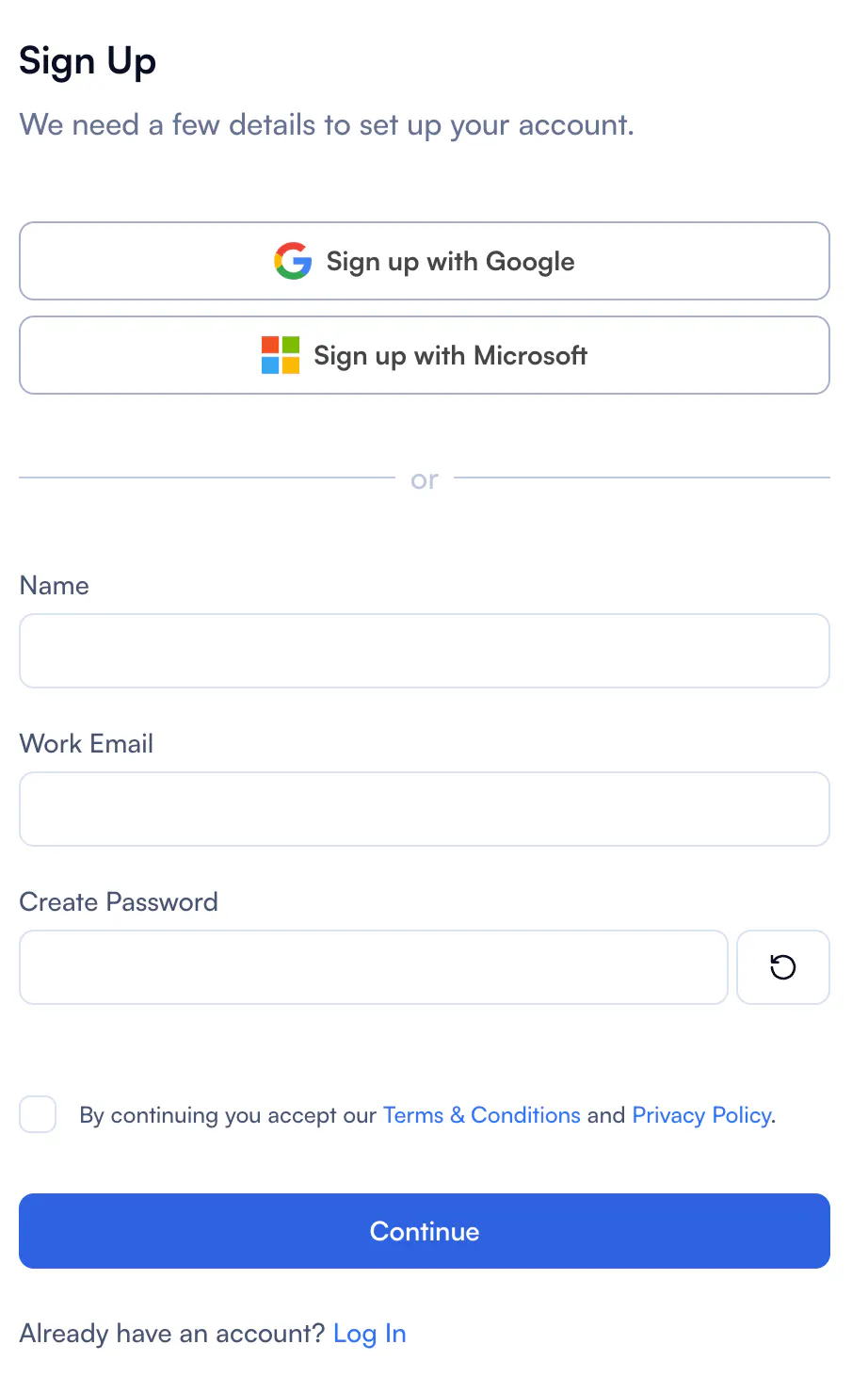
You can sign up using your Microsoft or Google Accounts, or fill in the required registration fields: your name, work email address, phone number, and password. Make sure the phone number you enter is the same one linked to your active WhatsApp account. This is where your OTP will be delivered.
Step 3: Select Your OTP Delivery Method

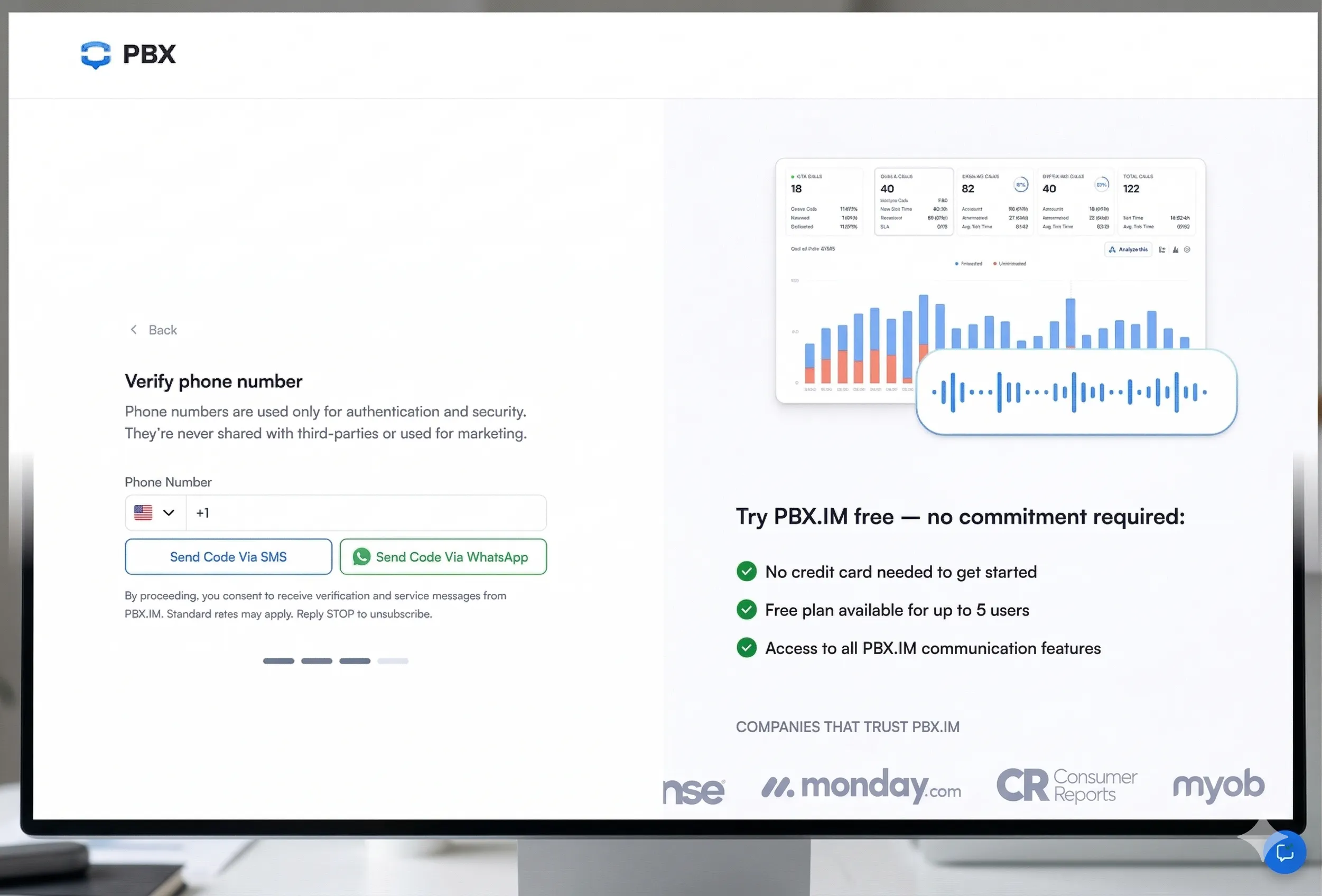
On the verification screen, you'll be shown OTP delivery options: WhatsApp and SMS. WhatsApp is presented as the primary option, but for some users, SMS is also available as a secondary option.

  • Click "Send OTP via WhatsApp" to receive your code through WhatsApp.
  • Click "Send OTP via SMS" to receive your code via text message instead.
Step 4: Check WhatsApp for Your OTP

Open WhatsApp on your phone. Within a few seconds, you should receive a message from PBX.IM containing a 4–6 digit verification code. The message will arrive from the official PBX.IM WhatsApp number.

Step 5: Enter the Code and Complete Registration

Return to the PBX.IM registration page and type the OTP code you received into the verification field. Click "Verify" or "Confirm" to submit. Your account will be activated immediately, and you'll be redirected to your new PBX.IM dashboard.

Screenshot: OTP entry field on PBX.IM registration page with Verify button

Didn't get the code? See the Troubleshooting section below for help.

WhatsApp OTP Troubleshooting

Most users receive their OTP instantly. But if something goes wrong, here are the most common issues and how to fix them quickly.

Not Receiving OTP on WhatsApp?

If your WhatsApp code hasn't arrived after a few seconds, try the following:

  1. Make sure WhatsApp is installed, open, and connected to the internet on your phone.
  2. Double-check that the phone number you entered includes the correct country code (e.g., +1 for US, +44 for UK).
  3. Check your WhatsApp "Requests" or spam folder, as OTPs occasionally land there from new contacts.
  4. Use the "Resend Code" button to request a new OTP. Note the following retry limits apply:
  5. 1st retry: available after 60 seconds
  6. 2nd retry: available after 60 seconds
  7. 3rd retry: available after 5 minutes
  8. 4th retry: available after 10 minutes
  9. 5th retry: available after 60 minutes
  10. Ensure your WhatsApp account is active and not restricted. If your number was recently changed, it may need re-verification within WhatsApp first.

Phone Number Already Registered?

If you see a message saying your phone number is already associated with a PBX.IM account:

  • Your number is linked to an existing PBX.IM account. You don't need to register again. Try logging in instead by clicking "Sign In" on the PBX.IM homepage and entering your credentials.
  • If you've forgotten your password, use the "Forgot Password" link to reset it.
  • If you believe this is an error or you've lost access to the account, contact PBX.IM support for assistance.

Still stuck? Contact our support team

WhatsApp OTP Registration FAQ

Do I need WhatsApp Business to receive OPT?

No. A regular personal WhatsApp account works perfectly for registration. You do not need WhatsApp Business to receive the OTP from PBX.IM. As long as your WhatsApp is active and connected to the phone number you're registering with, you're good to go.

Can I use phone (SMS) signup instead?

Yes, for some countries. WhatsApp is the primary verification option for all users, while SMS is offered as a secondary option for some local phone numbers only. For all other countries, WhatsApp is the only available method. Both options are equally valid. WhatsApp is simply faster and more reliable in most cases.

Is WhatsApp registration secure?

Absolutely. WhatsApp OTP registration is a standard two-factor authentication method. The one-time code is generated fresh for each session, expires after a short window, and can only be used once. WhatsApp messages are end-to-end encrypted, which means no one else can intercept your code in transit. PBX.IM never receives access to your WhatsApp account, only the confirmation that the code was valid.

What happens after registration?

Once your OTP is verified, your PBX.IM account is instantly activated. You'll be taken directly to your dashboard where you can:

  • Set up your virtual phone number
  • Configure call routing, SMS, and WhatsApp messaging
  • Invite team members to your workspace
  • Connect your CRM or helpdesk tools

You'll also receive a welcome email with next steps and links to getting-started guides. PBX.IM adds $5 in calling credit to new accounts automatically, so you can start testing your setup right away.

Share:
Share via /images/facebook.svg
Share via /images/linkedin.svg
Share via /images/twitter.svg
Share via /images/mail.svg
Andreea Tilibașa
AuthorAndreea Tilibașa

Andreea Tilibașa specializes in content marketing and strategy for B2B tech brands. At PBX.IM, she writes about cloud telephony so that when you Google "what is SIP trunking" at 2am, you actually get a clear answer. From UCaaS and contact center tools to global voice connectivity, she covers the topics IT teams and business leaders actually care about.